
Appearance
Exercise 4 - Activate and Test Your Agent
After completing this exercise, you'll be able to:
- Set up routing and volume that are safe for testing.
- Activate the agent and generate your first prospects on demand.
- Review, approve, and reject recommendations as a rep would.
Step 1: Set Up Assignment for Testing
On Assign Prospects, you decide how many prospects the agent sends each week and who gets them. The screen has three sections. For the workshop, use the test settings below so that every prospect comes to you.
Distribute Prospects
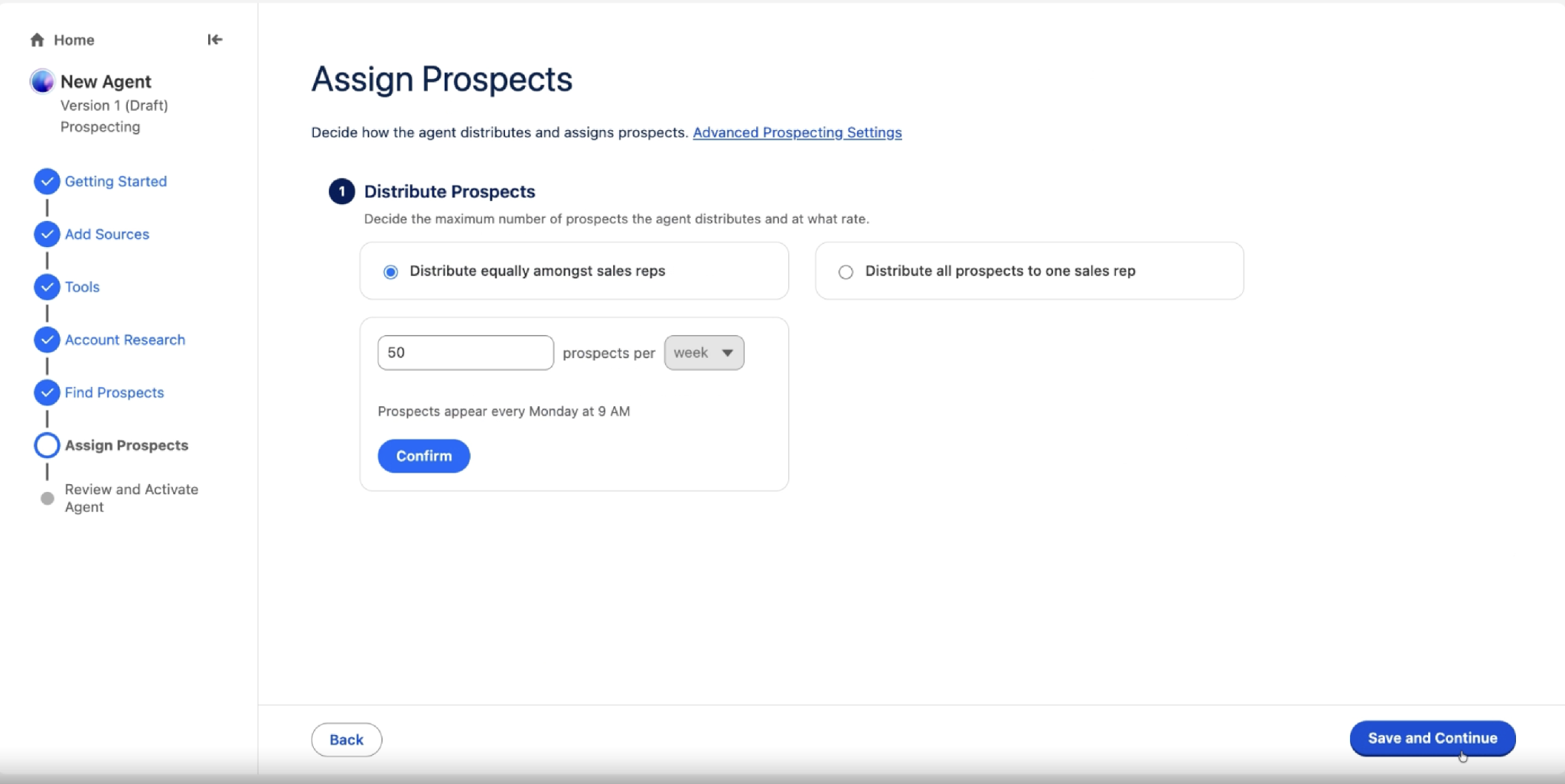
You can choose from two distribution options:
Distribute equally amongst sales reps: spreads prospects evenly across your reps. Best when a team works the same account list.
Distribute all prospects to one sales rep: sends every prospect to one person. Best for pilots and testing.
Select Distribute all prospects to one sales rep, and choose your builder user.
Set the weekly volume to 10. The default is 50.
Select Confirm.
TIP: Why start at 10 per week? It saves credits while you test, and it gives reps time to work each recommendation instead of getting more than they can handle. The right number depends on your business: a focused enterprise ICP might need only a handful per rep each week, while a high-volume SMB team can handle more. Increase it once you trust the quality.
TIP: Reps need access. Anyone who receives prospects needs the Sales Agentic Prospecting permission set (Exercise 1, Step 3). Without it, they can't see or act on their recommendations.
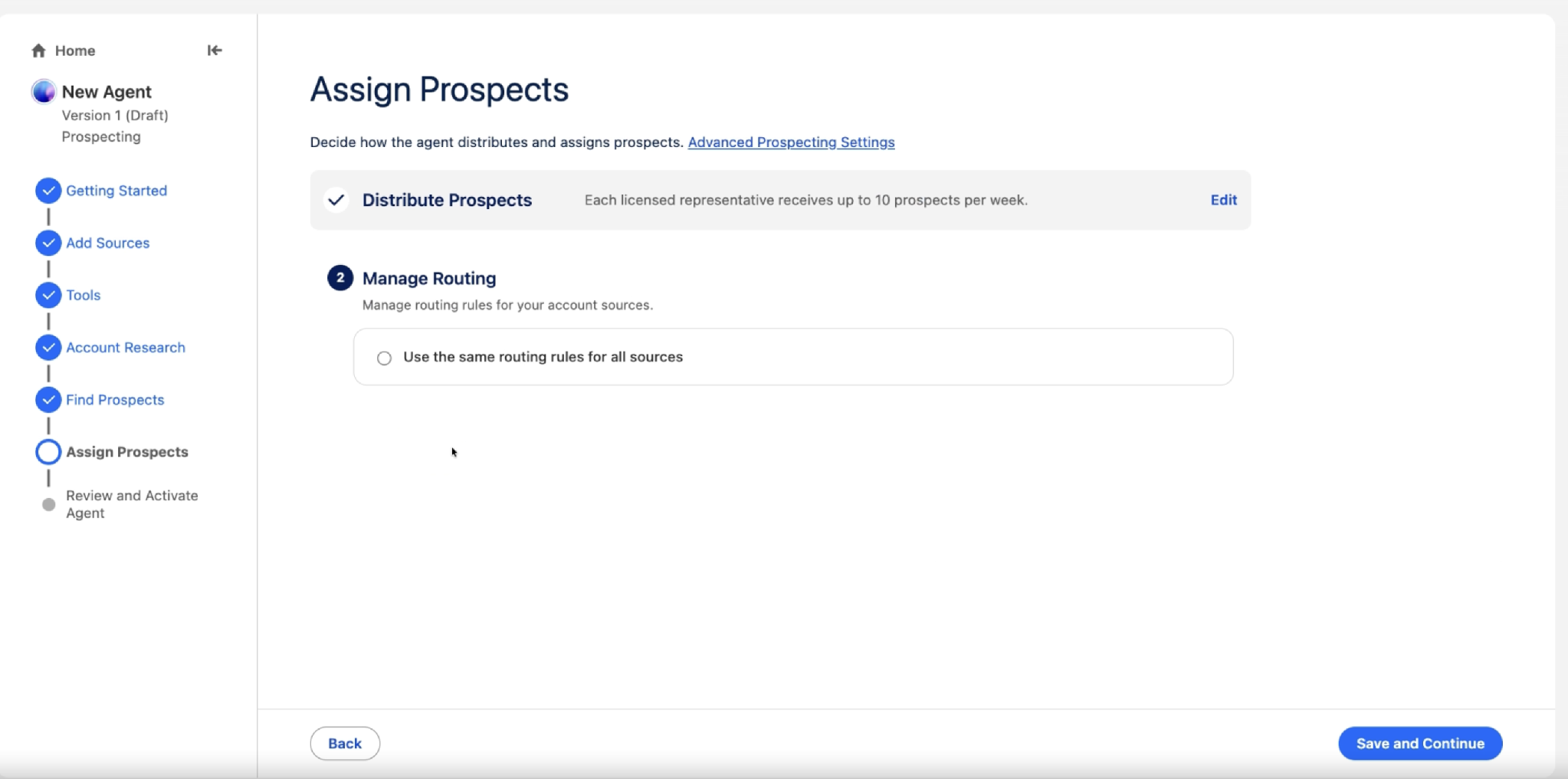
Manage Routing
- Select Use the same routing rules for all sources. This applies one set of routing rules to every report source you add.
Assign Ownership
This section decides who owns each prospect record that the agent creates.
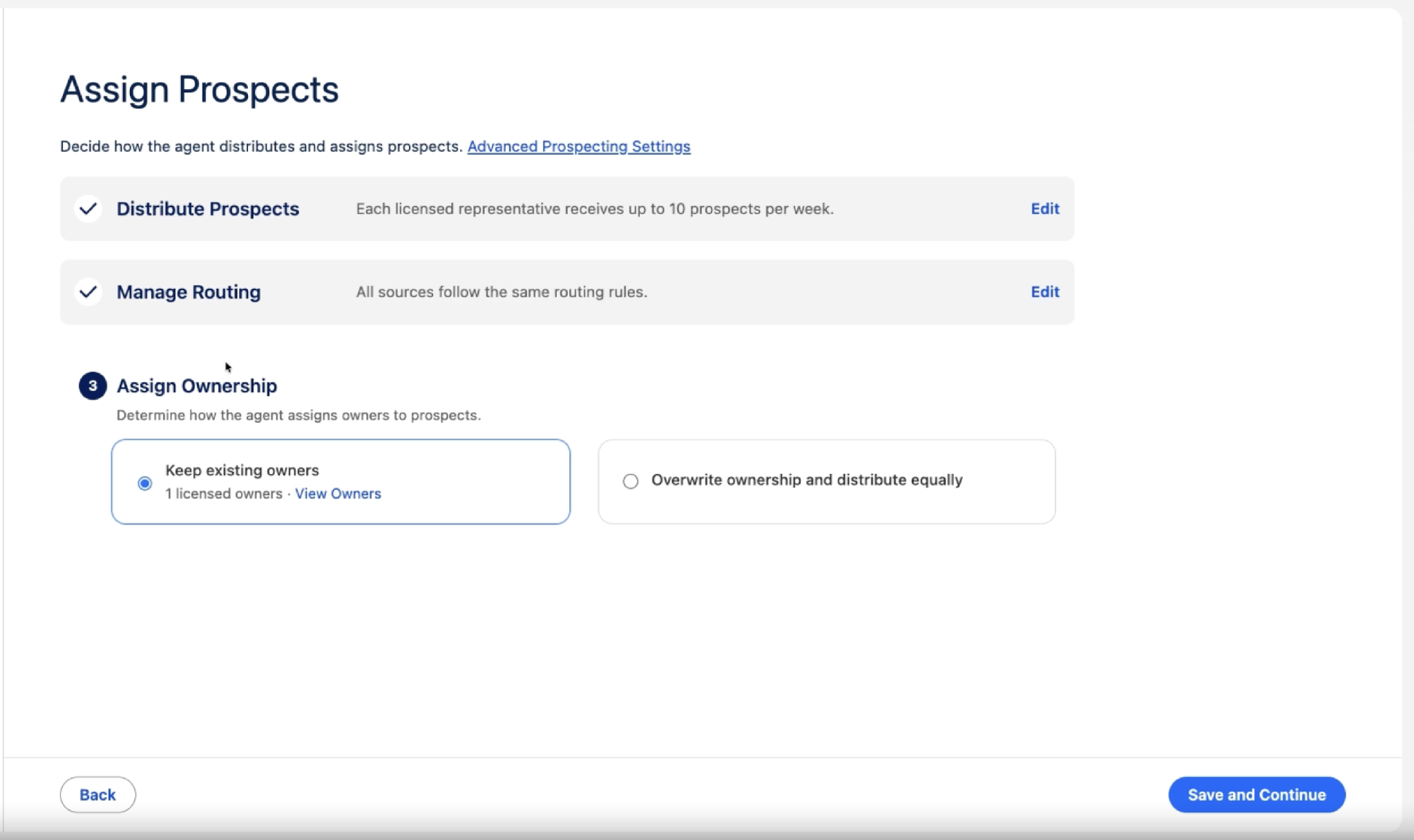
Keep existing owners: the prospect keeps the owner already set in Salesforce, such as the account owner. Best when you have established territories.
Overwrite ownership and distribute equally: the agent reassigns ownership evenly across licensed reps. Useful for pilots and teams without strict territories.
For the workshop, select Overwrite ownership and distribute equally.
Select Save and Continue.
TIP: Why test routing matters. With Keep existing owners, prospects go to each account's owner. If your builder doesn't own any accounts on the report, the agent runs but you see nothing. Routing everything to the builder avoids this during testing. Before go-live, switch back to your real routing (account owner, or even distribution across reps).
Step 2: Review and Activate
Review and Activate Agent summarizes everything you configured: sources, tools, research criteria, and assignment rules.
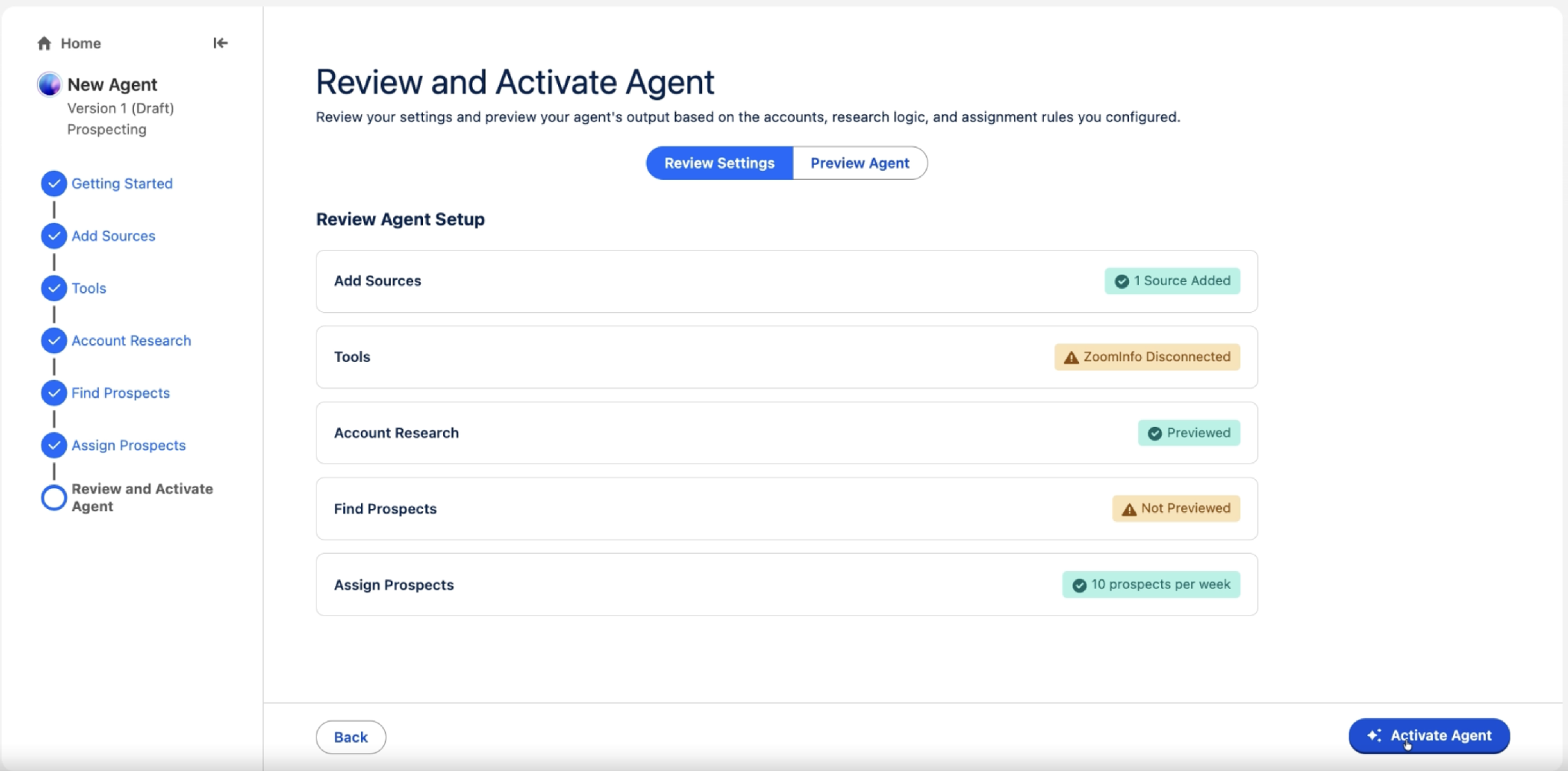
- Check each step's status. Green means it's ready. Yellow means it was skipped or isn't finished. A yellow status doesn't stop you from activating.
- When you're ready, select Activate Agent.
TIP: Common yellow warnings. Tools: ZoomInfo Disconnected means the agent runs but can't find net-new contacts. Find Prospects: Not Previewed means you haven't tested your contact criteria yet. These are the two most common reasons for disappointing results, so go back and fix them if you can.
After you activate it, the agent runs every week. It starts on Thursday, and prospects appear in the Prospects tab by Monday at 9 AM.
Step 3: Generate Your First Prospects Now
You don't have to wait for the weekly run. Use either option.
Option 1 — Run the whole agent
- Go to Prospecting → View Agents, select your agent, and select Run Agent.
Option 2 — Run it on one account (requires ZoomInfo)
- Open an Account record, and open the actions menu (the down arrow in the upper right).
- Select Generate Prospects From Account.
- For Agent Name, choose the agent you created.
- For Assign Prospects to, choose yourself.
- For Maximum Number of Prospects, enter 1.
- Select Generate.
TIP: Don't see Generate Prospects From Account? Add the action to the Account page layout or Lightning record page. If you're offered an upgrade to Dynamic Actions, take it. Where the action appears depends on your page layout, so also check the action bar. If the action shows an error, use Run Agent instead.
TIP: Manual runs follow your weekly limit. If a rep's unreviewed prospects already reach the weekly limit you set, a manual run doesn't add more. Approve or reject what's waiting, then run it again.
TIP: Records are created before approval. When the agent finds a new person through ZoomInfo, it creates the Lead or Contact right away, before a rep approves it. It doesn't create duplicates of Contacts that already match. In a sandbox this is harmless. For production, plan for it.
Step 4: Review Prospects as a Rep
- Open the Prospects tab and look at the Ready for approval section.
- Open a few recommendations and read the agent's reasoning.
- Approve the good ones and Reject the others.
Rejected prospects aren't recommended again right away, and rejections help shape future recommendations. You can't yet set your own rule, such as "don't recommend this person for 60 days."
Your agent is active and has generated prospects. You've approved or rejected at least a few of them in the Prospects tab.
This completes Exercise 4.
Review Your Key Accomplishments
You turned on Prospecting in your own sandbox, connected a real account report, and turned your ICP into instructions the agent can follow. You tested them in Preview, activated the agent, and reviewed its first recommendations as a rep would.