
Appearance
Exercise 2 - Build Engagement Agent
Step 0 : Create a Lead Record
If you are using a Dev Sandbox, you may need to create a lead record so that we can test the Engagement Agent in preview. Just create one lead and you can use your first, last name, and email. That’s all that’s needed. If you have a Full Copy or Partial Sandbox, and have some lead records to test (no actual emails will be sent during this workshop), feel free to skip this step.
Step 1: Build your Agent with Guided Configuration
Time to build and configure your agent! Some Agentforce Agents such as the Engagement agent, have their very own proprietary guided configuration - making it simplified and easier to build the agent. We will walk you through how this works.
Click the Gear Icon at the top right, and select Setup.
in the Quick Find box, search for Agentforce for sales, and click into Engagement.
Scroll down to Engagement , expand, scroll more to the bottom and select Go on Build and Manage Agent.
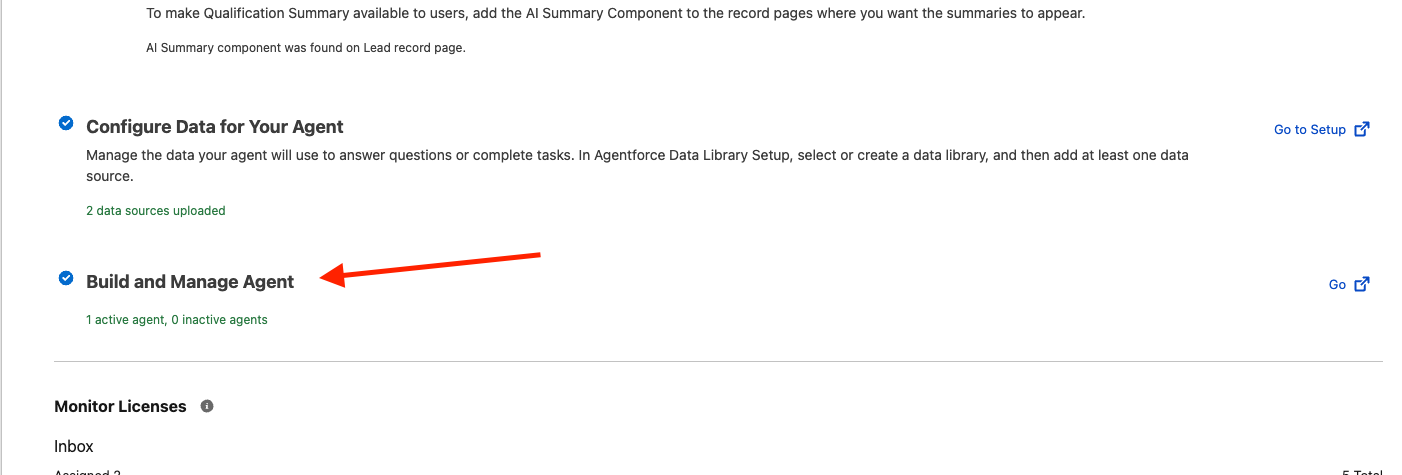
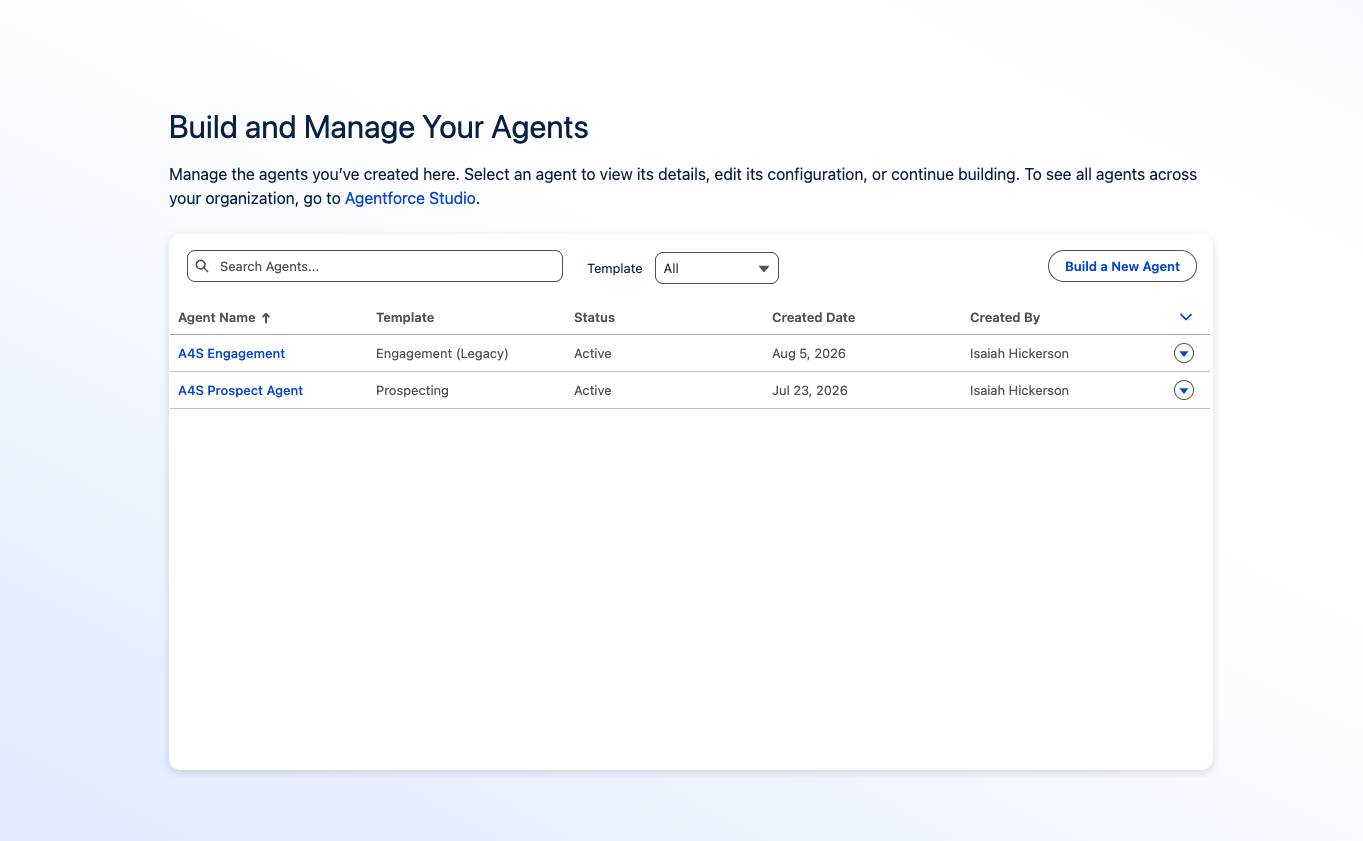
- You will be brought to a screen where you manage your agents. Click Build a New Agent
- NOTE : If it is your first time building an agent, you may have an additional screen before this, just select Get Started.
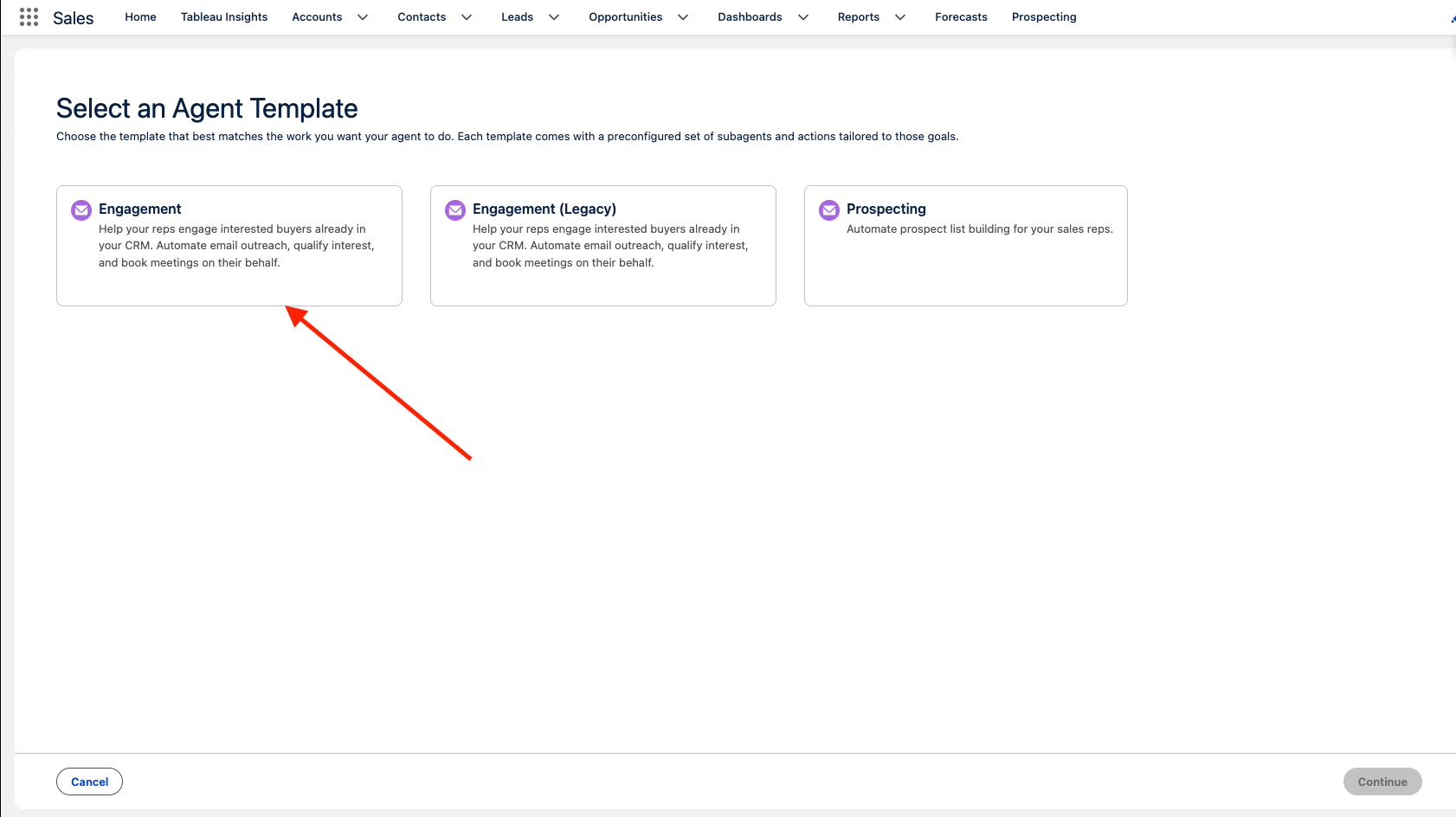
- You may or may not see multiple Agent templates, select Engagement and then click Continue on the bottom right (do not select the option with Legacy)
For User Record, select the Agent record you created earlier in the exercise, and name your Agent, input your Company Name, as well as a brief Company Description so the Agent understands the company it works for.
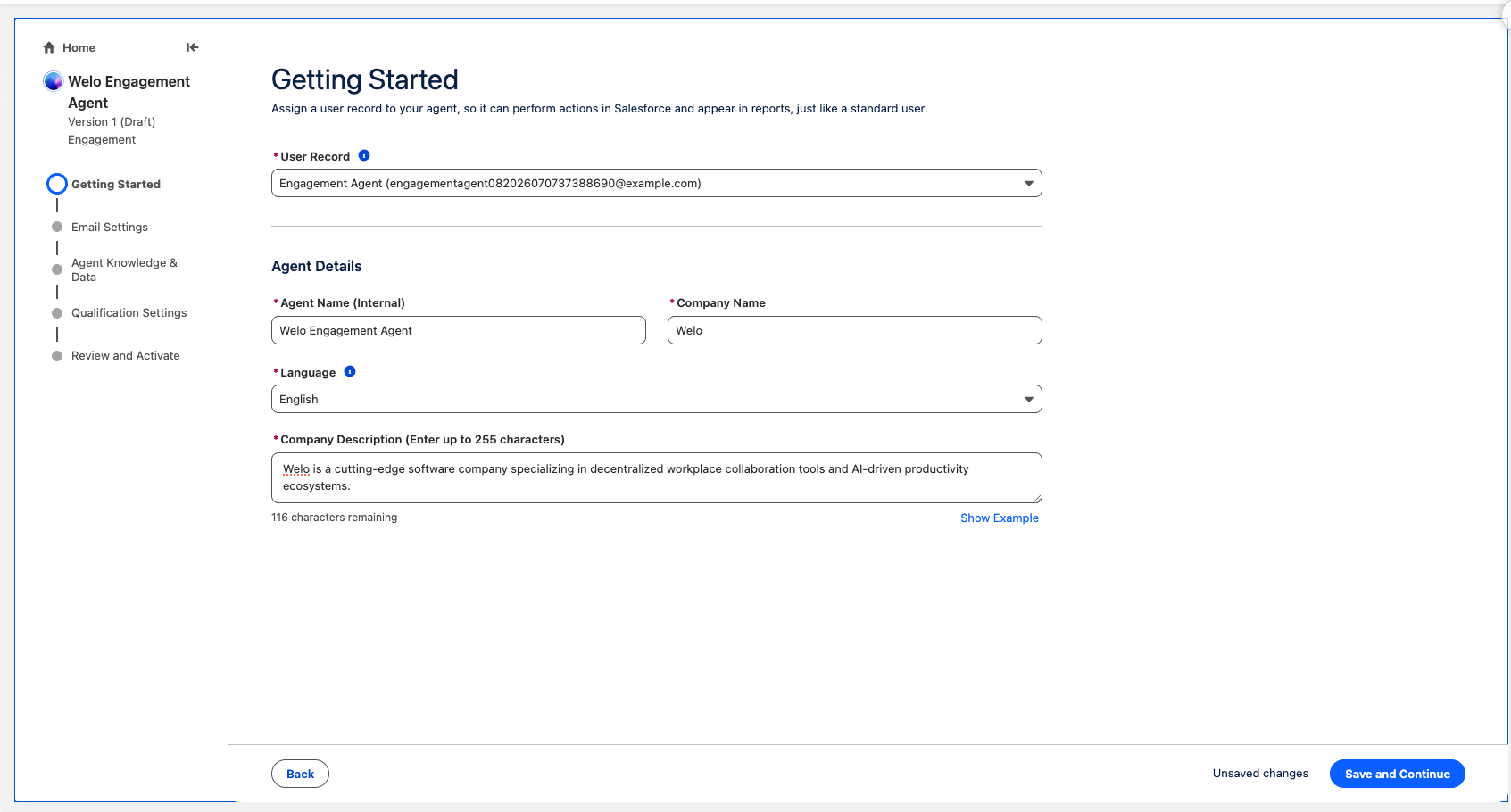
Once done, click Save and Continue on the bottom right
Next, in Email Settings we will be instructing the Agent on how to send its initial email outreach to each prospect. Enter a Primary Value Proposition and Key Achievements in the respective fields that align to your company.
NOTE: Click Show Example next to each field if you need examples and guidance on how to structure these inputs.
- Here’s examples :
 Primary Value Proposition :

Empower teams to move from static task management to dynamic, automated work execution—driving up to 2,000+ hours saved annually through real-time enterprise visibility, seamless cross-functional alignment, and no-code automated workflows.


Key Achievements :

Operational Efficiency: Delivers a 25% average gain in team productivity and eliminates manual status reporting by consolidating portfolio data into real-time dashboards.
Enterprise Security & Scale: Trusted by 90% of the Fortune 100, offering enterprise-grade governance, SAML/SSO, and fine-grained access control.
Accelerated Time-to-Value: Speeds up project delivery timelines by 30% via automated review processes, integrated approval paths, and core integrations (Salesforce, Jira, Slack).
ROI Impact: Drives a 380% Forrester-verified ROI over three years, with payback realized in under 6 months.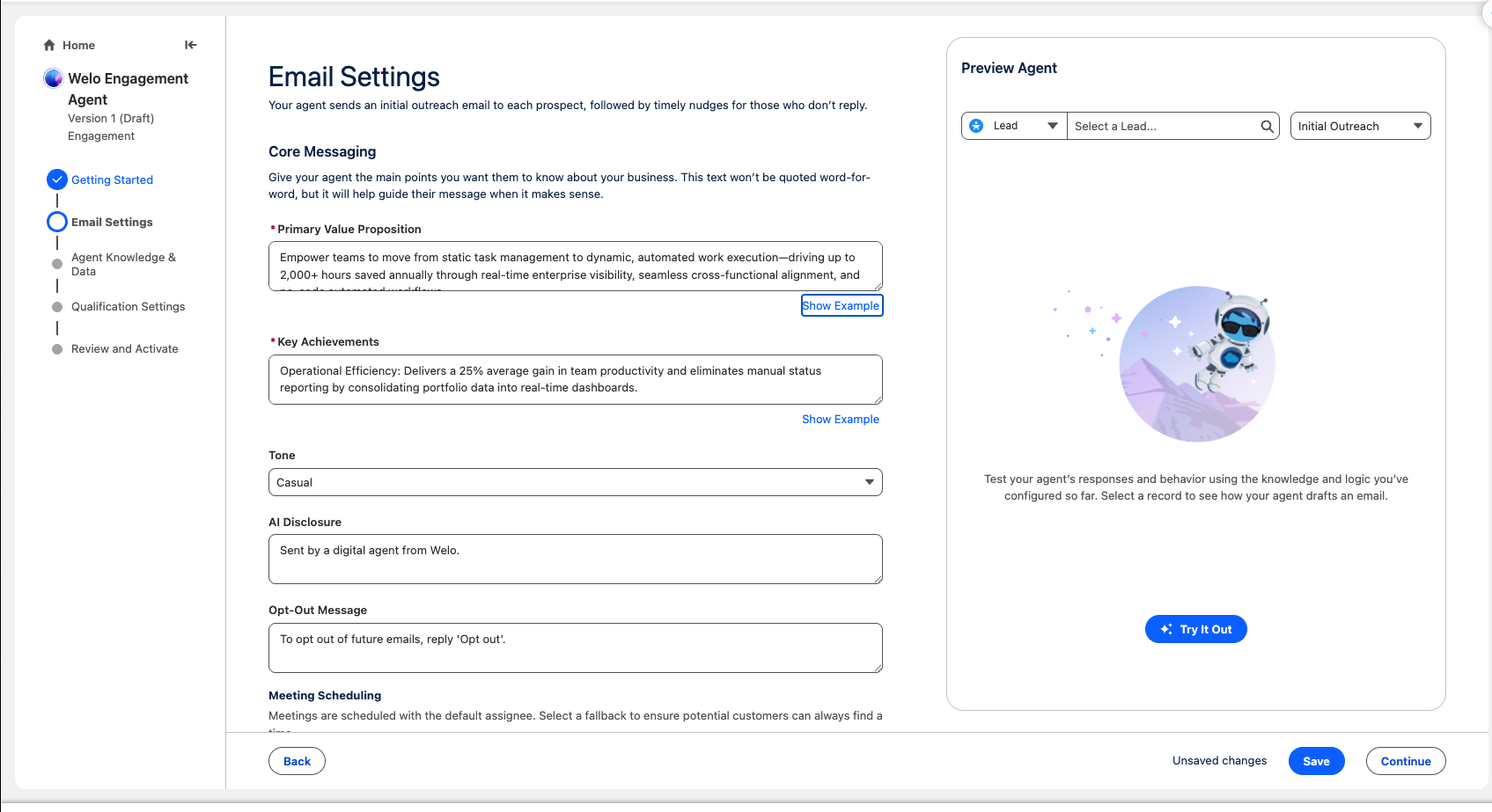
In the Tone dropbox, select Casual or any of the other options that fits best for the tonality you want out of your Engagement Agent
You can modify AI Disclosure if you have a preferred disclosing text you’d like to have at the bottom of each Email sent by the AI, or keep the default
You can modify Opt-Out Message if you have a preferred Opt out action text you’d like to have at the bottom of each Email sent by the AI, or keep the default.
At the bottom, you’ll see Meeting Scheduling, here you can select if you’d like the default Assignee to be the Record Owner or Group. Let’s keep it at default on Record Owner for the purposes of this exercise
For Fallback Meeting Assignee, select your user.
On the right side, you will see a Preview Agent panel. Here, you can test out your agent’s outputs before activating it into production, allowing you to make tweaks as desired. Test out your agent by typing and selecting a Lead name that is currently in your CRM in the Select a Lead… search field.
Click Try it Out , and watch it draft an initial email outreach tailored to your business context you input on the left such as the example screenshot below!
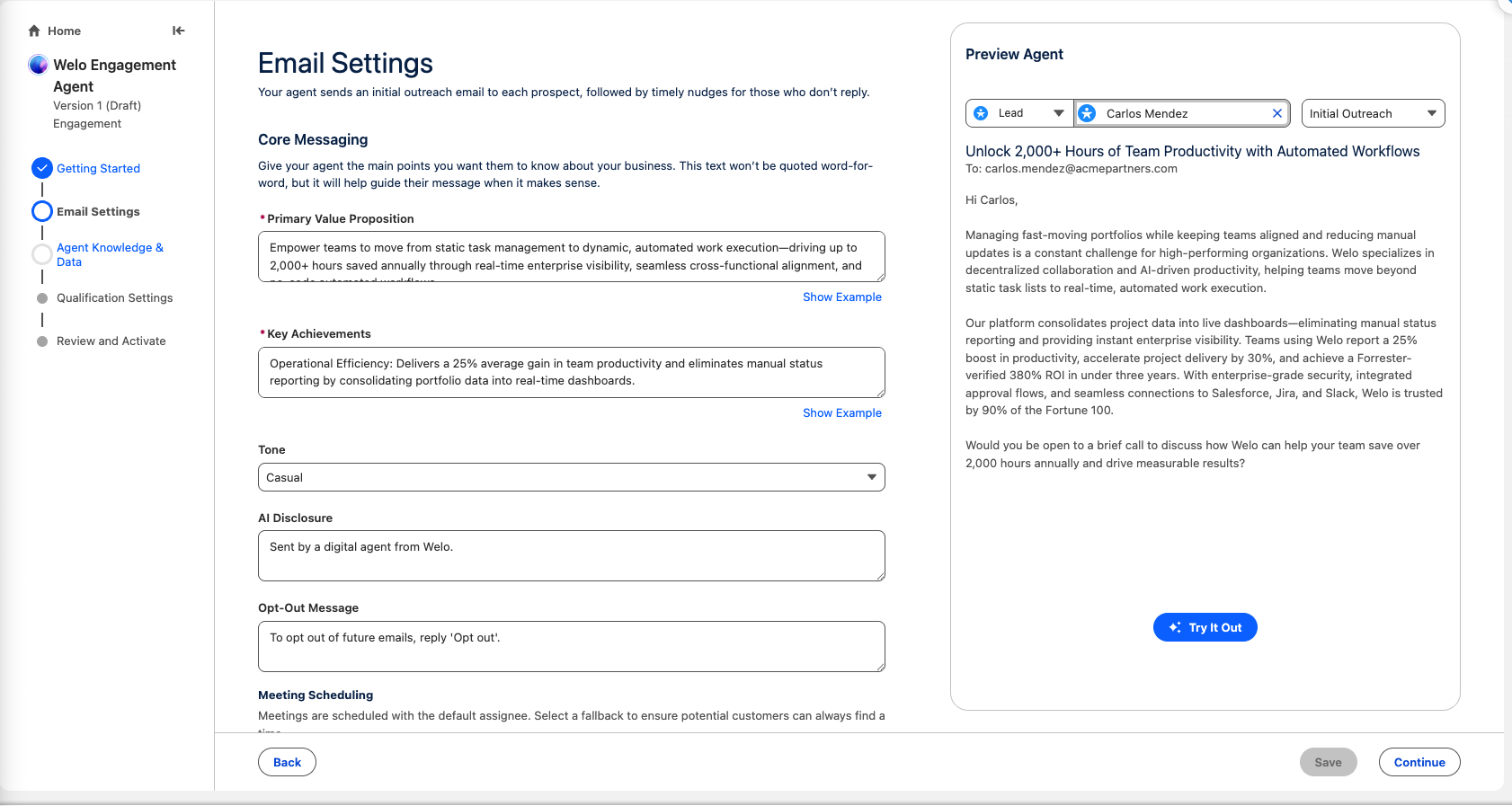
Once you get the desired preview outputs, let’s move on by selecting Continue on the bottom right
We now need to ground our Agent in the Agentforce Data Library we made earlier. To do so, click into the Select a data library field, and Select the Data Library you made. After, click Save on the bottom right.
Let’s test out the agent again in the Preview Agent on the right. Select a lead name, and on the picklist field, select Response Email.
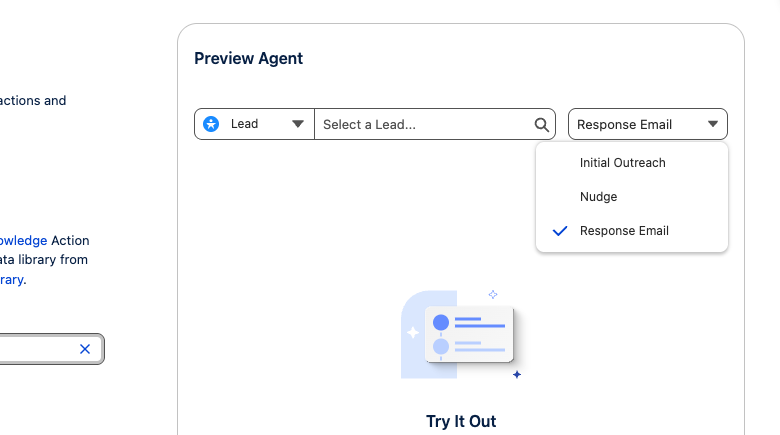
Test out the agent by typing in a sample customer message. This can be any question that your lead/prospect would ask in a reply to the Agent in Email, and where the answer is in your Content uploaded in the ADL. For example:
How does pricing work?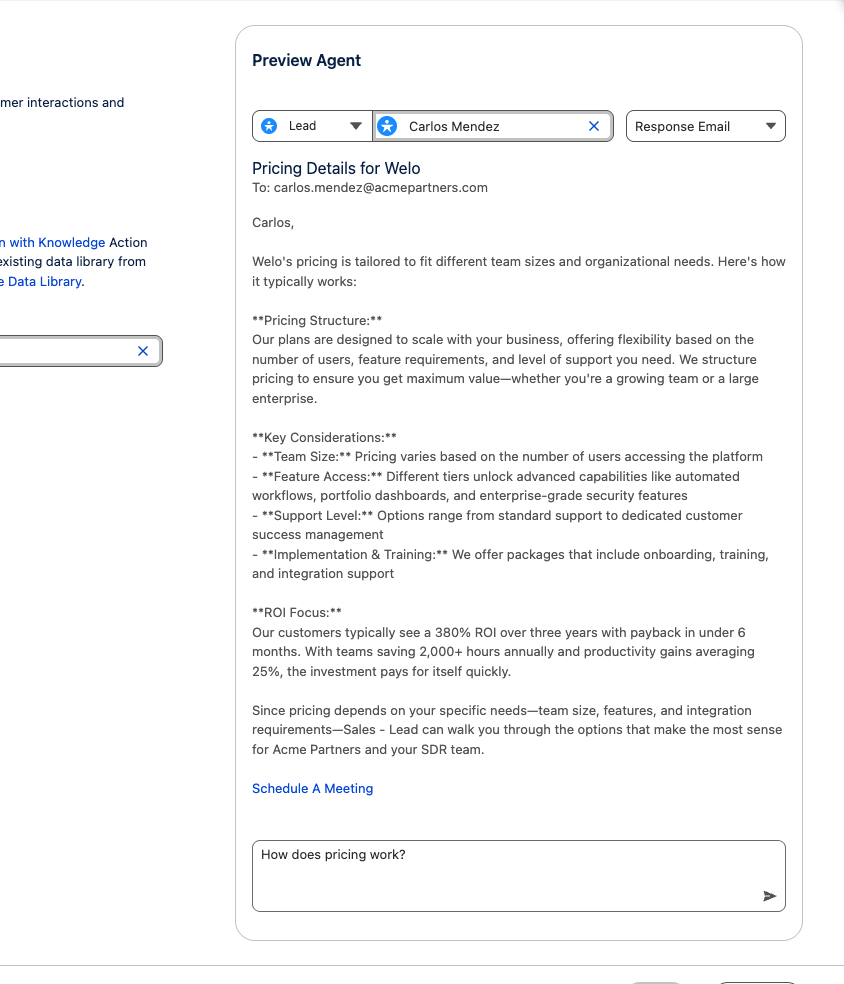
You should see your AI Agent generates a personalized response grounded in the company data you uploaded! There is also a CTA “Schedule A Meeting” button, that routes the lead to booking a meeting with a sales rep! Feel free to click that button to see what it looks like.
You can continue to test out more use cases if you’d like. If everything is working as expected, select Continue on the bottom right.
Qualification Settings allows you to Evaluate potential customers and their level of interest, so that your team can prioritize those with the most promising potential. This option we can skip for now, select Continue on the bottom right.
Now it’s time to Review and Activate. Select Activate Agent on the bottom right.
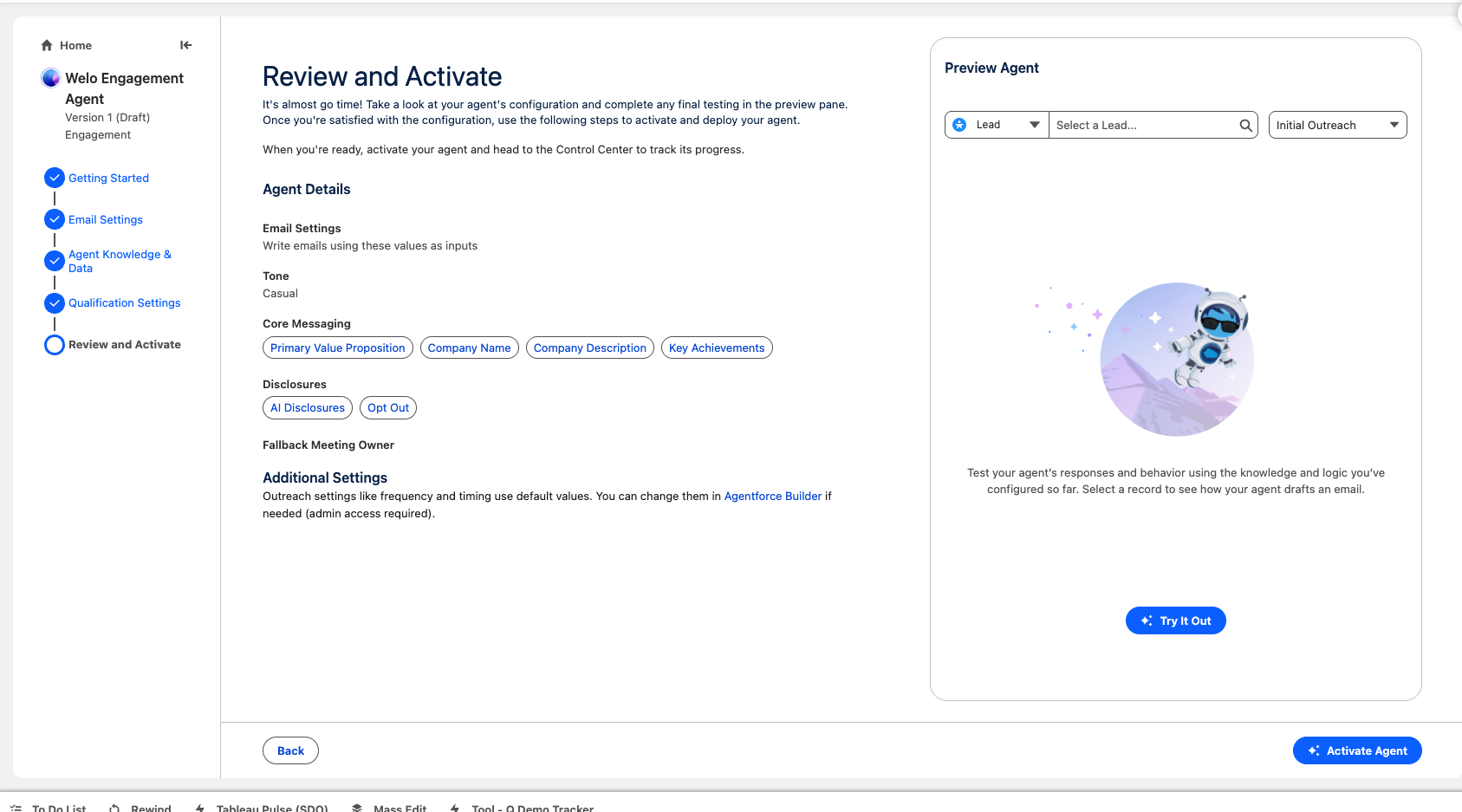
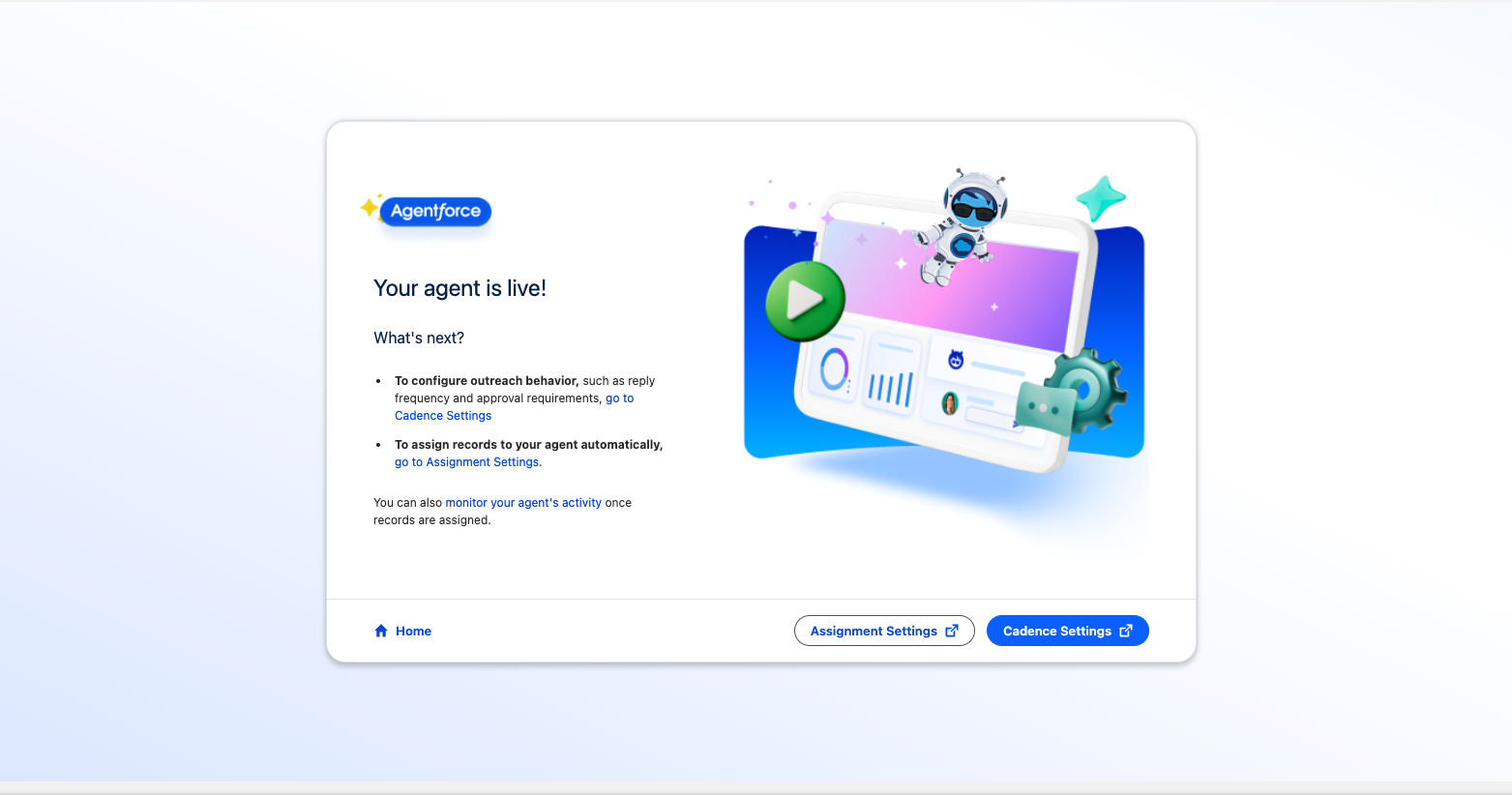
- You now have a live Engagement Agent! On the bottom right, you can manage assignments as well as Cadence settings.
- Assignment Settings allows you to create rules on how records get automatically assigned to your Engagement Agent.
- Cadence Settings allows you to configure the amount of attempts the Engagement agent will make before getting Engagement from the Prospect, and more.
- We won’t go through that today, but be sure to follow up with your account team if you’d like to learn more. Congratulations on building an Engagement Agent!