
Appearance
Exercise 3 - Teach the Agent Your ICP
After completing this exercise, you'll be able to:
- Turn your ICP into account and prospect criteria the agent can follow.
- Test your criteria with Preview before the agent runs on your whole list.
Step 1: Define Your Target Accounts (Account Research)
On Account Research, you define what a good target account looks like. The agent comes with example criteria. Replace them with your own, using your ICP answers from Exercise 0. Don't just accept the defaults: the more closely these criteria match your ICP, the better your recommendations are from day one.
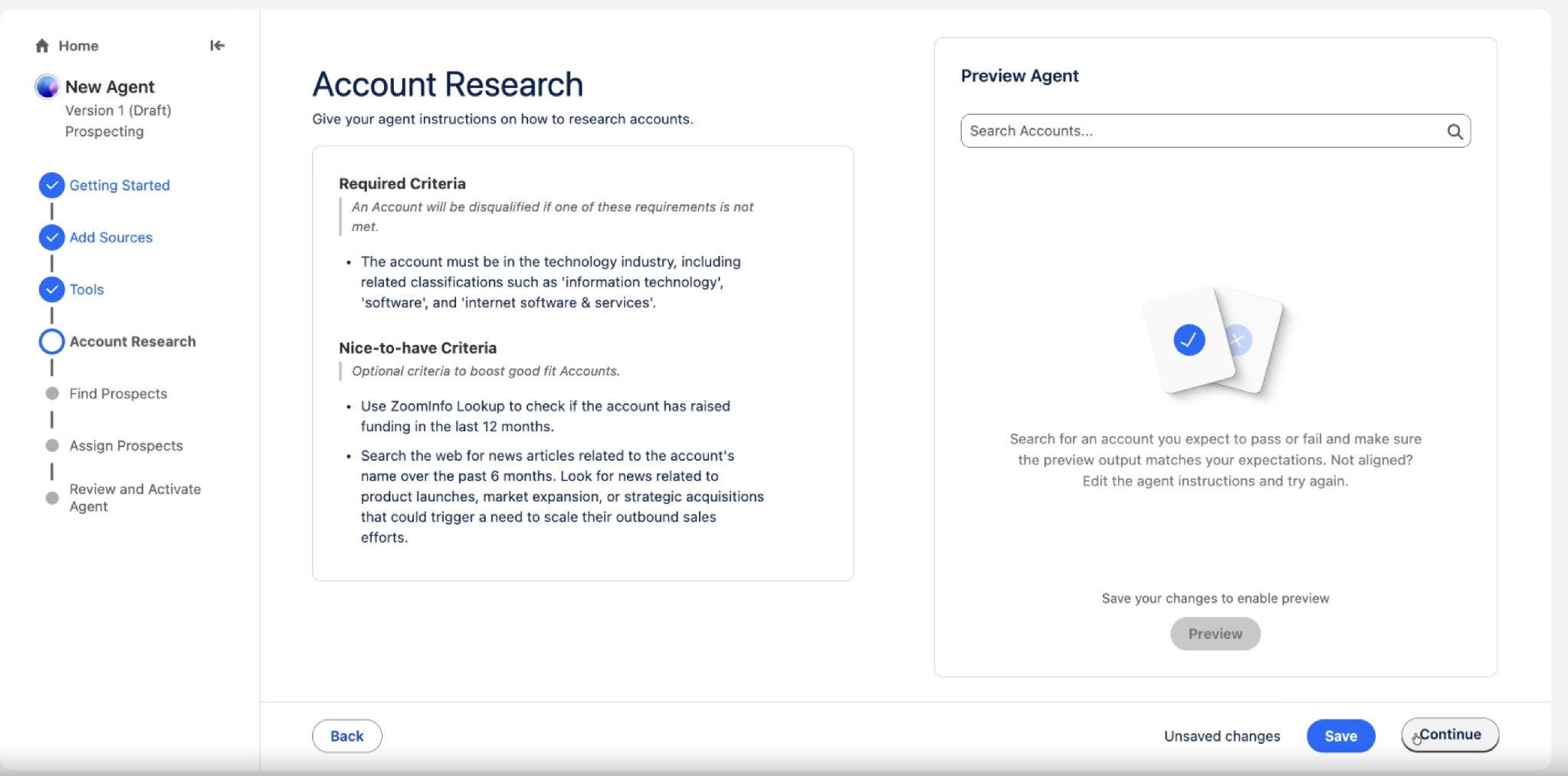
The left panel has two sections. Select any item to edit it, or add new criteria.
- Required Criteria: must be true, or the account is disqualified. Think industry, company size, and geography.
- Nice-to-have Criteria: these raise an account's rank but never disqualify it. Think recent activity, funding or news, product launches, and intent signals.
TIP: Remove the template's industry rule first. The template comes with a required rule that accounts must be in the technology industry. If your report isn't all tech companies, this rule quietly disqualifies them and your test returns nothing. Delete it before your first Preview, then add your own required criteria.
Write each criterion as a plain-language instruction. Use this pattern:
Where to look (field or source) → the rule (include, exclude, or rank) → what to do if data is missing → the reason the agent should give
Use Salesforce field names in plain text. Don't use brackets or variable syntax. Words like "must," "preferred," and "also consider" tell the agent how much weight to give each rule.
Example — Required Criteria (replace with your ICP):
Use Account.Industry. Include accounts where Industry is Technology, Software, or Telecommunications. If Industry is blank, use ZoomInfo's industry instead. If excluded, give the reason: "Industry is outside ICP."
Use Account.NumberOfEmployees. Include accounts with more than 500 employees. If NumberOfEmployees is blank, use ZoomInfo's company size and apply the same threshold. If excluded, give the reason: "Company size below ICP threshold."
Use Account.BillingCountry. Include only accounts in the United States. If excluded, give the reason: "Geography outside ICP."
Example — Nice-to-have Criteria:
Rank accounts higher when Account.LastActivityDate is within the last 90 days. The more recent the activity, the higher the rank. Do not disqualify accounts with older or blank activity dates.
Rank accounts higher in industries next to our ICP, such as FinTech or Cybersecurity, when Account.AnnualRevenue is greater than $100M.
TIP: Start small. Begin with 3–5 required criteria and 2–3 nice-to-haves. You can add more after Preview gives you results you trust. To speed this up, paste your ICP notes and the pattern above into an AI assistant, such as Slackbot, and ask it to draft required and nice-to-have criteria.
Step 2: Preview Your Account Criteria
Before you continue, use the Preview Agent panel on the right to test your criteria on real accounts from your org.
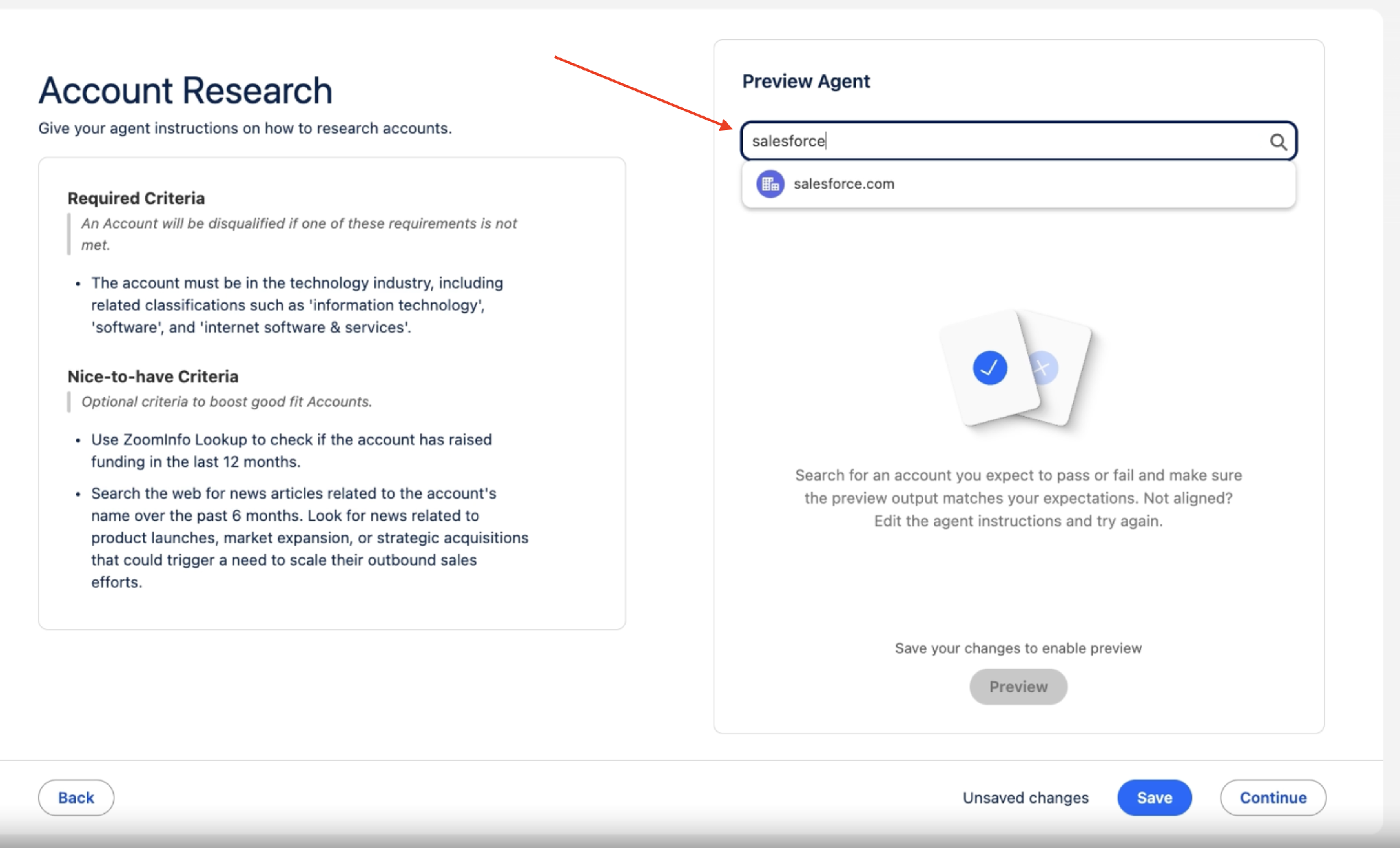
- Select Save to save your criteria.
- In Search Accounts, search for an account you expect to qualify, then select Preview.
- Review the result. Each criterion shows as met (✓) or not met (✗), along with the data source used (CRM record, ZoomInfo, or web search) and a Qualified or Disqualified result.
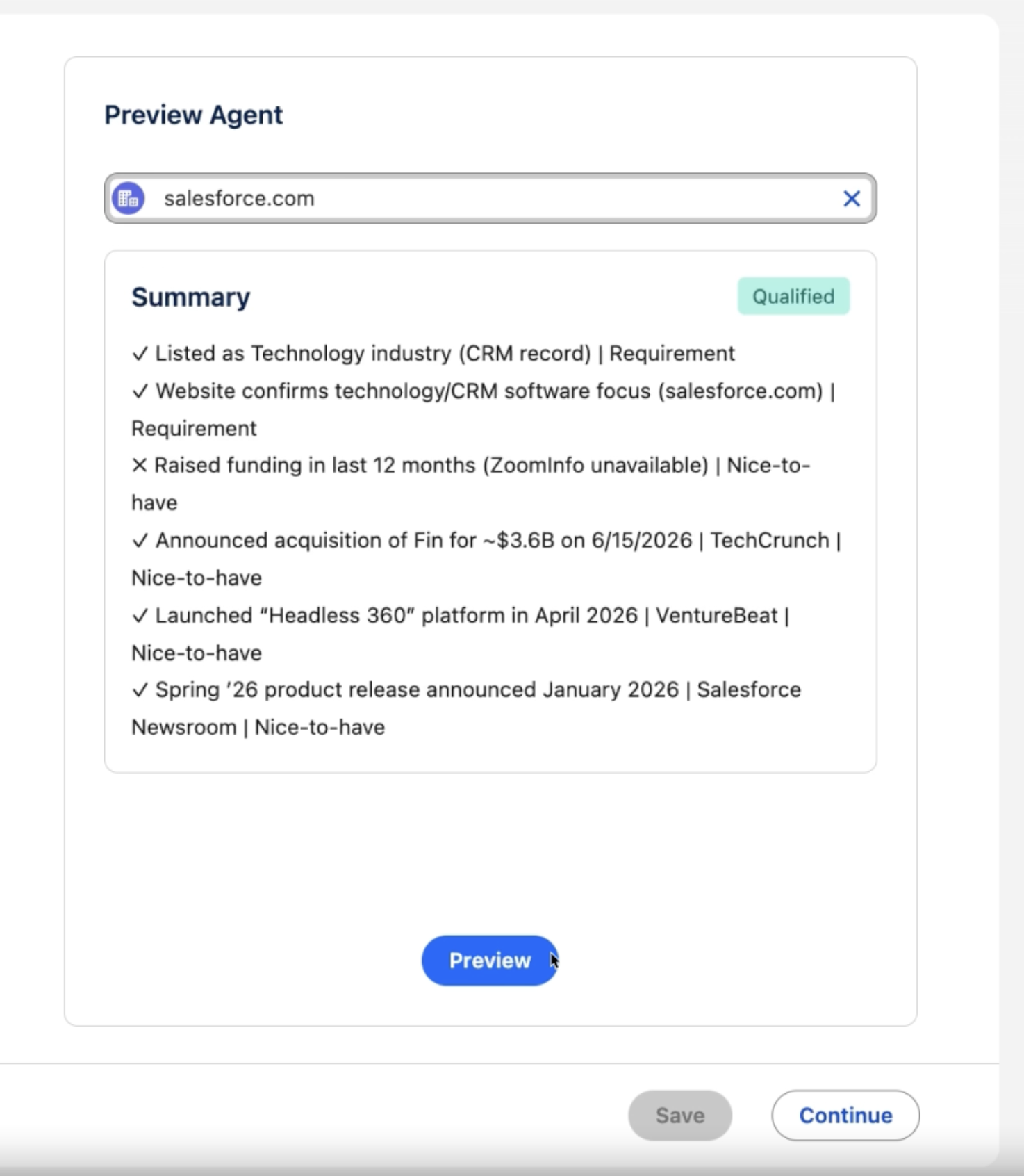
- Repeat with an account you expect to be disqualified, and then with one you're unsure about.
If a result surprises you, change the criterion that caused it, then run Preview again. Do this before you add more criteria. When the results look right, select Continue.
TIP: Test both ways. Previewing an account that should qualify and one that shouldn't catches mistakes in your criteria before the agent runs on your full list. You can edit these criteria any time after the agent is live.
Step 3: Define Your Target Contacts (Find Prospects)
Account Research decides whether an account is worth pursuing. Find Prospects decides who to contact there. Think of it as your contact-level ICP.
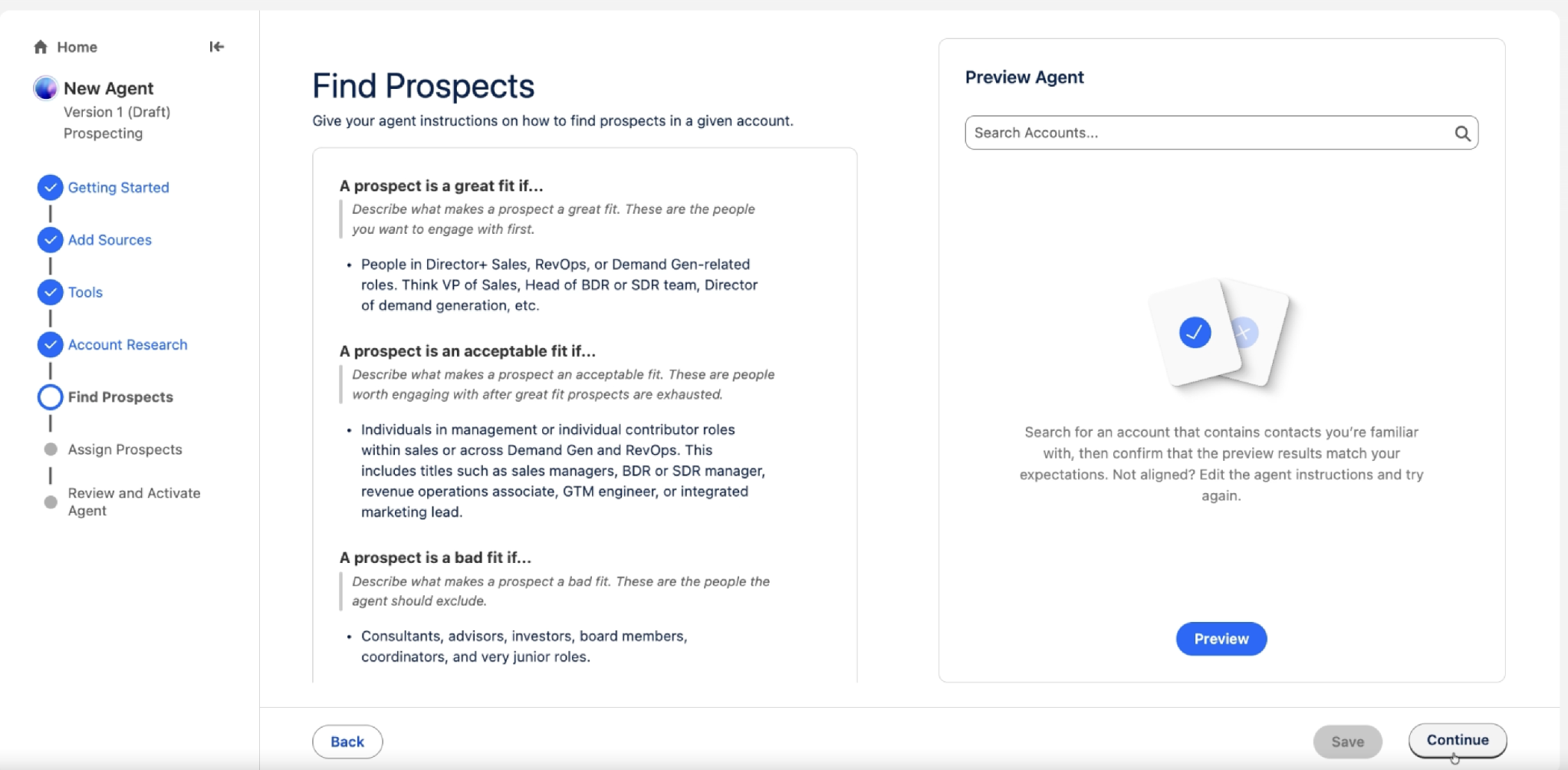
Like Account Research, Find Prospects comes with example criteria. Edit the three sections to match your answers to the "who should we contact" questions:
- A prospect is an Ideal Prospect if…: the people to contact first. Be specific about seniority, function, and titles.
- A prospect is an Acceptable Prospect if…: good contacts after the great-fit people have been reached, such as managers or individual contributors close to the decision-maker.
- A prospect is a Poor Prospect if…: roles the agent should always skip, such as consultants, board members, or junior coordinators.
TIP: Start with your best deals. Ask, "Who do our best deals start with?" The answer usually becomes your great-fit criteria. The more precise you are here, the better the prospects the agent finds.
Example (replace with your personas):Ideal Prospect: Director level or above, with a title containing Sales, Revenue, Marketing, or Operations. Prefer contacts with a verified email address.Great fit: Director level or above, with a title containing Sales, Revenue, Marketing, or Operations. Prefer contacts with a verified email address.Acceptable Prospect: Managers in Sales Operations, Revenue Operations, or Marketing Operations.Acceptable fit: Managers in Sales Operations, Revenue Operations, or Marketing Operations.Poor Prospect: Executive Assistants, Administrative Coordinators, consultants, board members, interns, and anyone marked Do Not Contact.Bad fit: Executive Assistants, Administrative Coordinators, consultants, board members, interns, and anyone marked Do Not Contact.
TIP: Getting the wrong titles? Be explicit about what to exclude. "Do not recommend Executive Assistants or other non-decision-making roles" works better than listing only the titles you want.
Step 4: Preview Your Prospect Criteria
- Select Save.
- In Preview Agent, search for an account whose people you know, then select Preview. The agent lists the prospects it would recommend from that account.
- Check that the recommended people match what you'd expect. If they don't, adjust the criteria and run Preview again. When they do, select Continue.
Your agent is connected to your account report. The template's industry rule is gone. Your own account and prospect criteria each return the results you expect in Preview.
This completes Exercise 3.