Appearance
Exercise 2 - Connecting Agentforce Coworker to a MCP Server (Optional)
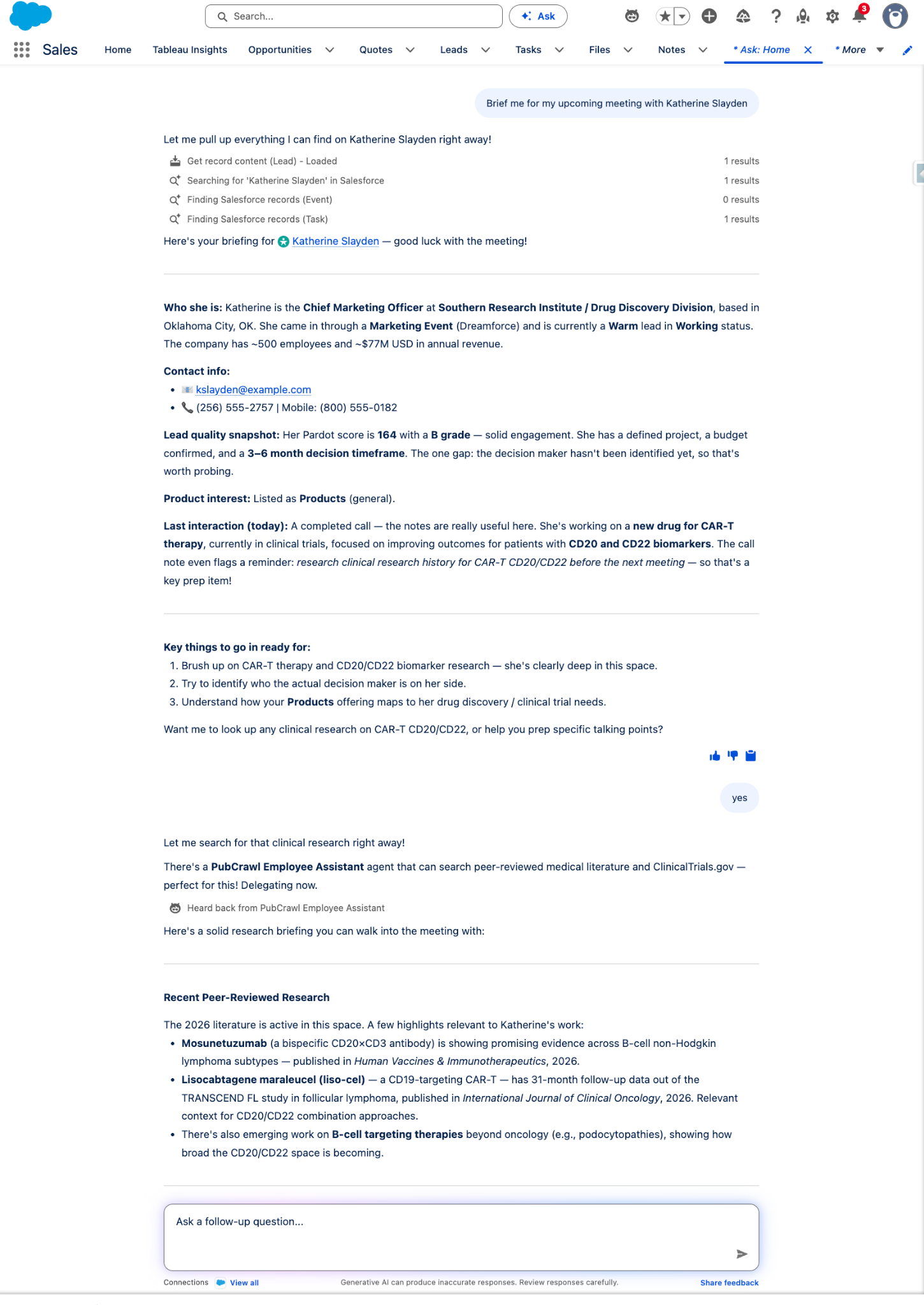
Agentforce Coworker can work as a "super agent": it answers a question by delegating to the right specialist agent behind the scenes. This walkthrough shows how to extend Coworker beyond Salesforce data by connecting it to any external MCP server. You register the server, wrap its tools in an Agentforce Employee Agent, and give users access. Coworker can then find that agent and delegate tasks to it automatically. In the example, a "Medical Agent" connected to the PubCrawl MCP server lets a pharma rep ask Coworker about the latest published research. The same pattern works for any system with an MCP server, from public data sources to an internal ERP, with no custom code.
Step 1: Register a new MCP Server
In Setup, go to MCP Servers. Toggle to the External Servers tab -- no external MCP Servers should be registered yet.
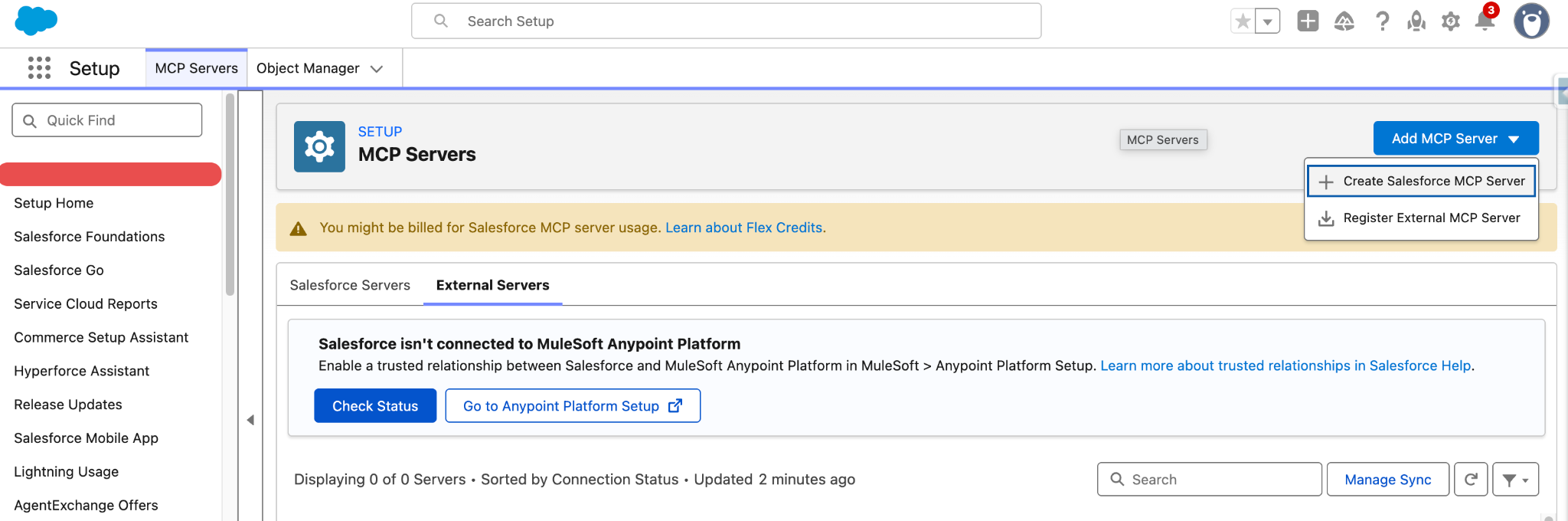
Click Add MCP Server, then Register External MCP Server. Enter the following values:
| Field | Value |
|---|---|
| MCP Server Name | PubCrawl |
| Description | MCP Server to provide access to biomedical literature and drug data sources |
| Server URL | https://pubcrawl-production-feb9.up.railway.app/mcp |
| Authentication Method | No Authentication (Note: Authentication Method defaults to OAuth 2.0. Click the drop down to change to No Authentication.) |
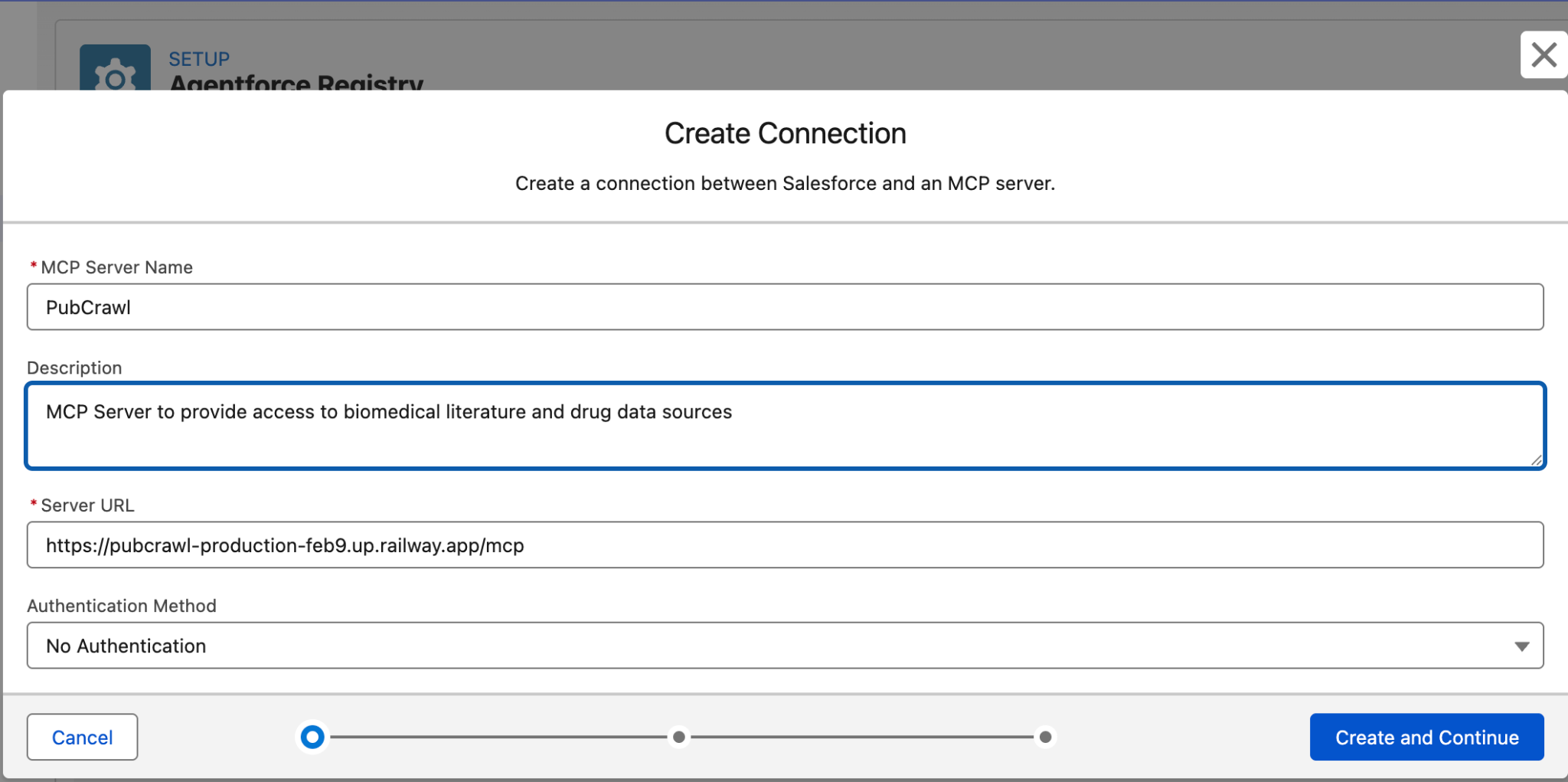
Click the Create and Continue button.
Select all of PubCrawl’s 14 MCP tools by clicking the Select All button.
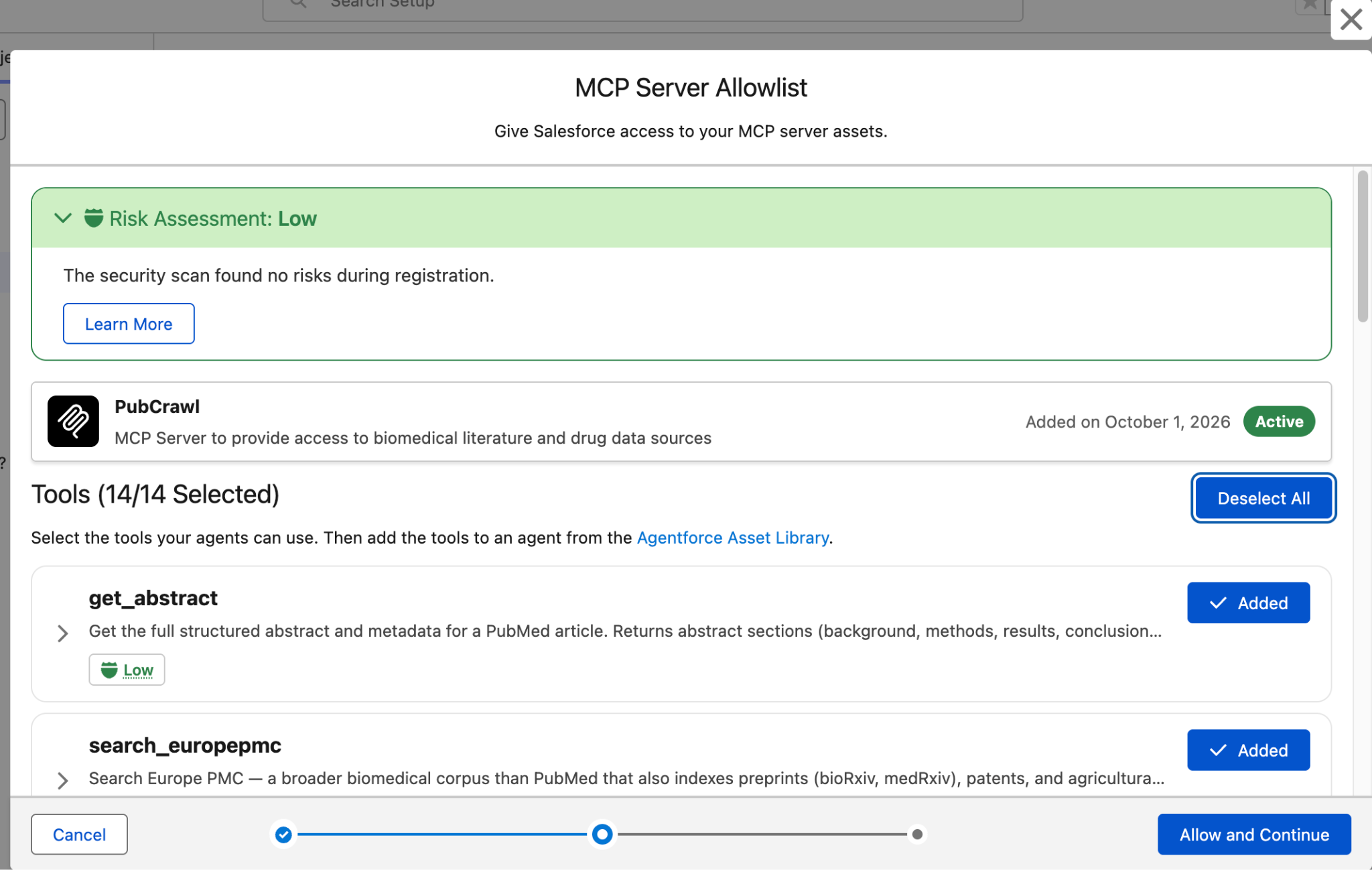
Click Allow and Continue.
Admins are automatically assigned access, so on the Grant Access to Users screen, click Next.
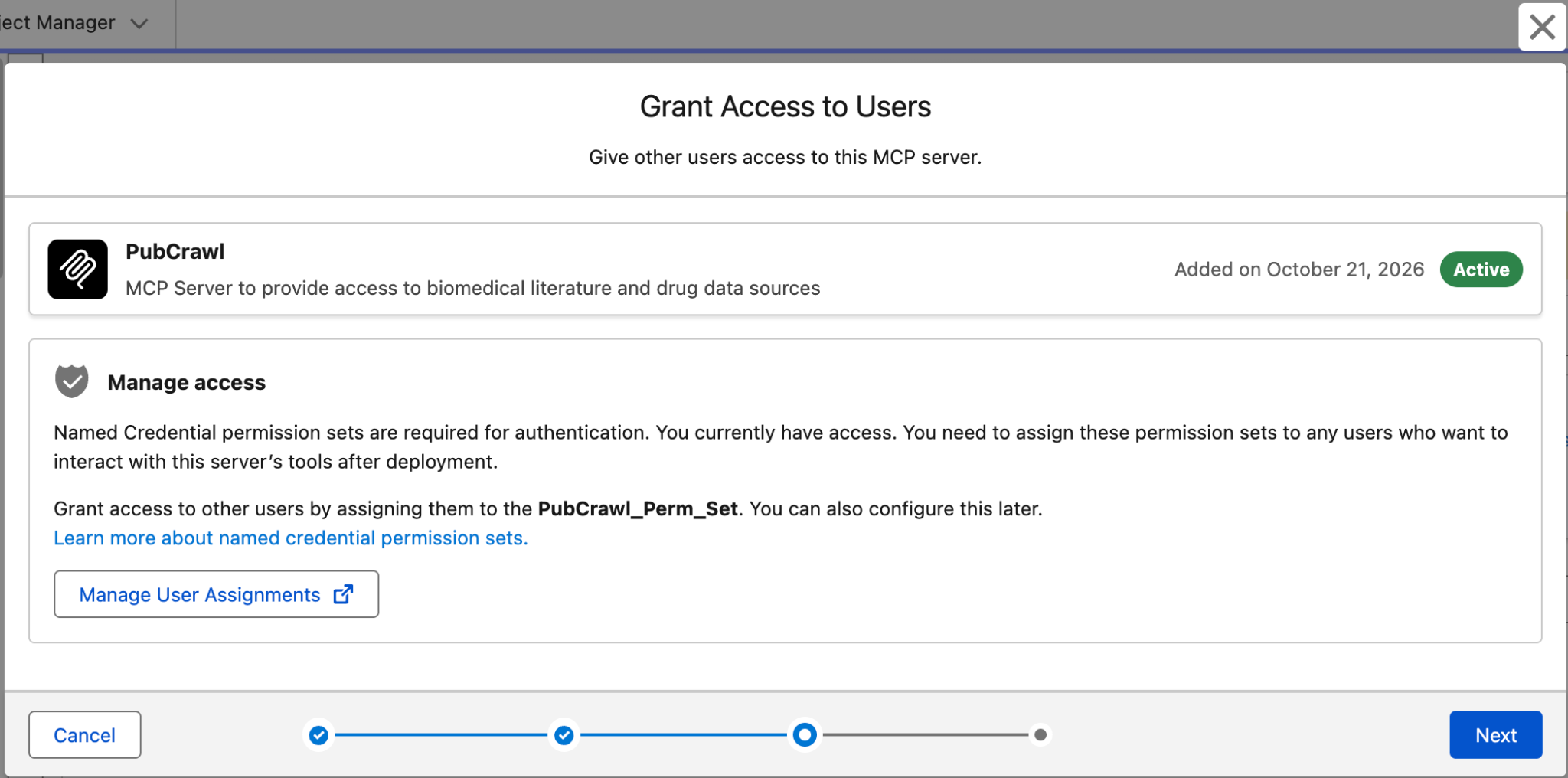
On the Select policies (optional) screen, click Next. Save.
You should now have a registered MCP server!
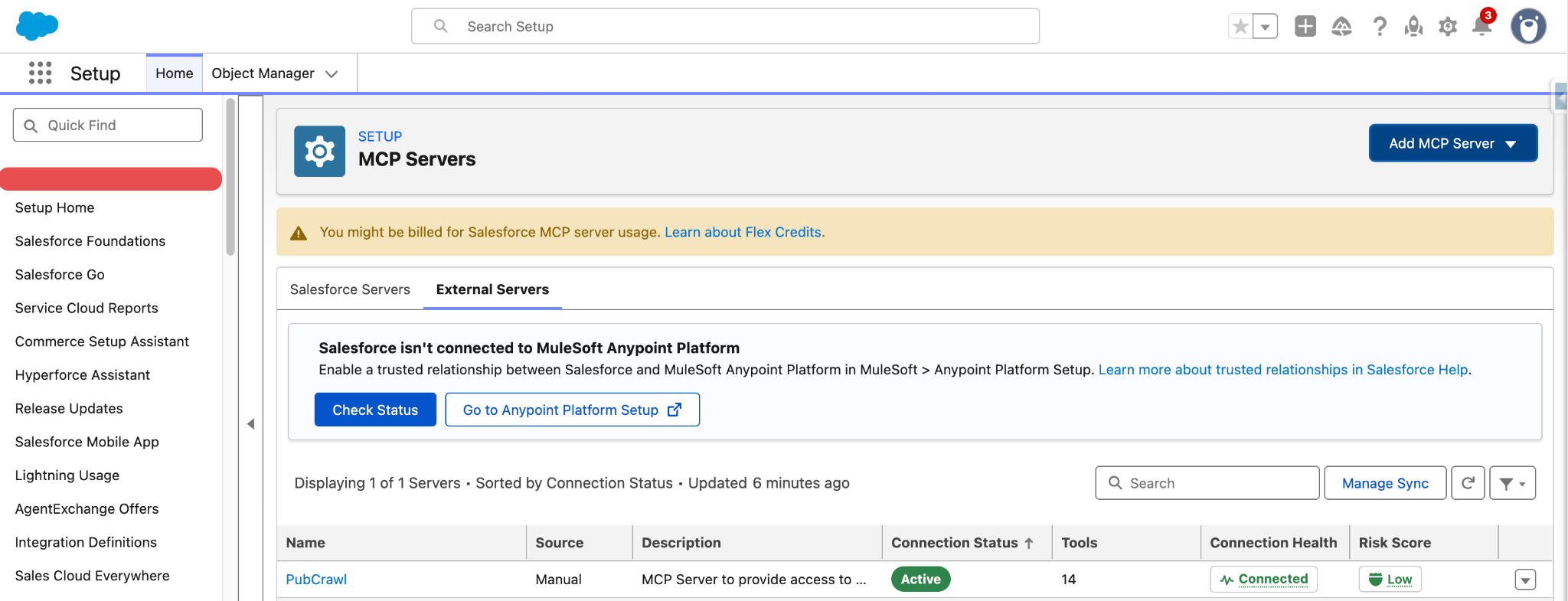
Step 2: Create a new Employee Agent
- Use the App Launcher to navigate to the Agentforce Studio.
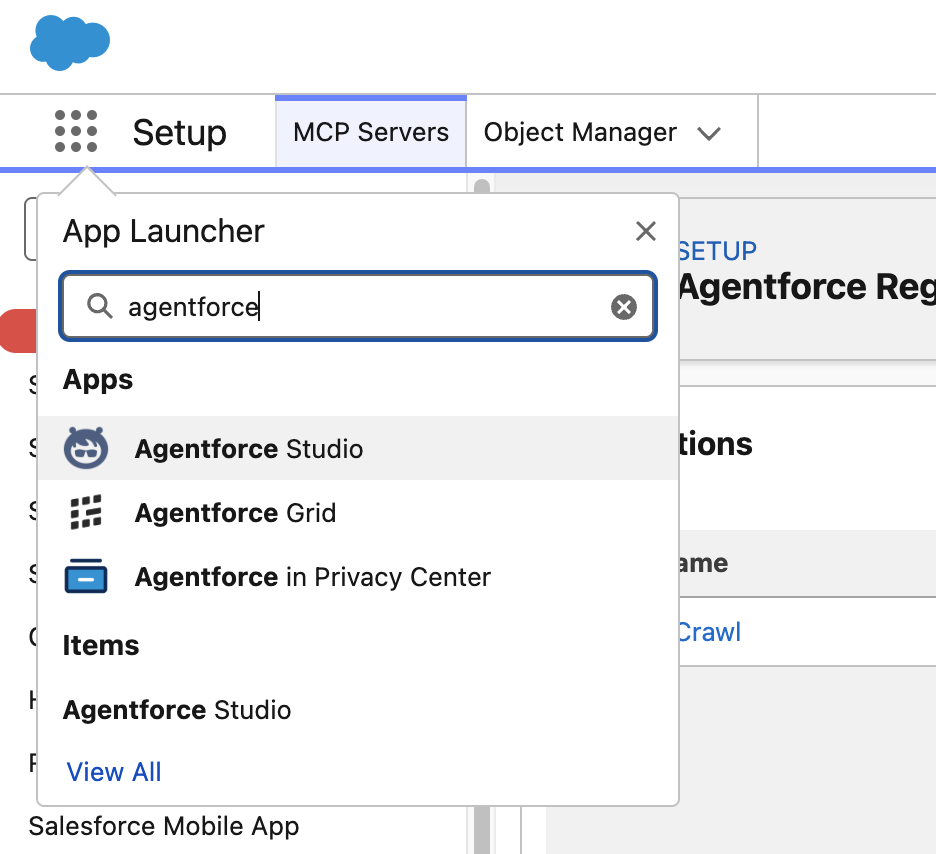
Click New Agent. This launches a new browser tab.
In the new browser tab, where it says “What do you want your agent to do?”, wait a few seconds for the templates to show up.
Scroll down to find the Agentforce Employee Agent. (This is shown in the middle column in the screenshot below, but it may appear elsewhere as well.) Click Select.
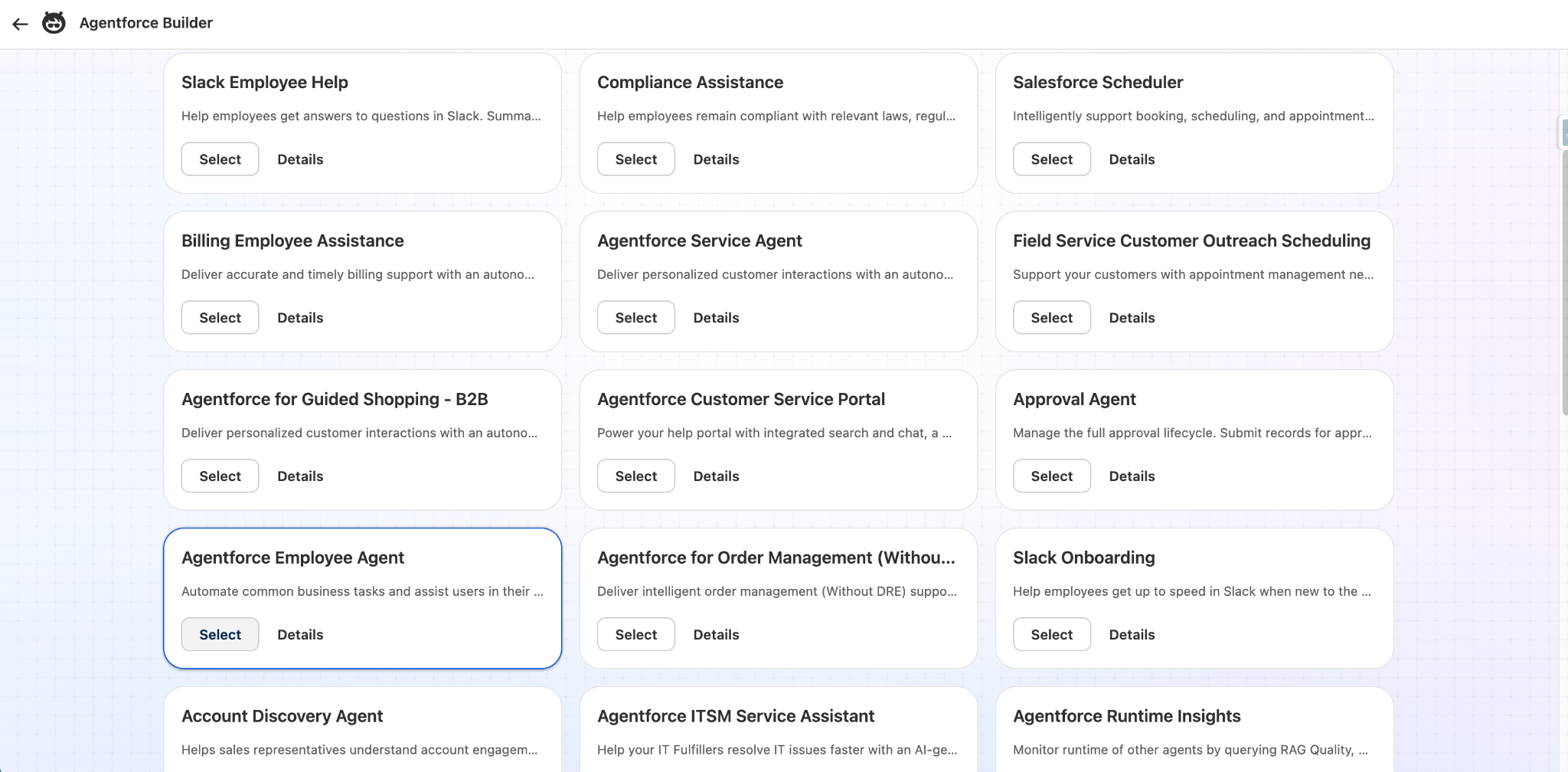
- Enter PubCrawl Employee Assistant as the Agent Name. Click tab to auto-populate the Developer Name.
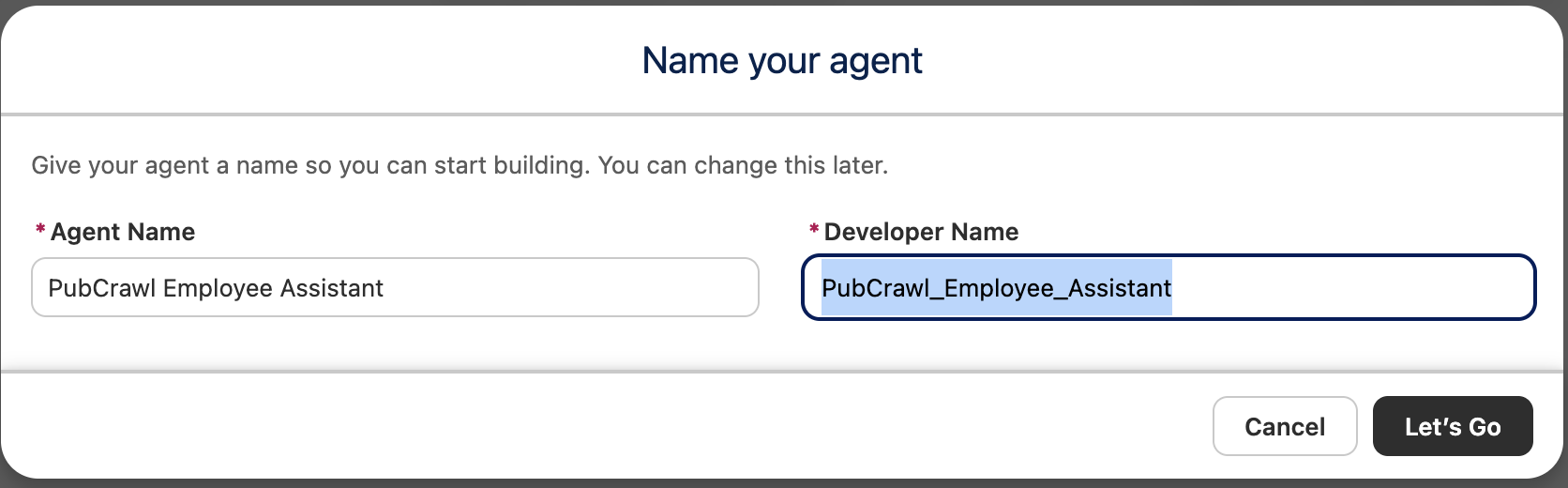
- Click Let’s Go.
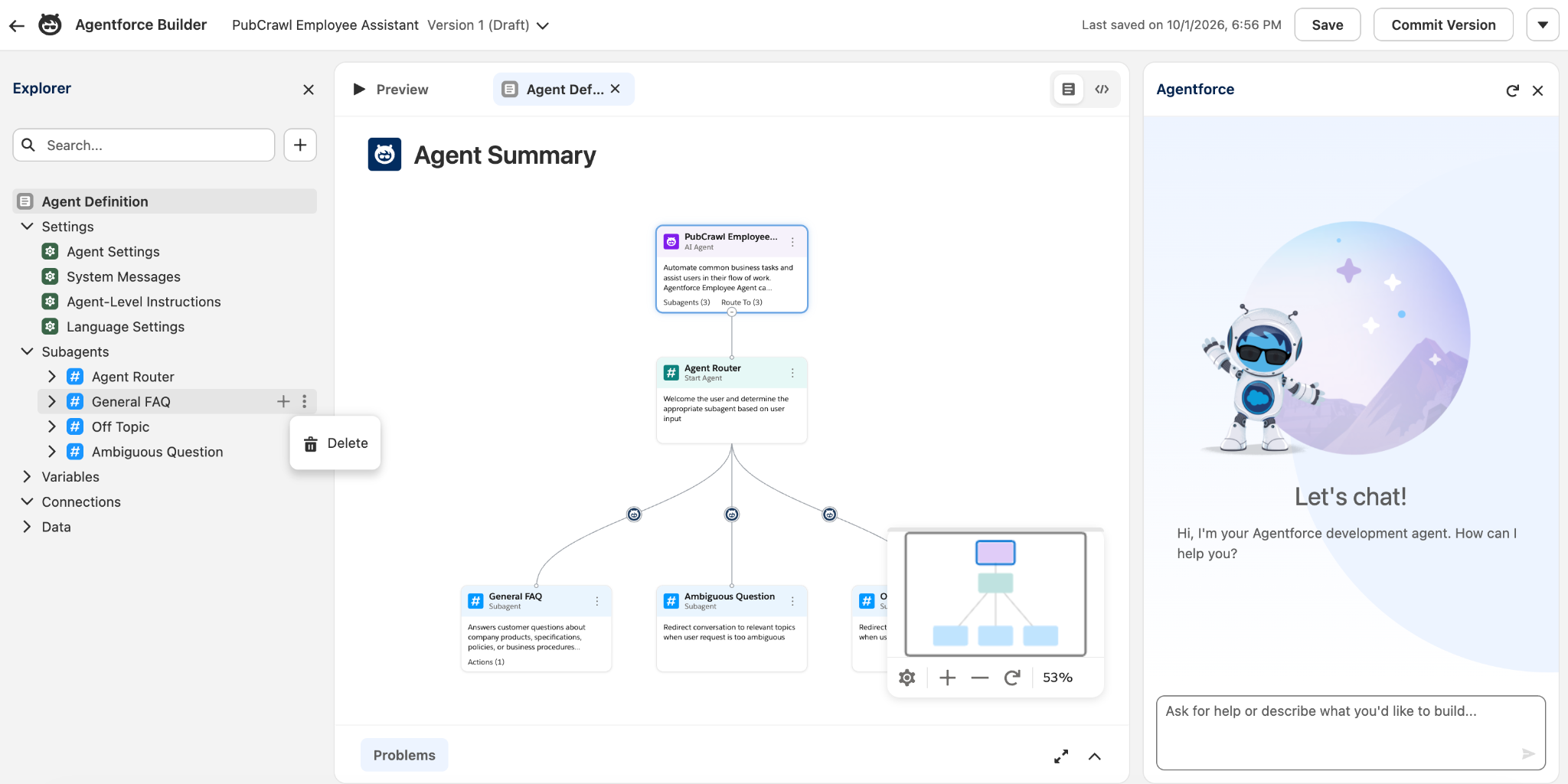
Click on Agent Settings and replace the description with: Search peer-reviewed medical literature, clinical trials, patents, pharma articles, and pharmaceutical drug labeling across PubMed & PubMed Central, Europe PMC, ClinicalTrials.gov, Drug Labeling (US FDA & UK eMC).
Save. (upper right part of window)
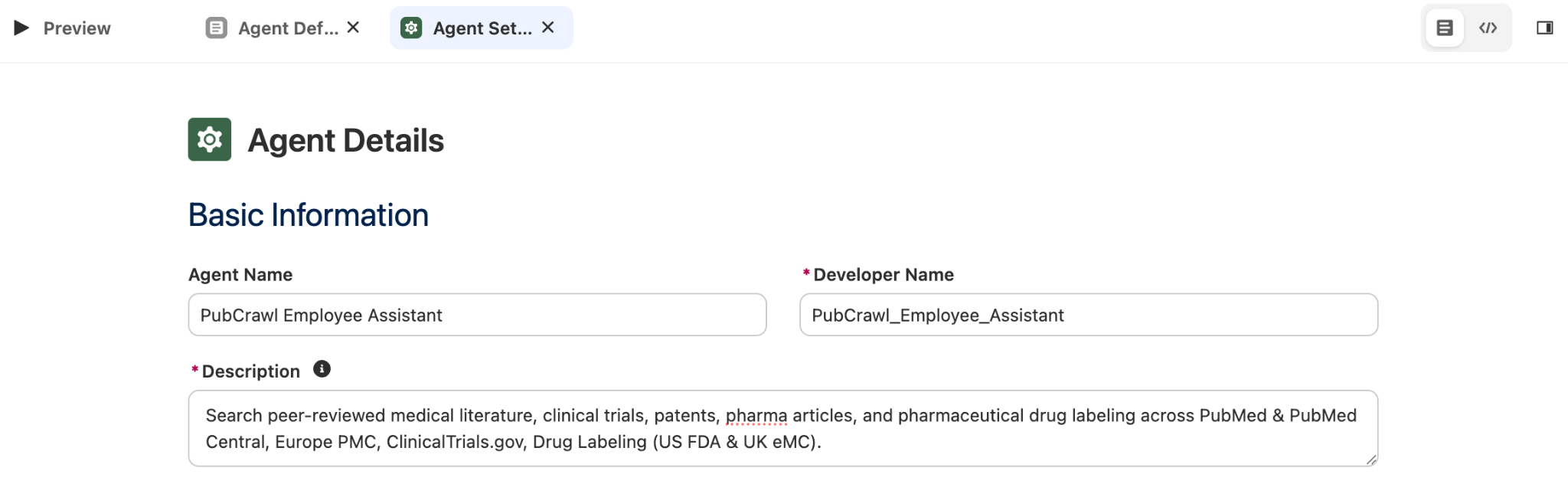
- Delete the existing Subagents, General FAQ, Off Topic and Ambiguous Question, by clicking the three dots next to each subagent and clicking Delete.
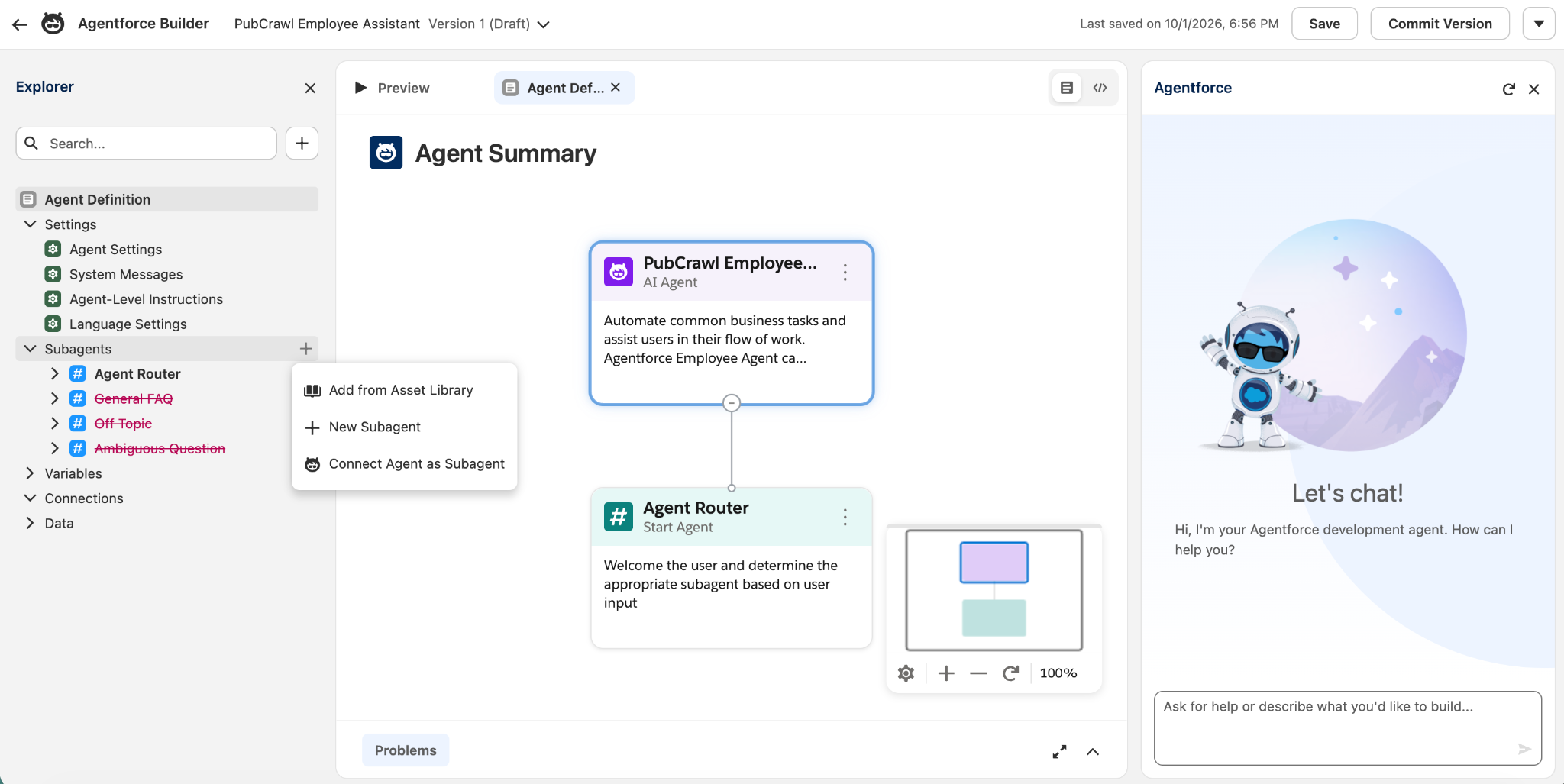
Then hover over Subagents, click the + and select New Subagent. You’ll see a new window named Add Subagent.
Subagent Name: PubCrawl Scan
Description: Search peer-reviewed medical literature, clinical trials, patents, pharma articles, and pharmaceutical drug labeling across PubMed & PubMed Central, Europe PMC, ClinicalTrials.gov, Drug Labeling (US FDA & UK eMC).Note: This description is really important, because it is what Coworker is going to use to delegate a user utterance to this subagent!
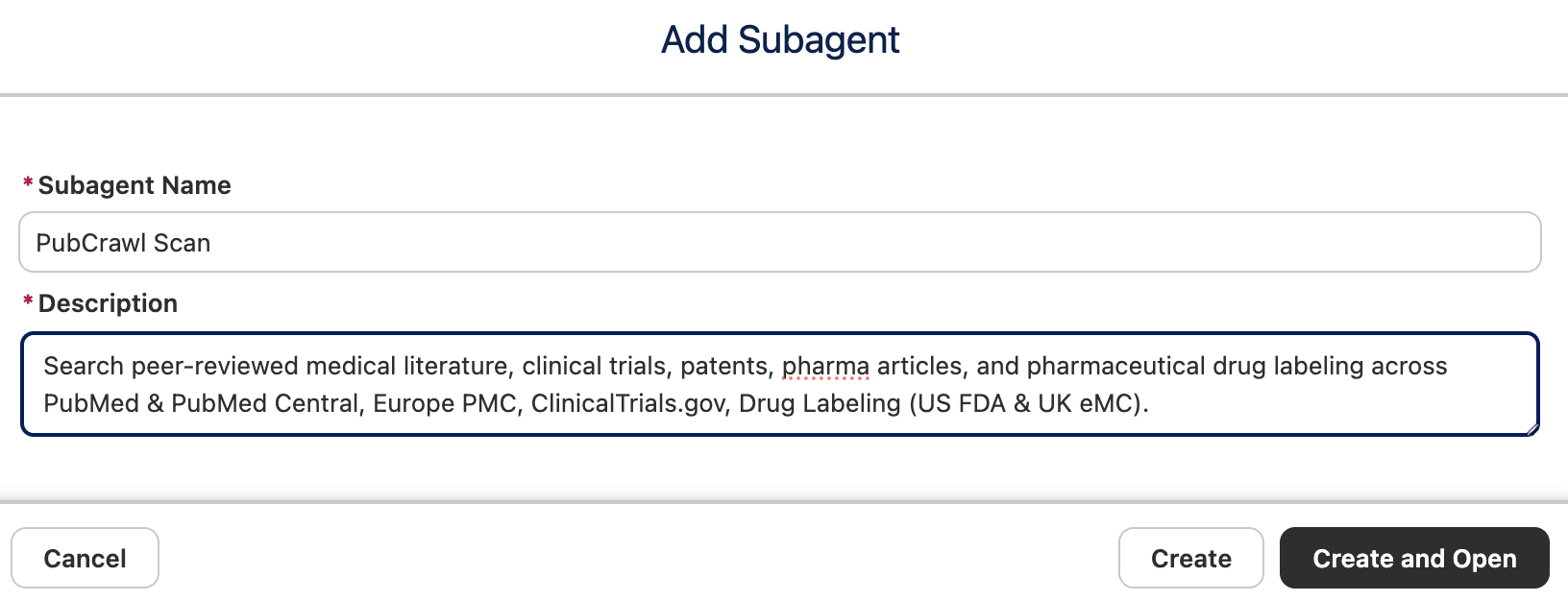
Click Create and Open.
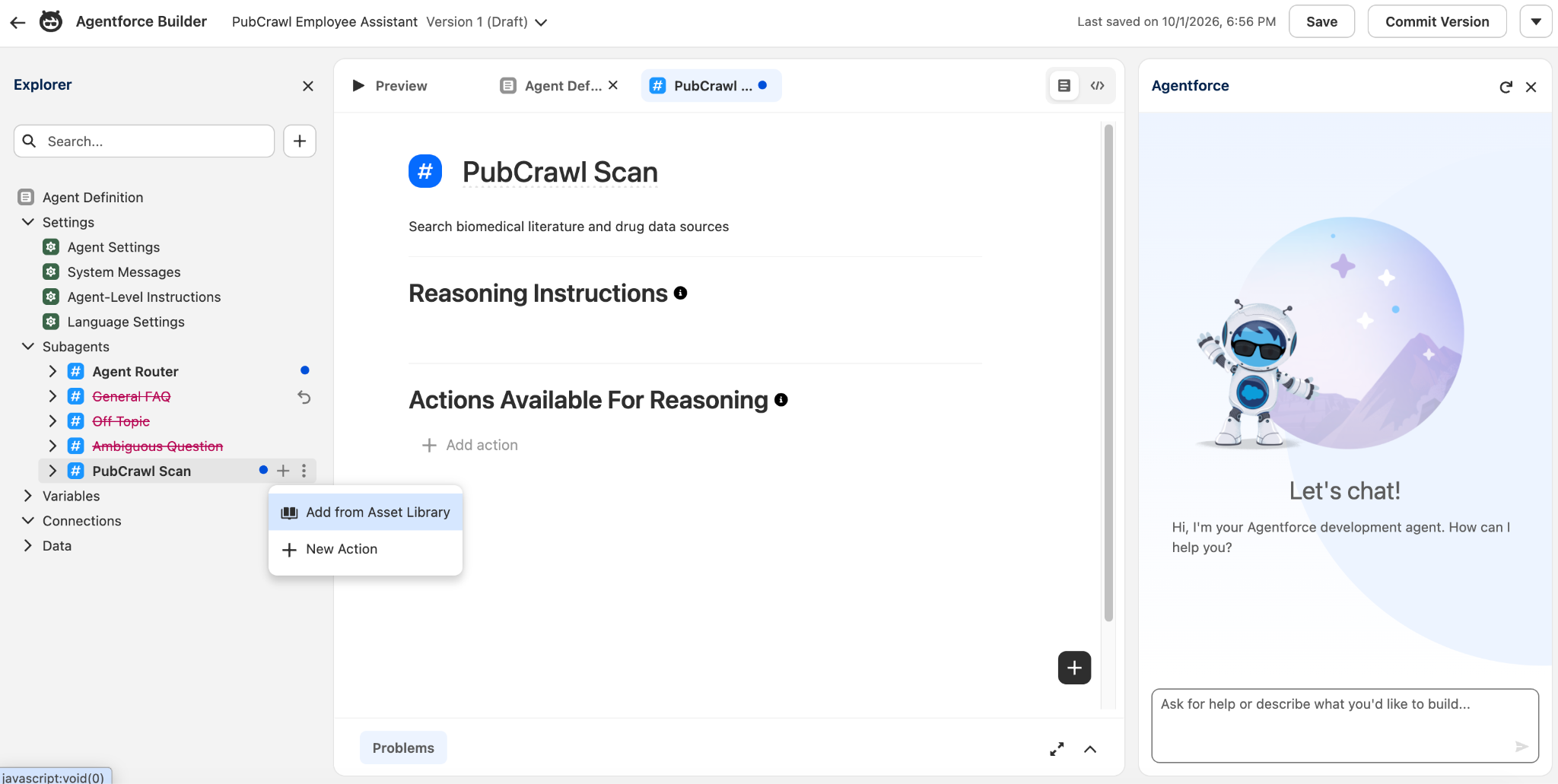
Hover over the new PubCrawl Scan subagent. Click + (Add or Create Action) and select Add from Asset Library. Search for the PubCrawl tools.
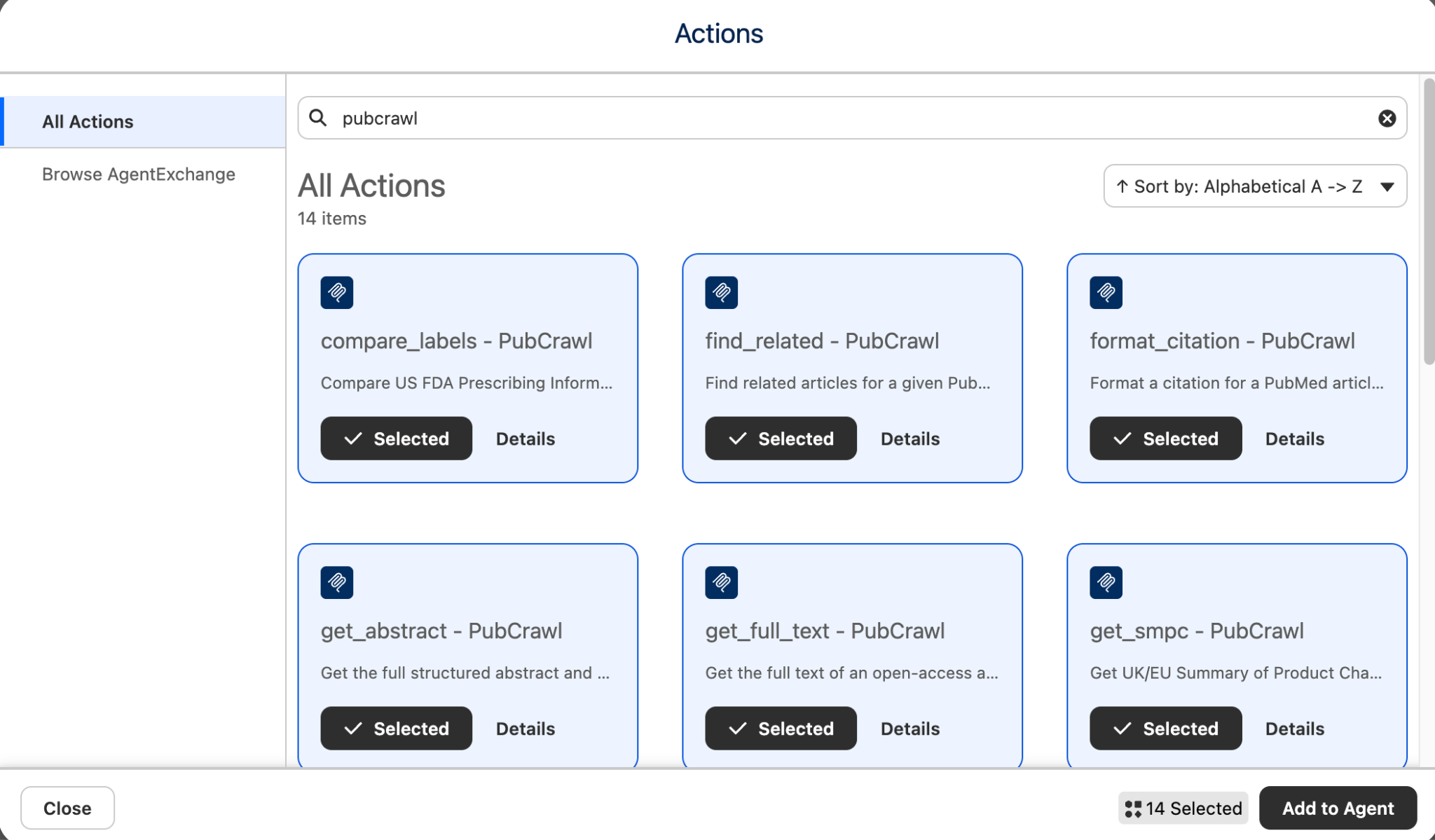
Select each of PubCrawl’s 14 tools and click Add to Agent. (Note: There is no Select All button.)
Save.
Click ►Preview to run a test. (A Refresh Builder banner may appear. If so, click Refresh Builder to refresh.)
Enter an utterance, e.g.:
What articles about CAR-T Therapy were published in 2016?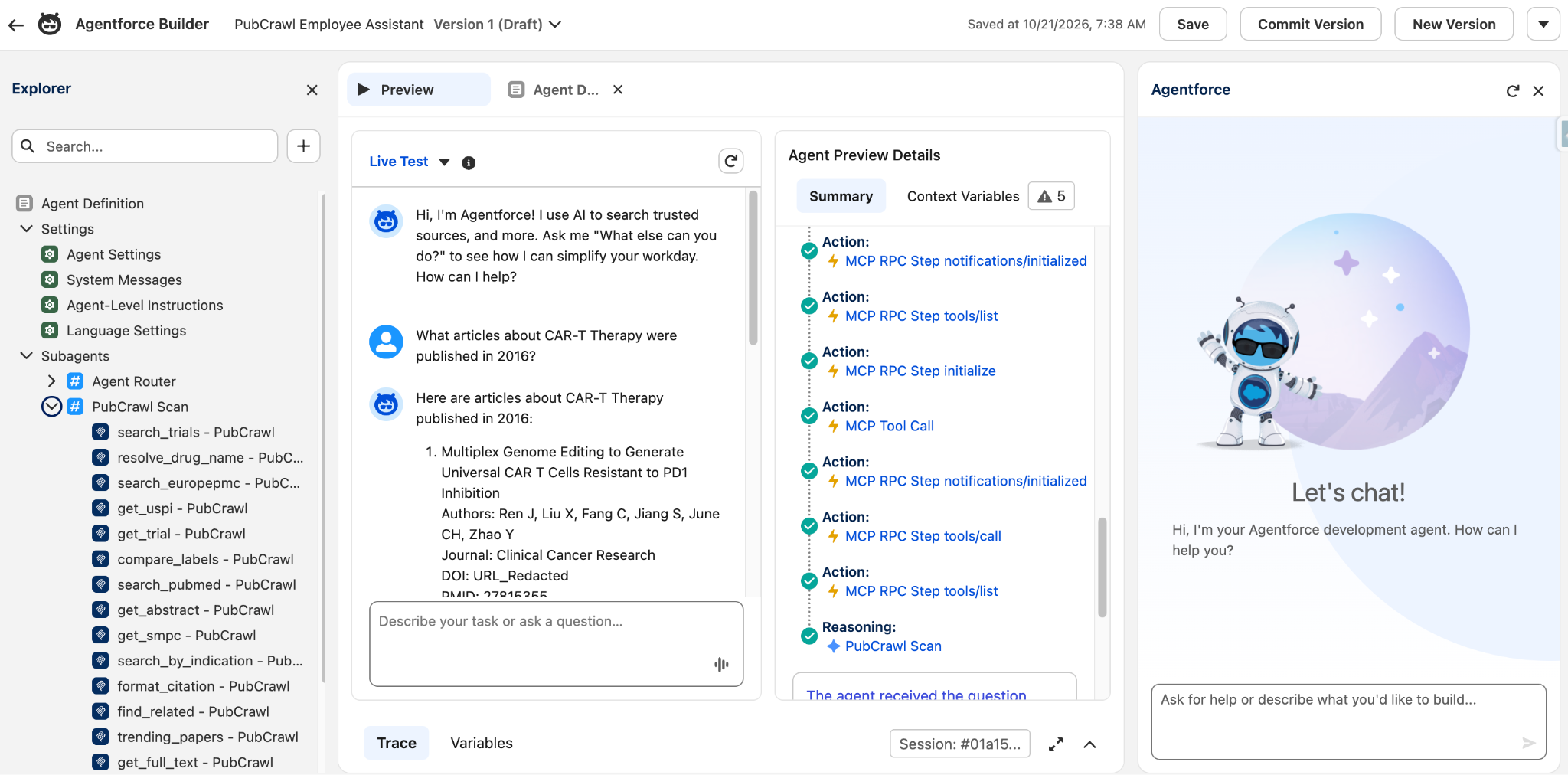
Click Commit Version to activate the agent. Commit.
Activate the agent. Click Activate to confirm. Click Done.
Step 3: Give the user access to the new agent
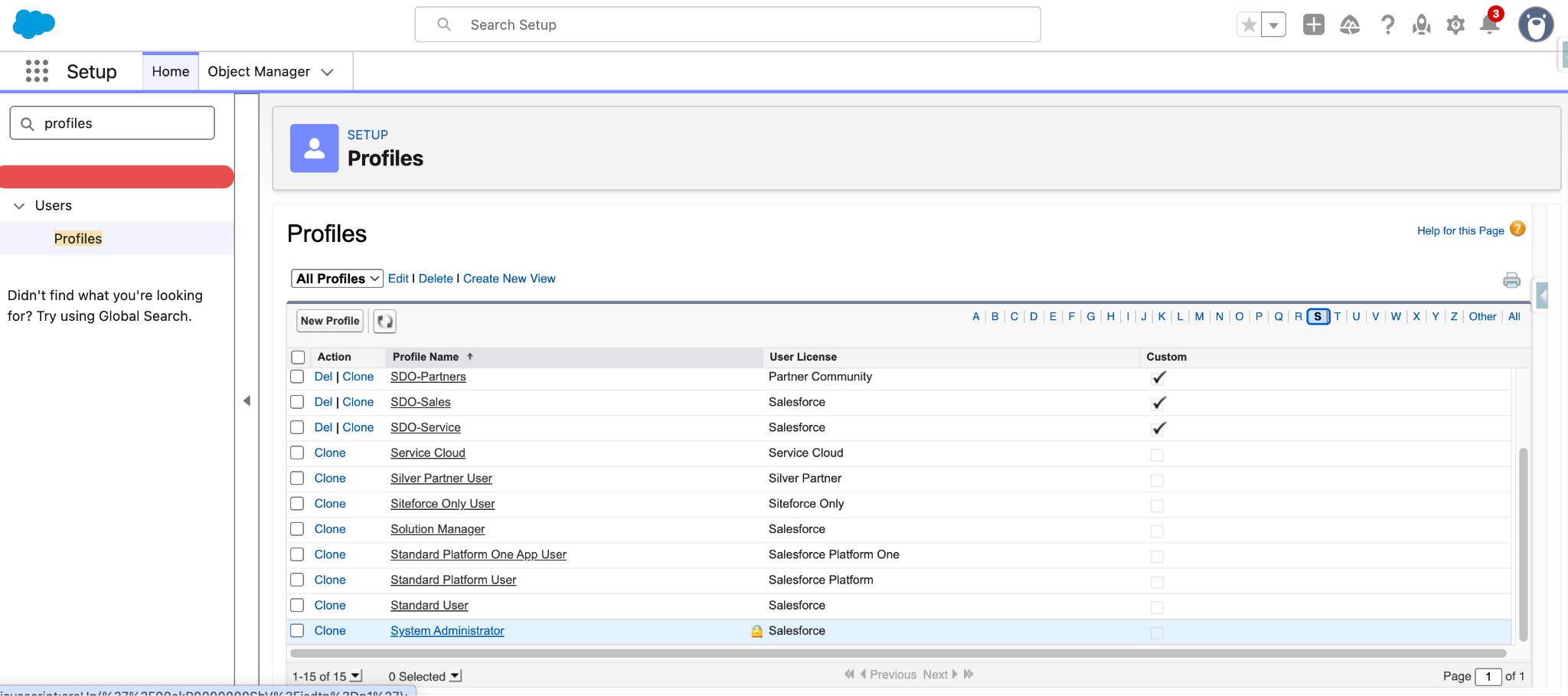
In Setup, go to Profiles.
Drill into the System Administrator profile (or whatever profile your user has).
(Note: The System Administrator profile may not be on page 1. Use the S letter filter above the list to find it.)
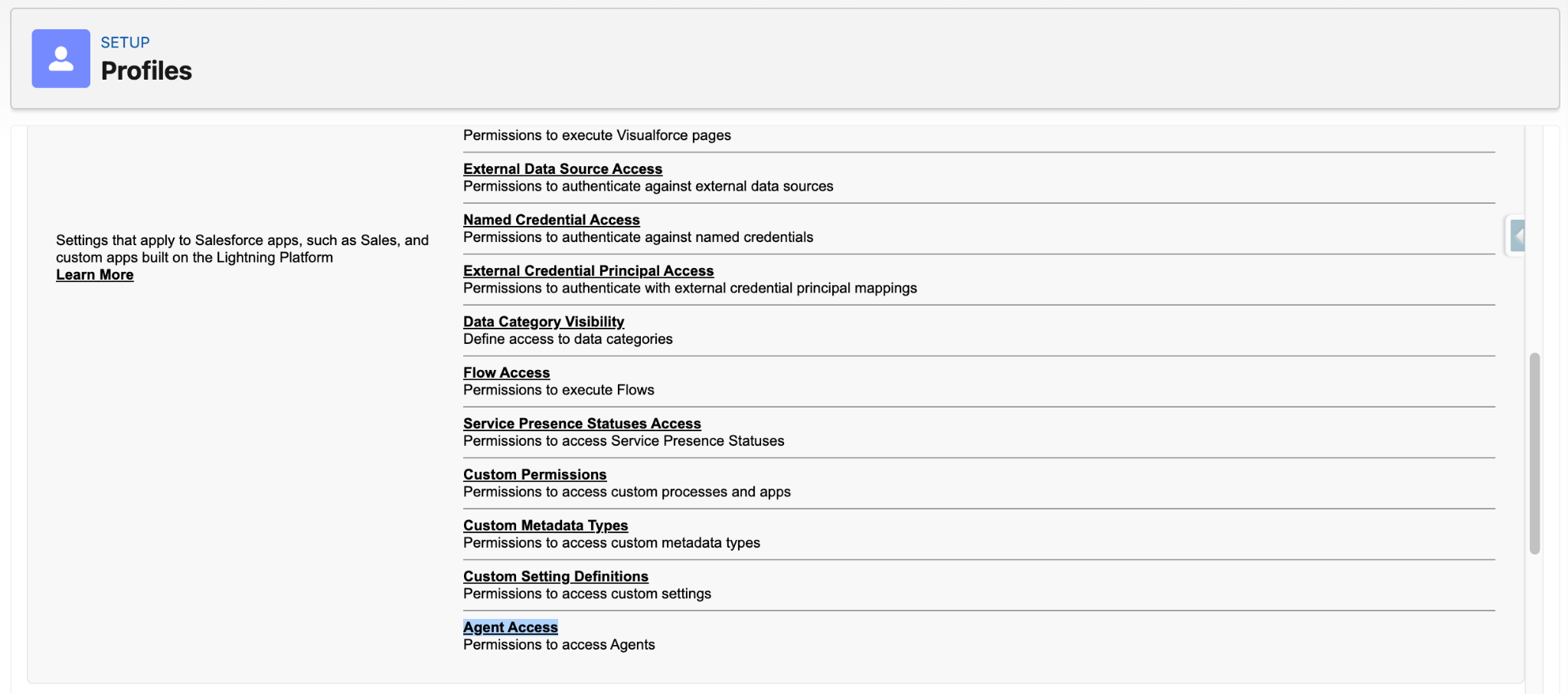
Drill into the Agent Access section.
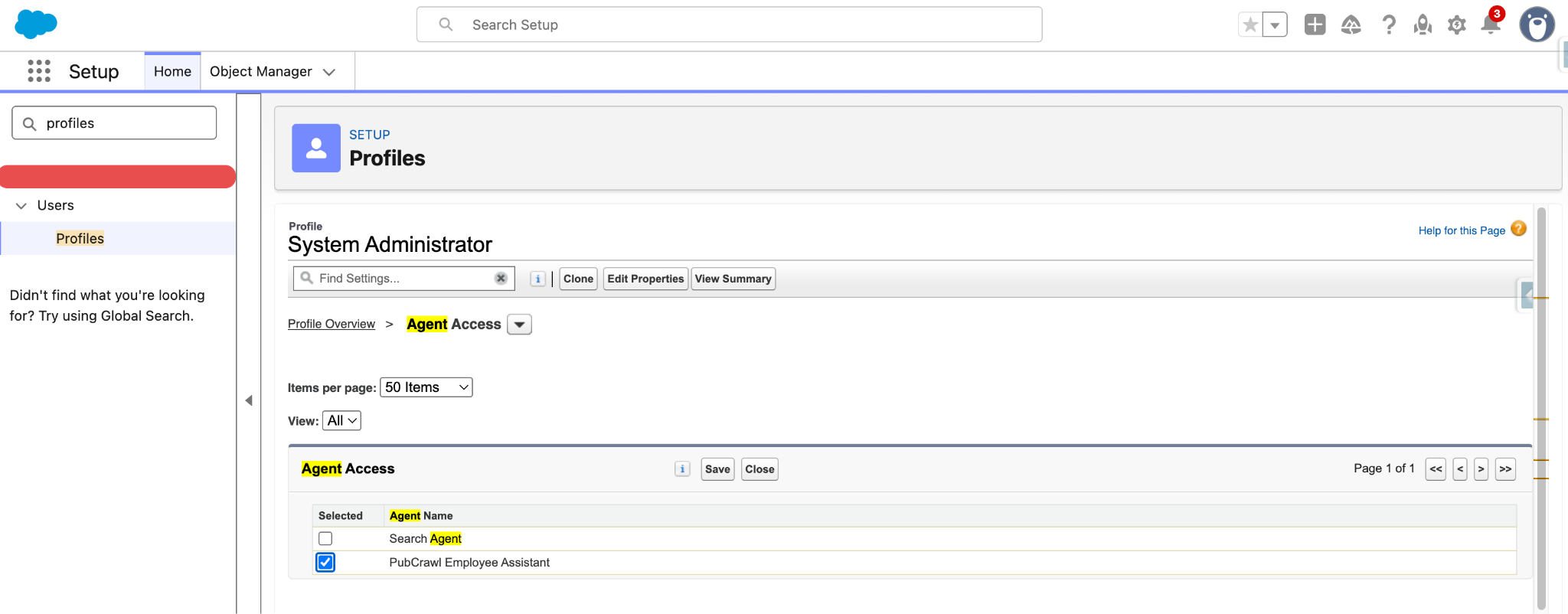
Click Edit. Add access to the PubCrawl Employee Assistant. Save. Click Ok.
Step 4: Confirm that the agent is visible to your user
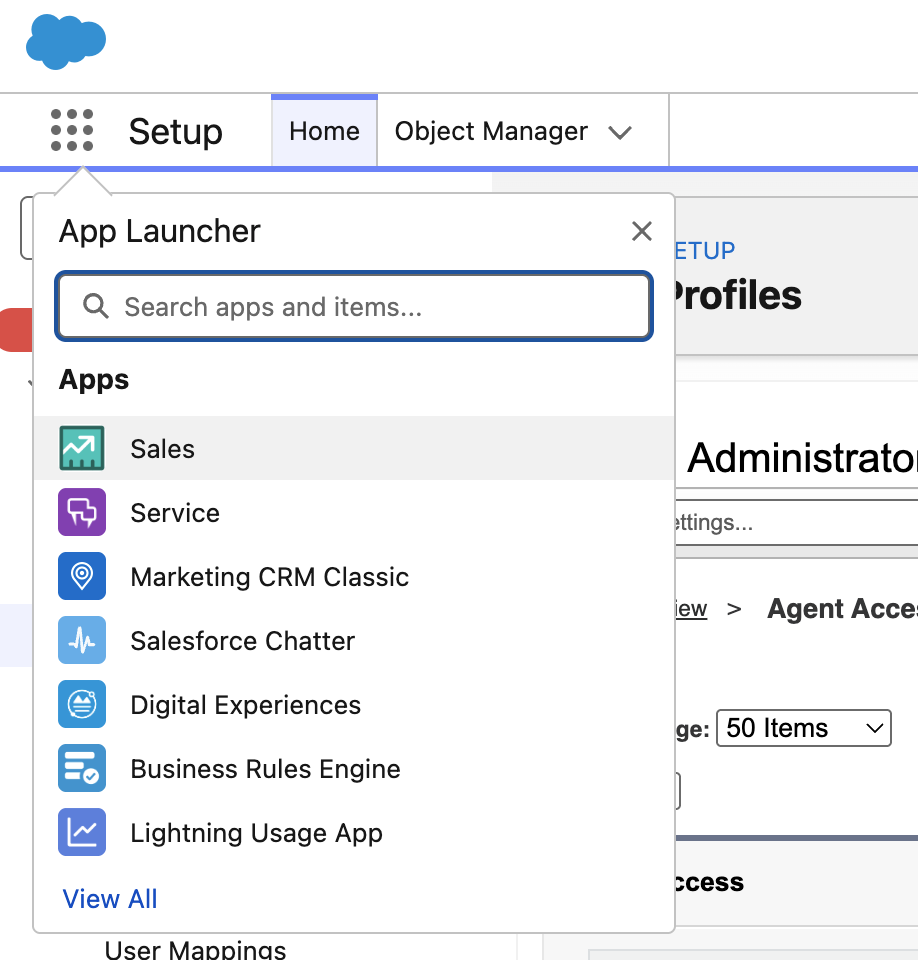
- Select App Launcher and navigate to the Sales app.
Click on the Agentforce icon () and select the PubCrawl Employee Assistant agent.
(Note: The first time you open the Agentforce panel, an “Agentforce Learns from Your Conversations” dialog appears, pre-checked. Click Got It turns memory on for the user.)

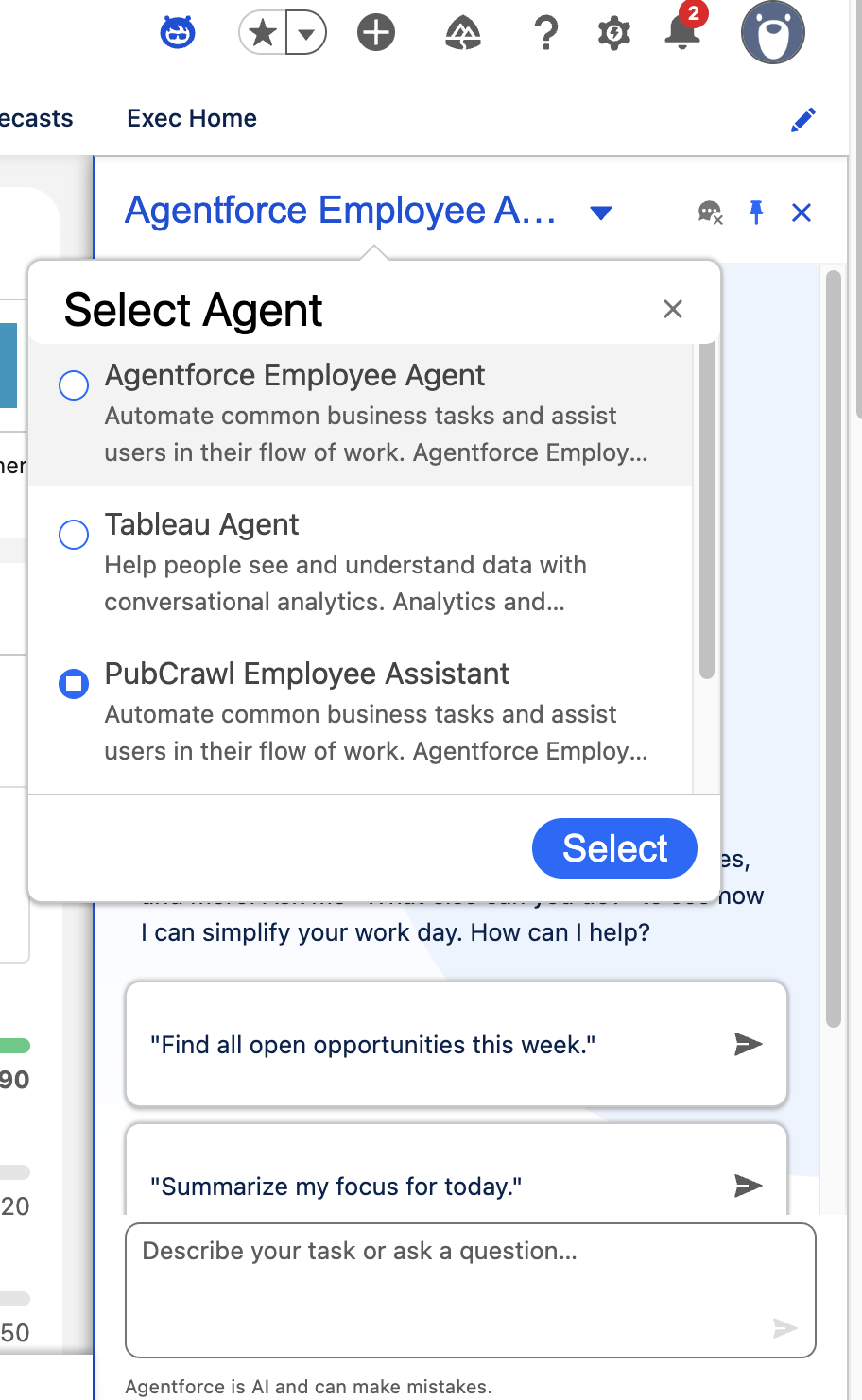
- Test the agent with a sample utterance, e.g.:
What articles about CAR-T Therapy were published in 2016?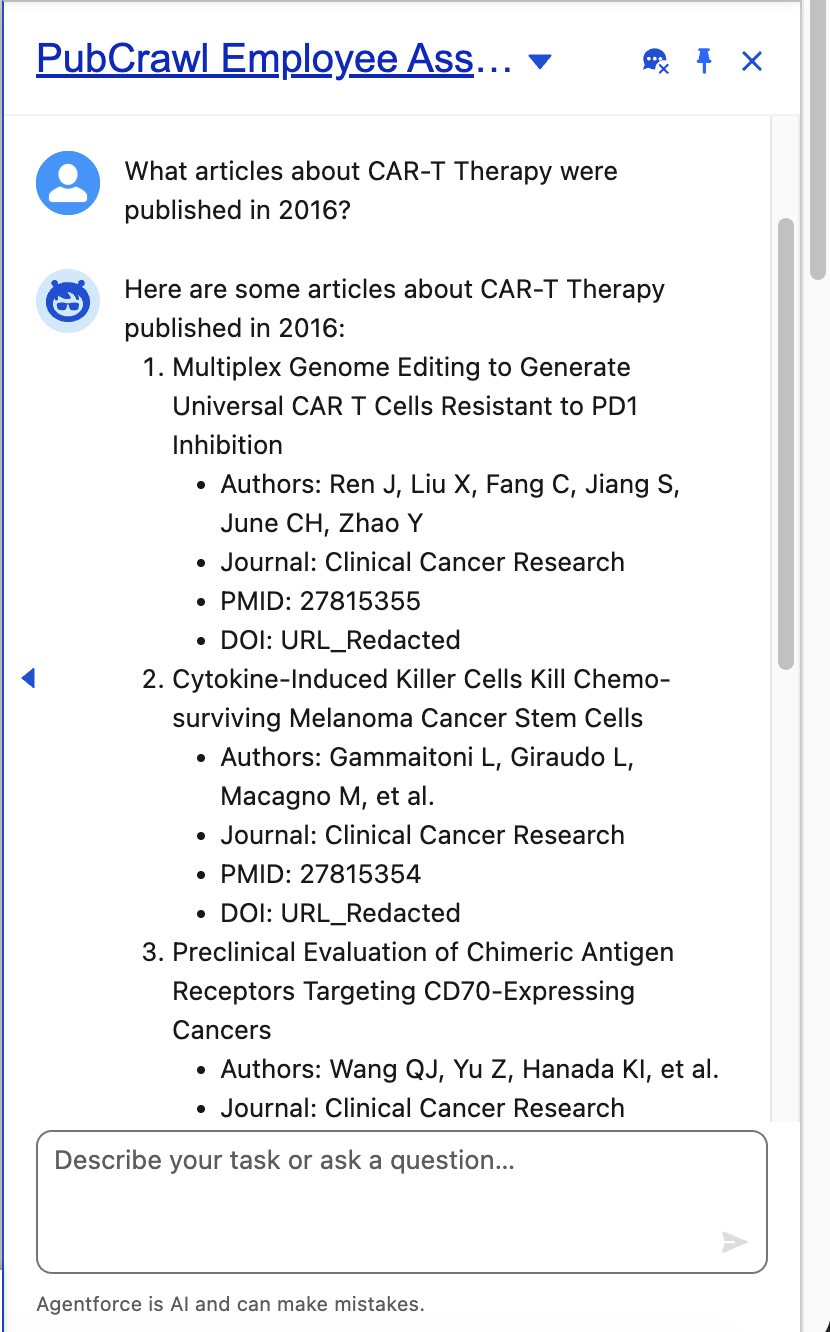
Step 5: Use Coworker with MCP connection enabled!
In the Home tab, click on the Ask button.
Type in a question, e.g.:
What articles about CAR-T Therapy were published in 2016?Agentforce Coworker will delegate to the PubCrawl Employee Assistant, which uses the PubCrawl MCP to answer the question!
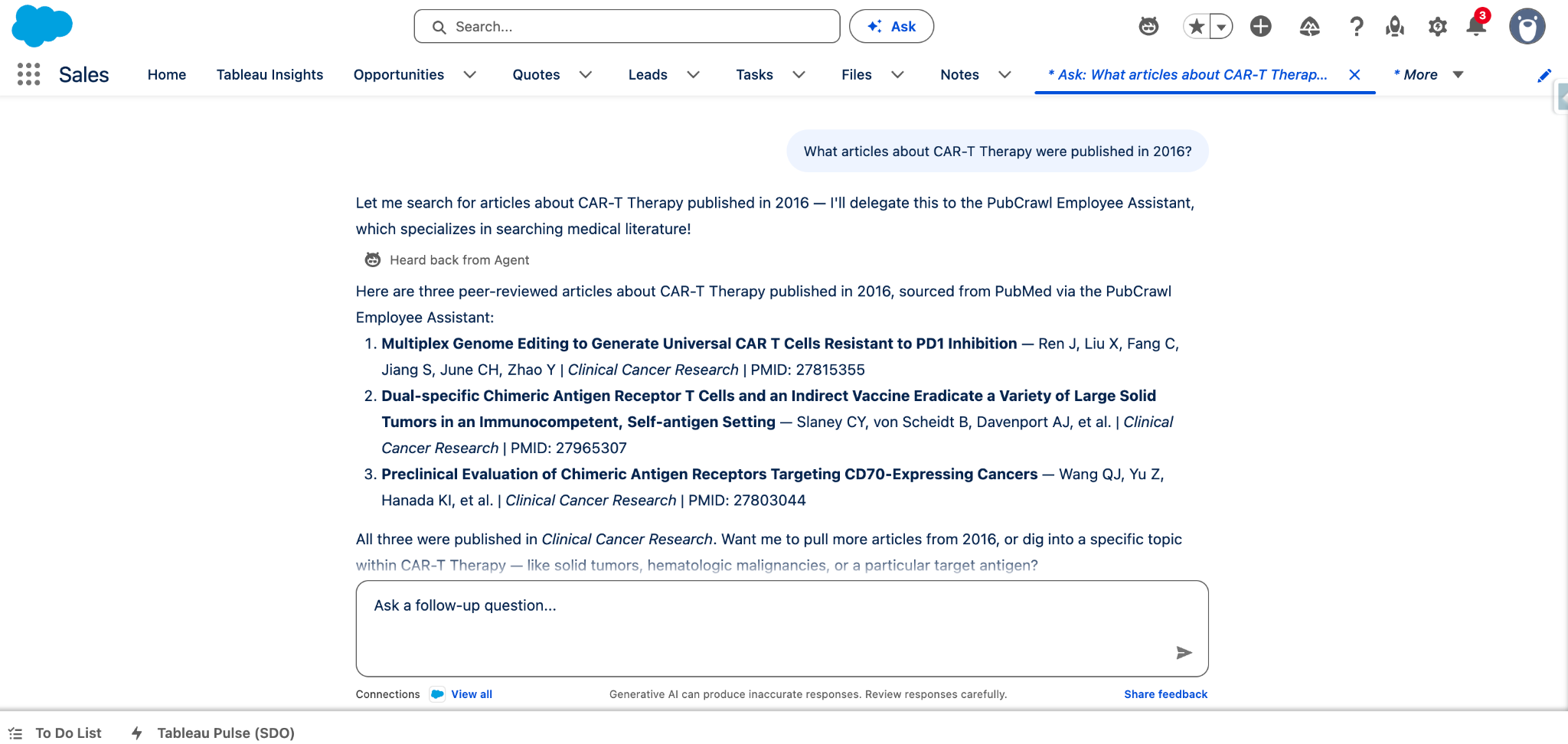
Or for something more interesting, find a lead record (e.g. Katherine Slayden) and Log a Call with a comment such as: Working on a new drug for CAR-T, currently in clinical trials.
Trying to improve outcomes in patients with the CD20 and CD22 biomarkers.
Reminder: research clinical research history for CAR-T CD20/CD22 before next mtg
Then go to Coworker and type (or whatever lead you used):
Brief me for my upcoming meeting with Katherine Slayden