
Appearance
Exercise 2 - Create Your Prospecting Agent
After completing this exercise, you'll be able to:
- Create a Prospecting Agent from the template.
- Connect the agent to your account report.
- Optionally connect ZoomInfo so the agent can enrich data.
Step 1: Create the Agent
- On the Agentforce for Sales page, select Go next to Build and Manage Agent.
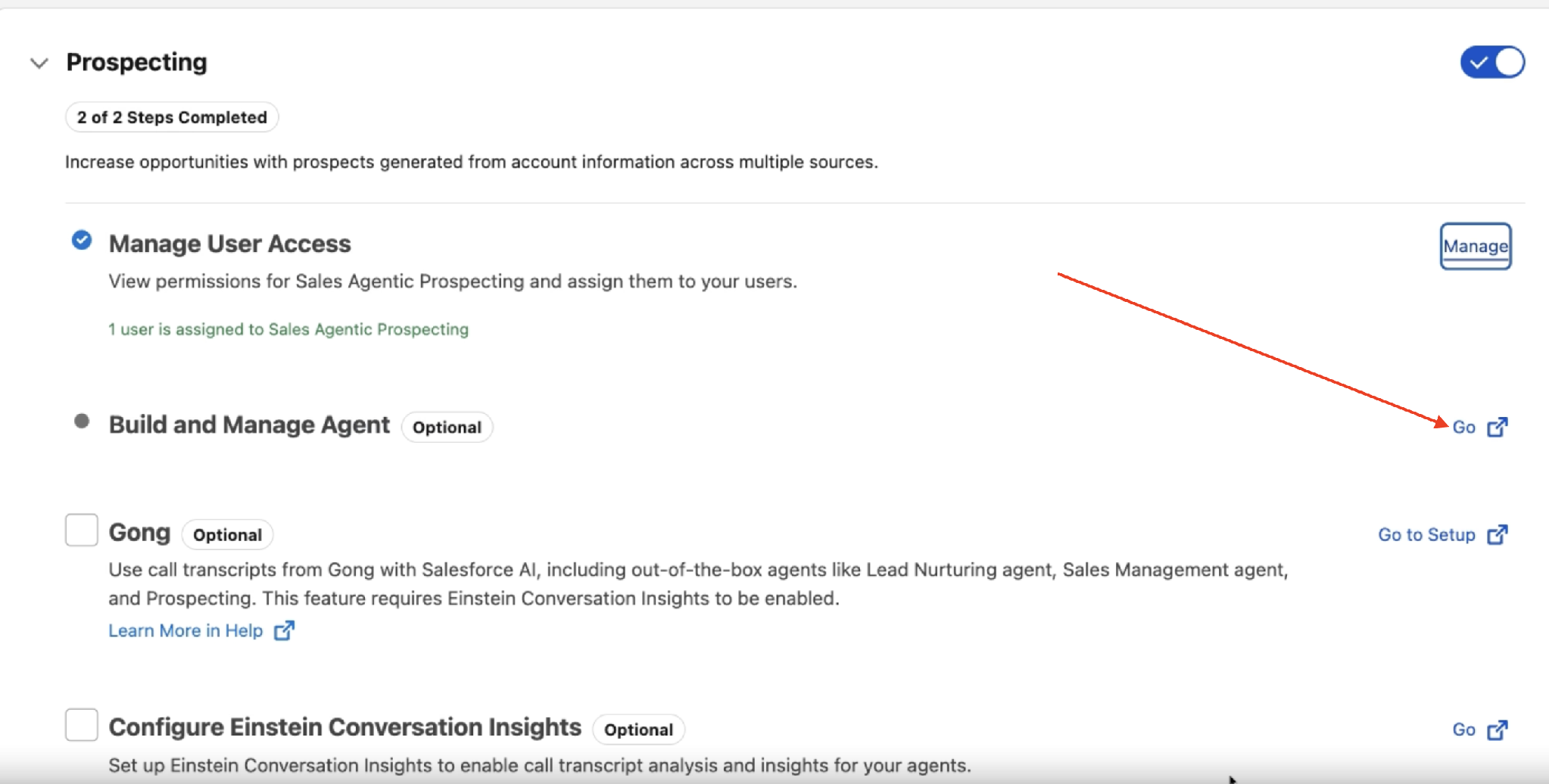
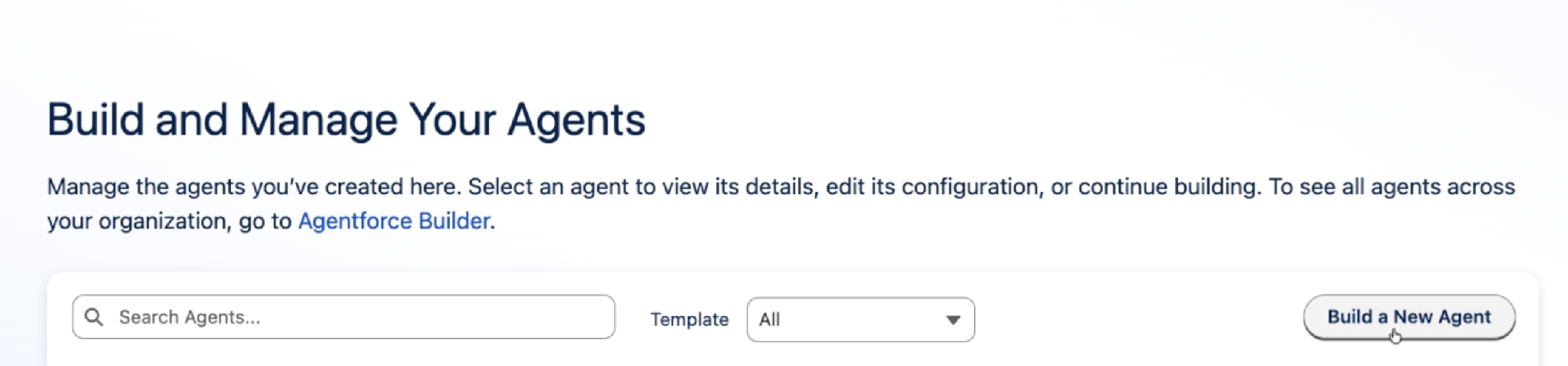
Where you land next depends on whether your org already has agents.
- If your org already has agents: You land on Build and Manage Your Agents. Select Build a New Agent.
- On Select an Agent Template, select Prospecting. If your org has no agents yet, you land on this page directly.
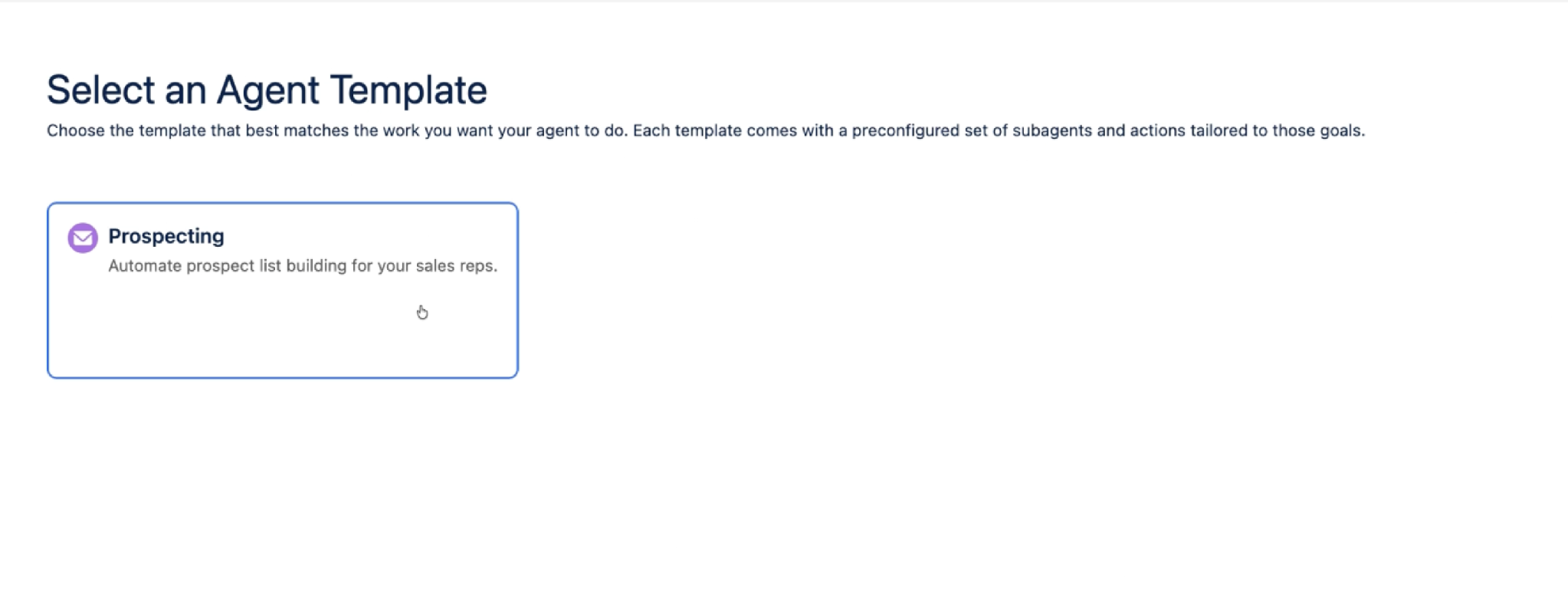
TIP: One Prospecting Agent per org. If someone in your org already created a Prospecting Agent, edit that one instead of creating a new one.
Step 2: Name Your Agent
- On Getting Started, enter an Agent Name (Internal), for example
Prospecting Agent - NA Enterprise. - Leave Language set to English, and select Next.
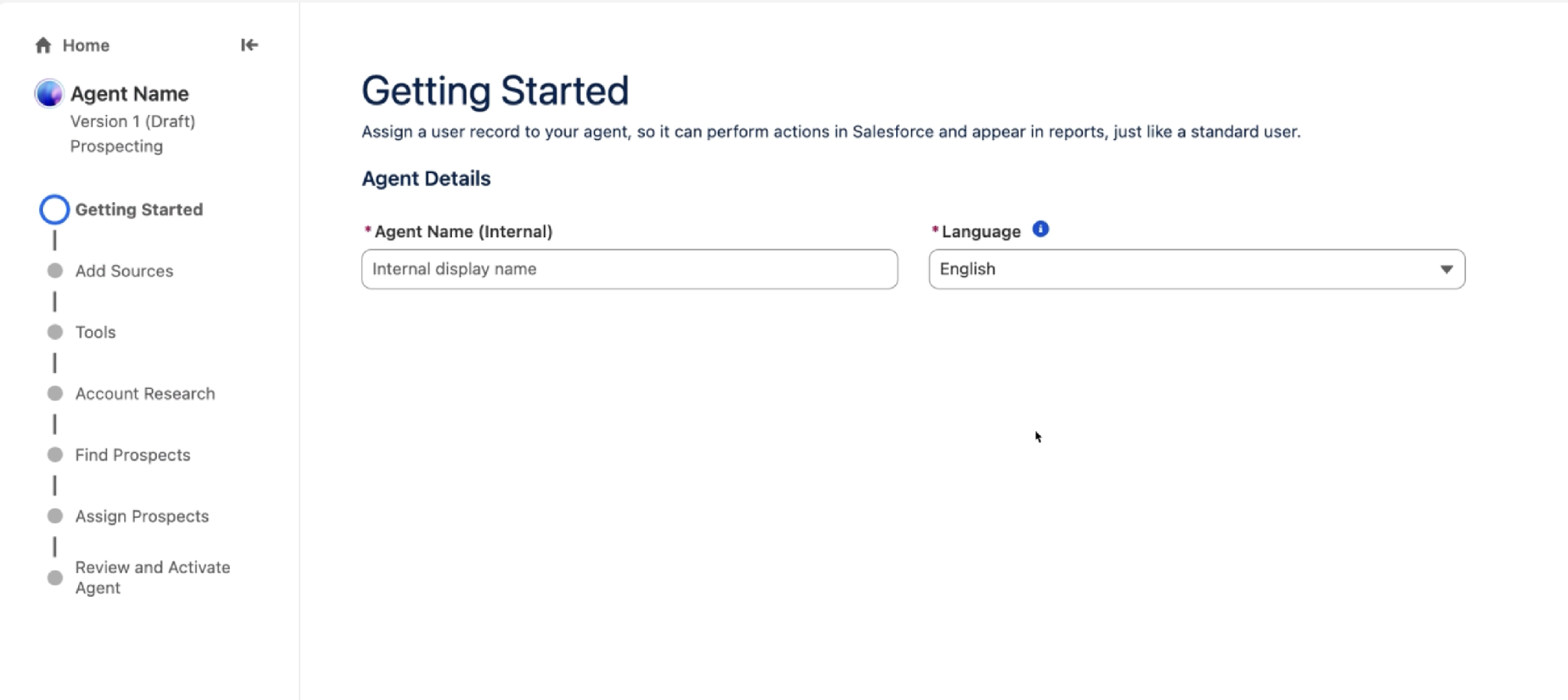
TIP: Why the name doesn't matter much. Reps never see or chat with this agent. It runs in the background and shows its results in the Prospects tab. Pick a name that makes sense to your admins.
Step 3: Add Your Account Report
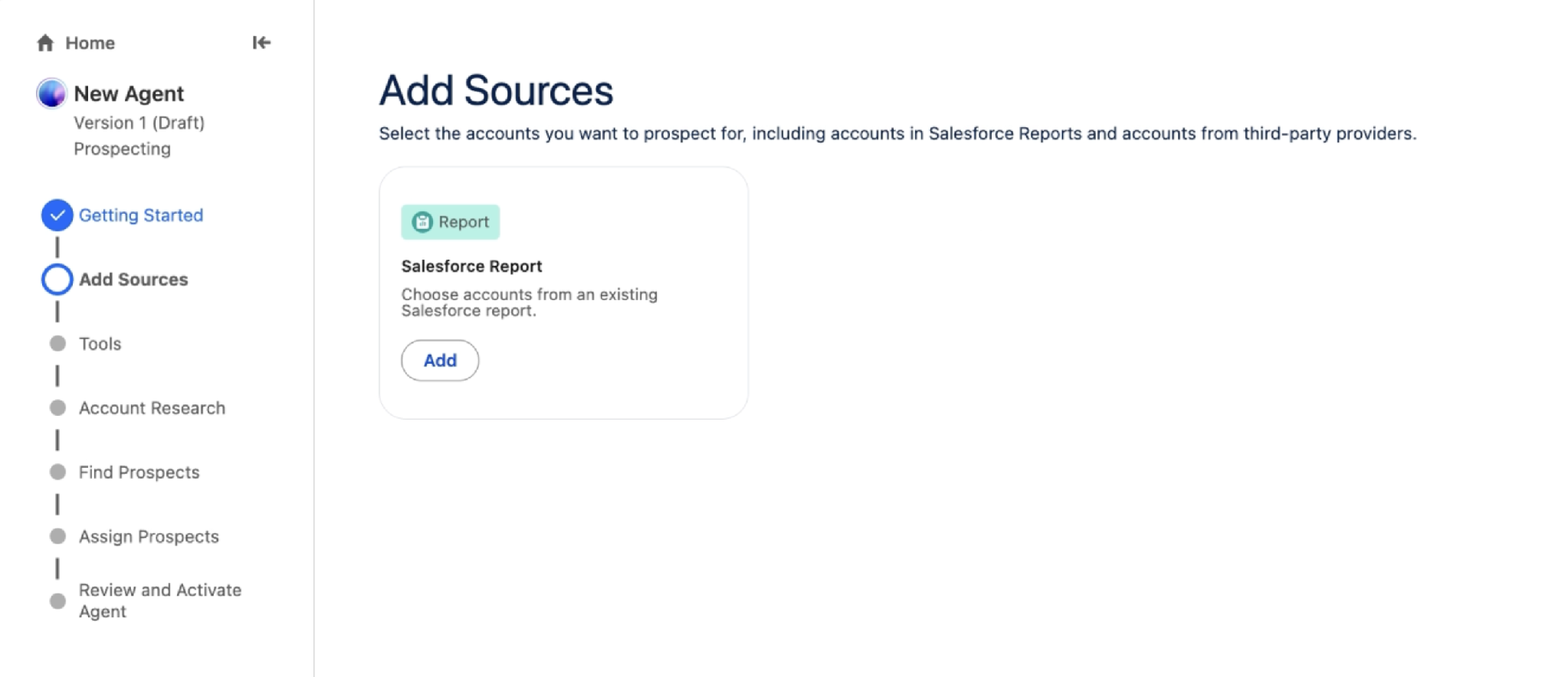
This is where your pre-work pays off. On Add Sources, you connect the account report you built, so the agent knows which accounts to prospect in.
- Under the Salesforce Report card, select Add.
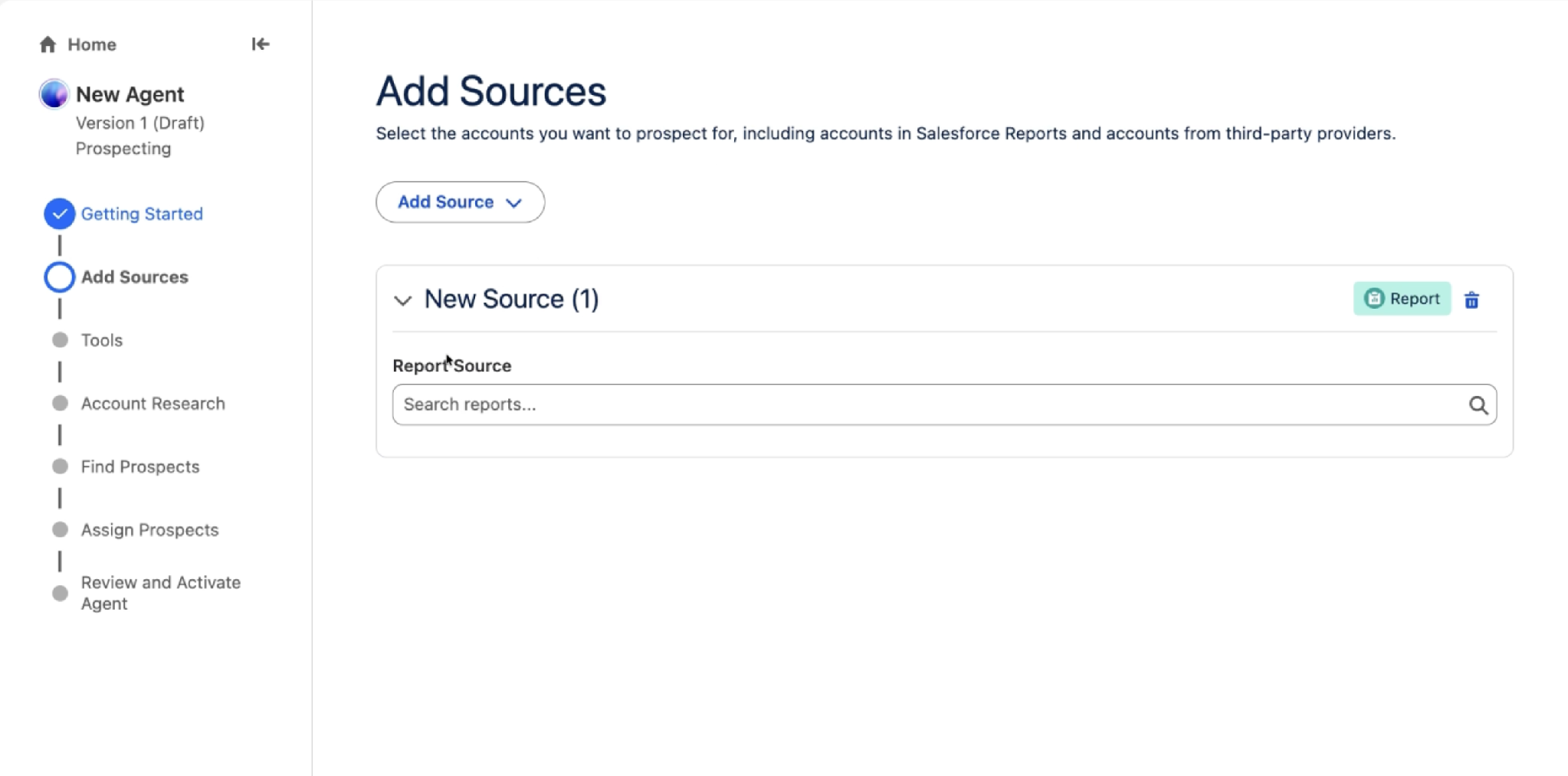
- In Report Source, search for the report you built in Exercise 0, Step 5.
- Select the report. Its description, folder, and owner appear below it.
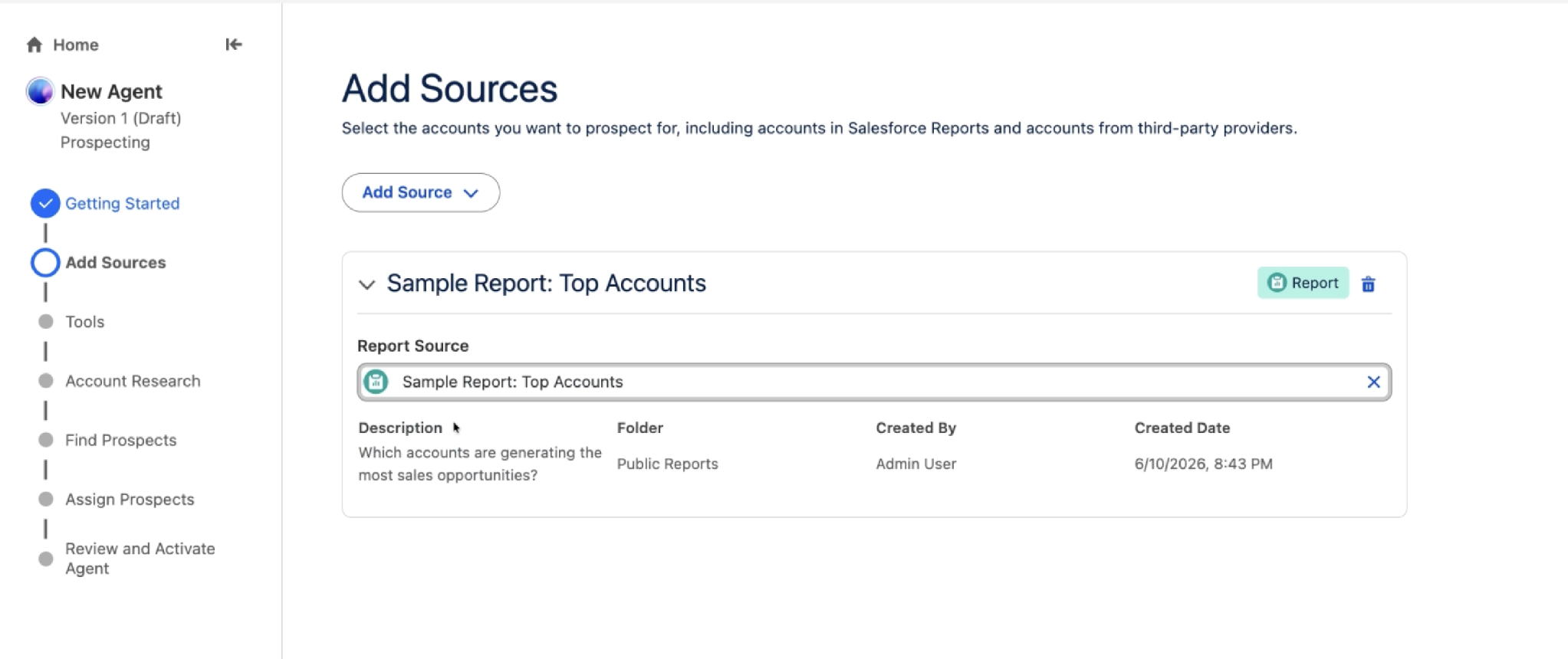
TIP: Report not showing up? Make sure it's saved in a shared folder, not a private one, and that your builder user can open it.
Step 4: Connect ZoomInfo (Optional)
On the Tools screen, you can connect ZoomInfo. That gives the agent access to ZoomInfo's companies, contacts, and intent signals, so it can find the right people inside your target accounts.
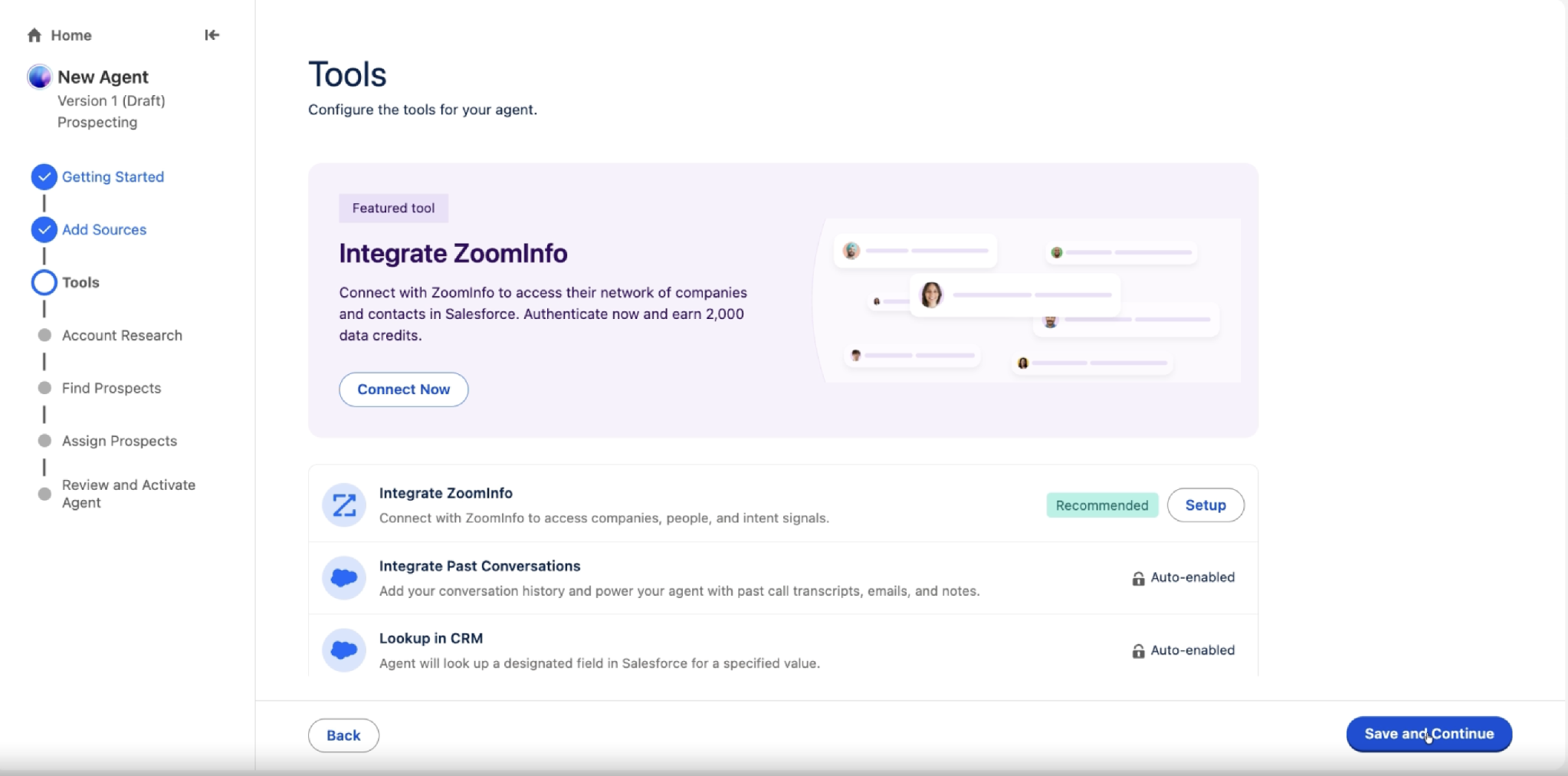
- Select Connect Now in the ZoomInfo banner, or Setup in the ZoomInfo row. Then sign in with your standard ZoomInfo user, or create a free account.
- Select Save and Continue. If you're skipping ZoomInfo for now, select Save and Continue without connecting.
Two other tools are already turned on for you, so you don't need to do anything with them: Integrate Past Conversations (uses past call transcripts, emails, and notes) and Lookup in CRM (looks up fields in Salesforce).
TIP: ZoomInfo sign-in failing? Confirm the builder has the ZoomInfo Prospecting Access permission set (Exercise 1, Step 4). Also check that you're signing in with a standard ZoomInfo user that can consume credits, not a ZoomInfo admin account.
Your agent exists, is connected to your account report, and (optionally) to ZoomInfo.
This completes Exercise 2.