
Appearance
Exercise 0 - Set Up Your Sandbox
TIP: This workbook sets up Prospecting Agent in a sandbox, not production. Your sandbox needs Agentforce for Sales licenses before you start. Don't buy or add licenses on your own to get through this pre-work. If something is missing, contact your Salesforce account team.
Before you start, here's what you're confirming and why:
| # | Item | Required? | How to confirm |
|---|---|---|---|
| 1 | Agentforce for Sales licenses in your sandbox | Required | Prospecting appears in Salesforce Go (Step 1 below) |
| 2 | The right sandbox | Required | Partial Copy or Full sandbox with real Account data |
| 3 | Builder user: admin rights + US English locale | Required | Check the builder's user record |
| 4 | Salesforce Foundations setup | Required, if prompted | Salesforce Foundations page in Setup |
| 5 | Target account report | Required | Report is saved in a shared folder and includes the Account fields listed below |
| 6 | Duplicate rules | Required | Active duplicate rules for Leads, Contacts, and Accounts |
| 7 | ICP answers | Required | Written answers to the questions in Step 7 |
| 8 | ZoomInfo | Strongly recommended | ZoomInfo login with API access, or sign up for free credits |
| 9 | Einstein Activity Capture | Recommended | EAC turned on and assigned to reps |
Step 1: Confirm Prospecting Is Available
Prospecting Agent requires Agentforce for Sales or Agentforce 1 Edition, plus Flex Credits. Your sandbox must also include these licenses. Confirm this before you do anything else.
- In your sandbox, select Setup (⚙️).
- Search for and select Salesforce Go.
- Search for Agentforce for Sales and select it.
- Scroll down and confirm the Prospecting section is there. It looks like the image below. In your sandbox, the toggle is probably still off. That's expected.
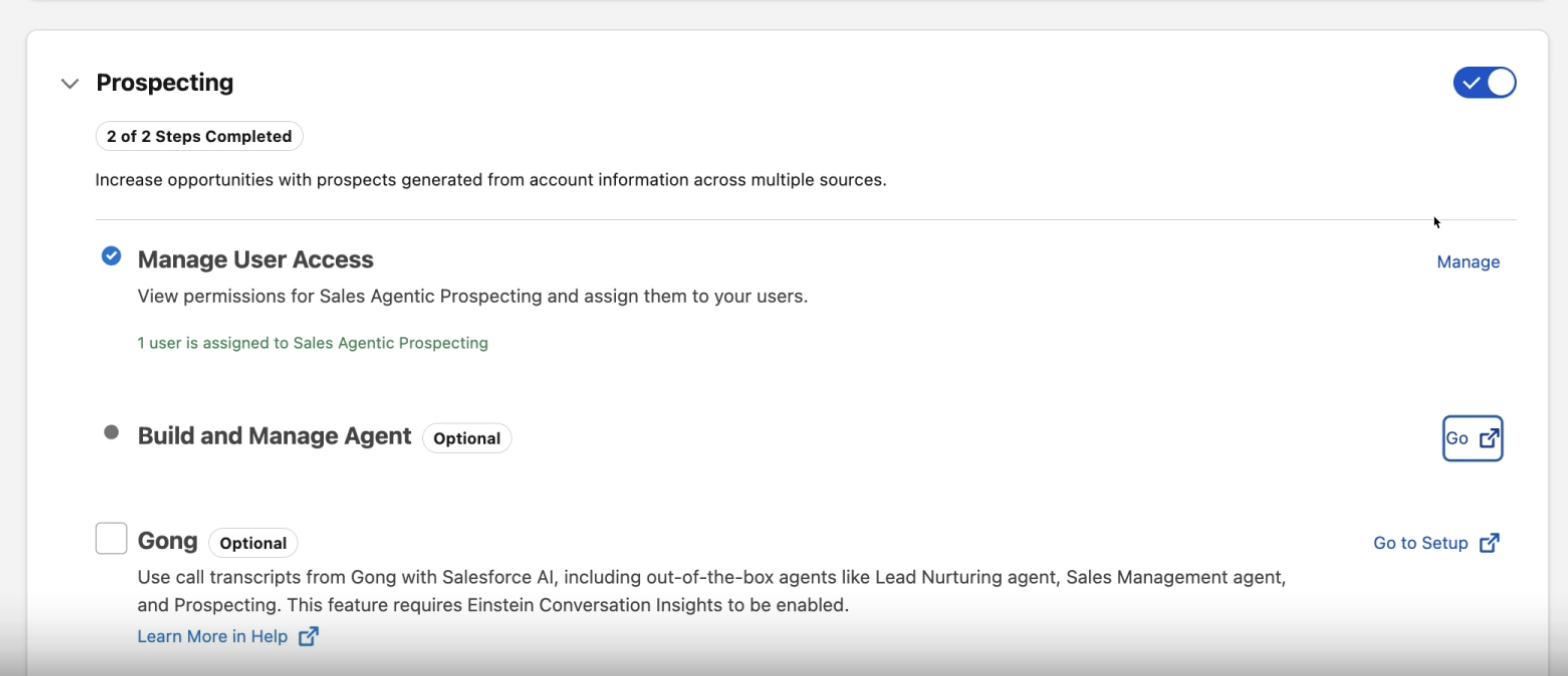
TIP: Don't see Prospecting? Your sandbox doesn't have the license yet, so stop here until it's fixed. Two common fixes: (1) your admin runs Match Production Licenses on the sandbox, or refreshes the sandbox after the licenses are active in production; (2) if you don't own Agentforce for Sales yet, ask your account team about a no-cost proof-of-concept license for this workshop. Don't turn Prospecting on yet. You do that together with us on workshop day.
Step 2: Choose the Right Sandbox
The agent researches real accounts, so your sandbox needs real Account data.
- Recommended: A Partial Copy or Full sandbox. These include copies of your production records.
- Developer sandboxes have no records. If you use one, load a sample of real Accounts (with Website populated) before workshop day.
Step 3: Prepare Your Builder User
- Confirm the builder has the System Administrator profile, or full Sales Cloud admin permissions, in the sandbox.
- Open the builder's user record (Setup → Users → select the user) and confirm Locale is set to English (United States).
TIP: Locale, not Language. Prospecting Agent currently supports English in a US locale only. If a user's locale is set to English (United Kingdom) or any other non-US locale, they get errors, even if their language is English. Check the Locale field.
Step 4: Complete Salesforce Foundations (If Prompted)
Some orgs need to finish a few steps on the Salesforce Foundations page before Agentforce can be turned on.
- In Setup, search for Salesforce Foundations. If any setup steps are listed, complete them. See Set Up Salesforce Foundations.
Step 5: Build Your Target Account Report
Before you can configure the agent, you need a Salesforce report of your target accounts. This report tells the agent which accounts to prospect in. It's also the most common cause of blocked builds, so build it now. You can change the report later, after the agent is created.
The report isn't a generic data pull. It's the list of accounts your team is actually working, scoped by territory, segment, or ICP. ZoomInfo and your CRM data then help the agent find the right people inside those accounts. Report = the accounts you care about. Enrichment = the specific people to contact.
Three starter reports tend to work well. For the workshop, pick one:
- Tier 1 — Named accounts: your "must win" list, often 2,000–5,000 accounts. These are your most curated, highest-touch accounts.
- Tier 2 — Unassigned pool: accounts no rep has time to research. The agent does the triage for you.
- Tier 3 — Closed-lost: accounts with closed-lost opportunities, especially where notes or call history show a reason to re-engage (for example, "reach back out next summer"). This is often the strongest place to start.
- Create a Salesforce report of Accounts (for example, with the Accounts report type).
- Include these required columns: Account ID, Account Name, and Website.
- Add the recommended columns that apply to you:
- Industry
- Employees (or Annual Revenue), to filter by company size
- Billing Country, especially if your territories are based on geography
- Account Owner, if you route prospects to the account owner
- Last Activity, so the agent can prioritize accounts with recent engagement
- ZoomInfo fields, if you already sync them (such as company size, revenue, or tech stack)
- Your own ICP fields: anything you use to score or segment accounts, such as Tier, Segment, or Intent Score
- Save the report in a shared (public) folder, not your private folder. If you don't, the agent can't find it.
- Size it for testing: about 50–500 accounts.
TIP: The report must be Account-based. It needs an Account ID column that maps to an Account record. Lead-only reports don't work.
TIP: Start small, then scale. A focused list of 50–500 accounts gives faster, clearer results on workshop day and uses fewer credits. A list of about 20 accounts is too small to judge results. After the workshop, you can point the agent at larger reports, from 5,000 up to tens of thousands of accounts.
TIP: Account ownership. If your builder user owns some accounts on the report, testing is easier. If not, don't worry. On workshop day, you route all test prospects to the builder instead (Exercise 4).
Step 6: Confirm Duplicate Rules
Prospecting Agent uses your existing duplicate rules when it creates Leads and Contacts.
- In Setup, search for Duplicate Rules and confirm active rules exist for Leads, Contacts, and Accounts. The standard rules are fine.
Step 7: Answer the ICP Questions
The agent needs to learn two things from your team: which accounts are worth pursuing, and who to contact inside them. Write down your answers. Rough answers are fine. We'll turn them into agent instructions together on workshop day.
Which accounts are a good fit?
- What makes an account worth pursuing? (industry, size, region)
- What makes you say "skip this one"?
- Think of your best few customers. What did they have in common?
Who should we contact inside those accounts?
- Who do your best deals start with?
- Which titles or roles are your ideal contacts?
- Who's a good backup if those people aren't available?
- Who's a waste of time and should always be skipped?
Step 8: Get ZoomInfo Ready (Strongly Recommended)
With ZoomInfo connected, the agent can find net-new contacts that aren't in your CRM yet. Without it, the agent can only recommend Contacts you already have.
- If you already have ZoomInfo: Confirm your subscription includes API access. Plan to connect with a standard (non-admin) ZoomInfo user that can consume credits, ideally a dedicated integration user rather than a person's own login.
- If you don't have ZoomInfo: You can sign up for a free ZoomInfo account with 2,000 credits during setup. After you use those credits, you need a ZoomInfo plan that includes enrichment to keep using the integration. Check with ZoomInfo about your options.
TIP: Don't connect with a ZoomInfo admin account. Admin accounts can cause errors when the agent tries to enrich data. Use a standard ZoomInfo user that can consume credits.
Step 9: Turn On Einstein Activity Capture (Recommended)
Einstein Activity Capture (EAC) brings your team's emails and meetings into Salesforce. That gives the agent more context when it researches accounts.
- If EAC is already turned on, confirm it's assigned to your reps. If it isn't on, ask your account team whether to set it up before the workshop.
TIP: Gong / Einstein Conversation Insights — hold for now. Don't turn on Einstein Conversation Insights (ECI) in your sandbox for this workshop unless your account team confirms it. We'll share guidance on call transcripts after the workshop.
Prospecting appears in Salesforce Go. Your builder is an admin with a US English locale. Your account report is saved in a shared folder. Your ICP answers are written down.
This completes Exercise 0.