
Appearance
Exercise 1 - Set up Engagement Agent
Step 1: Turn on Engagement Agent in Agentforce for Sales
Before we can start to configure our Engagement Agent, we first need to enable it! Follow these steps below to get started.
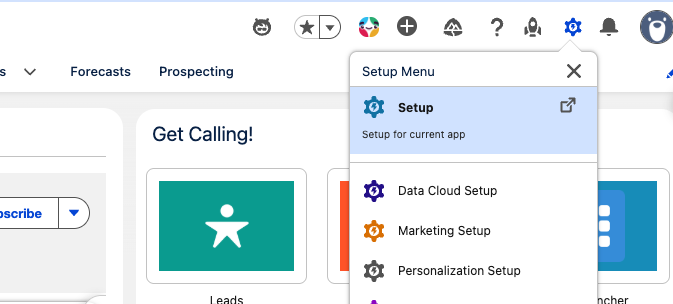
Click the Gear Icon at the top right, and select Setup.
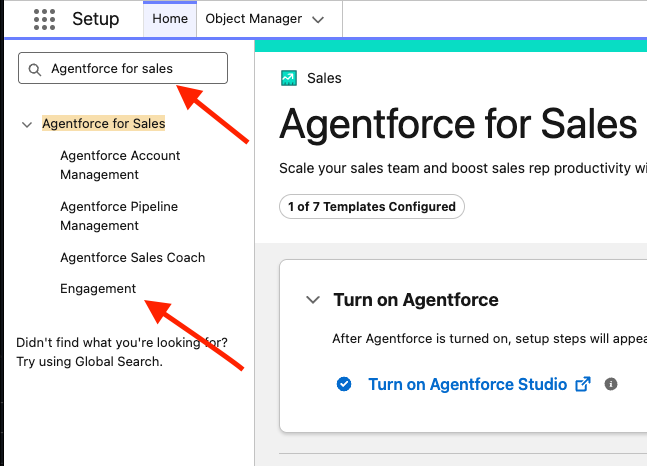
in the Quick Find box, search for Agentforce for sales, and click into Engagement.
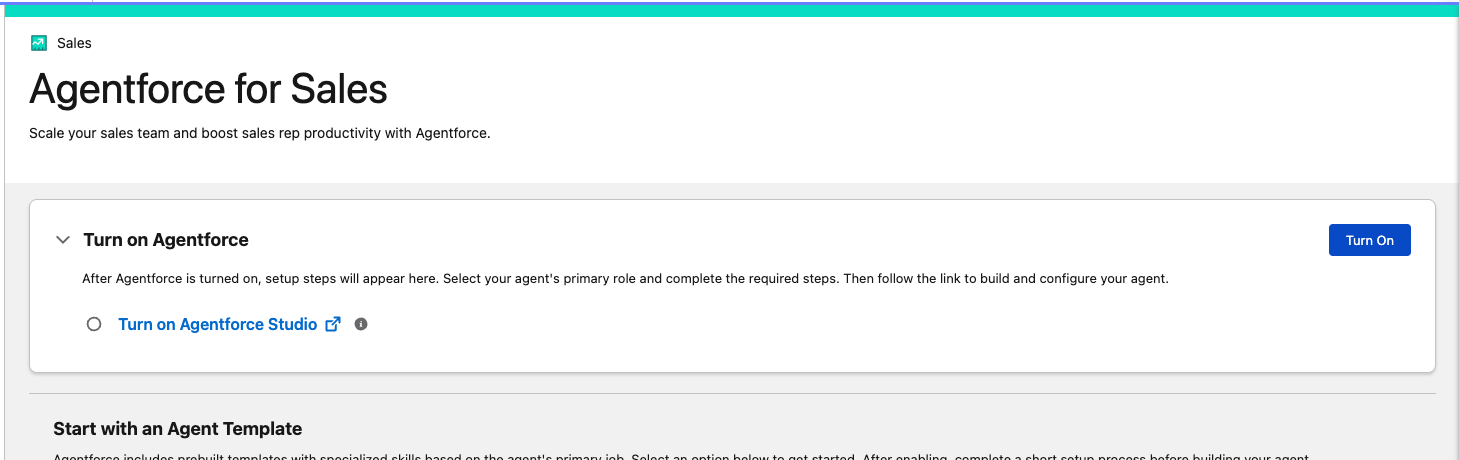
Ensure Agentforce is turned on, if not, click Turn On. This can take about 30 seconds.
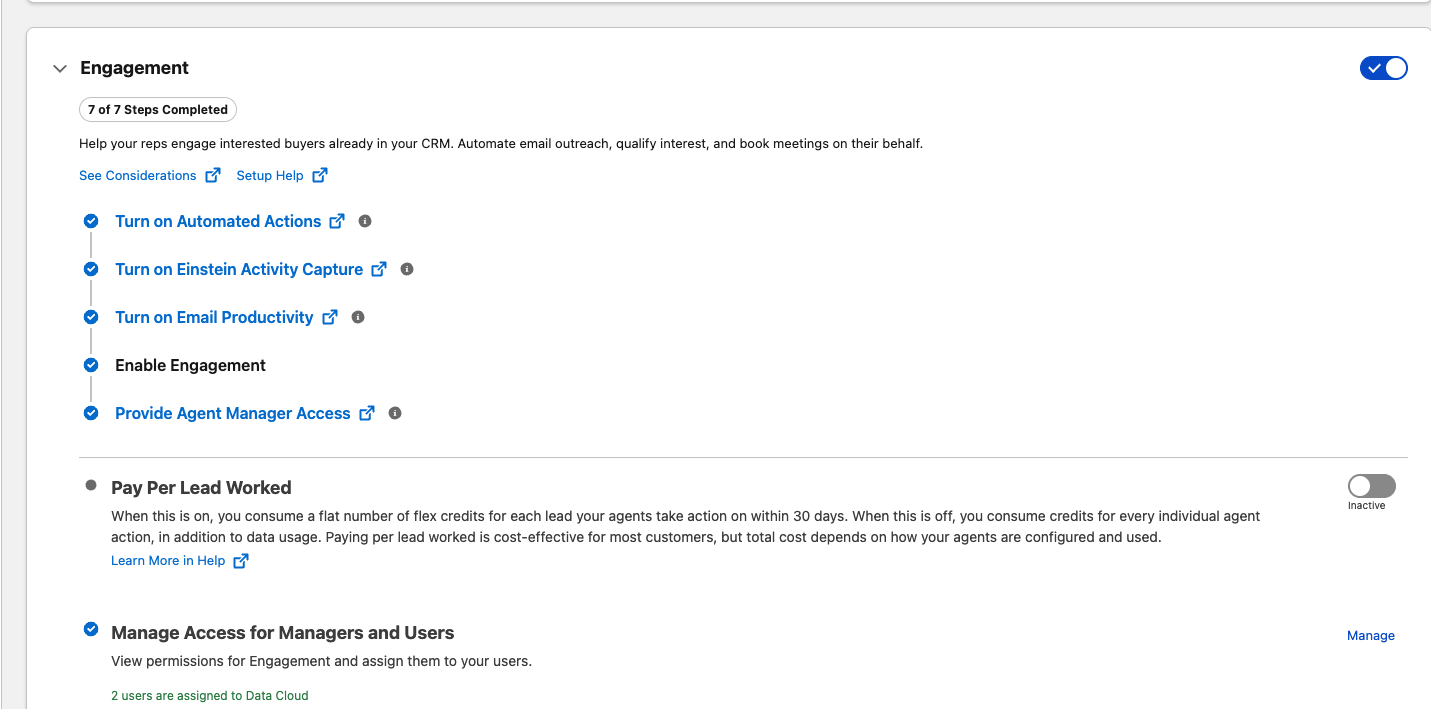
Scroll down to the Engagement Section and Enable Engagement. A popup window will appear, select Turn On. You should then see some steps being automated. This may take a minute or two. Refresh your page after about a minute to see if all the checkboxes are checked, letting you know it’s completed.
Step 2: Enable Agent to Send Emails and Book Meetings
In order for your AI Engagement Agent to send emails & book meetings, it needs a user record, and an email connected. We will work through that now.
Go to Manage Access for Managers and Users Under the Engagement tab, and ensure you are assigned the Configure Engagement Agent, and Use Engagement Agent permission sets, if not - Ensure you assign them to yourself by selecting the checkbox next to your user then click Assign. Do this under both tabs, and then click Done.
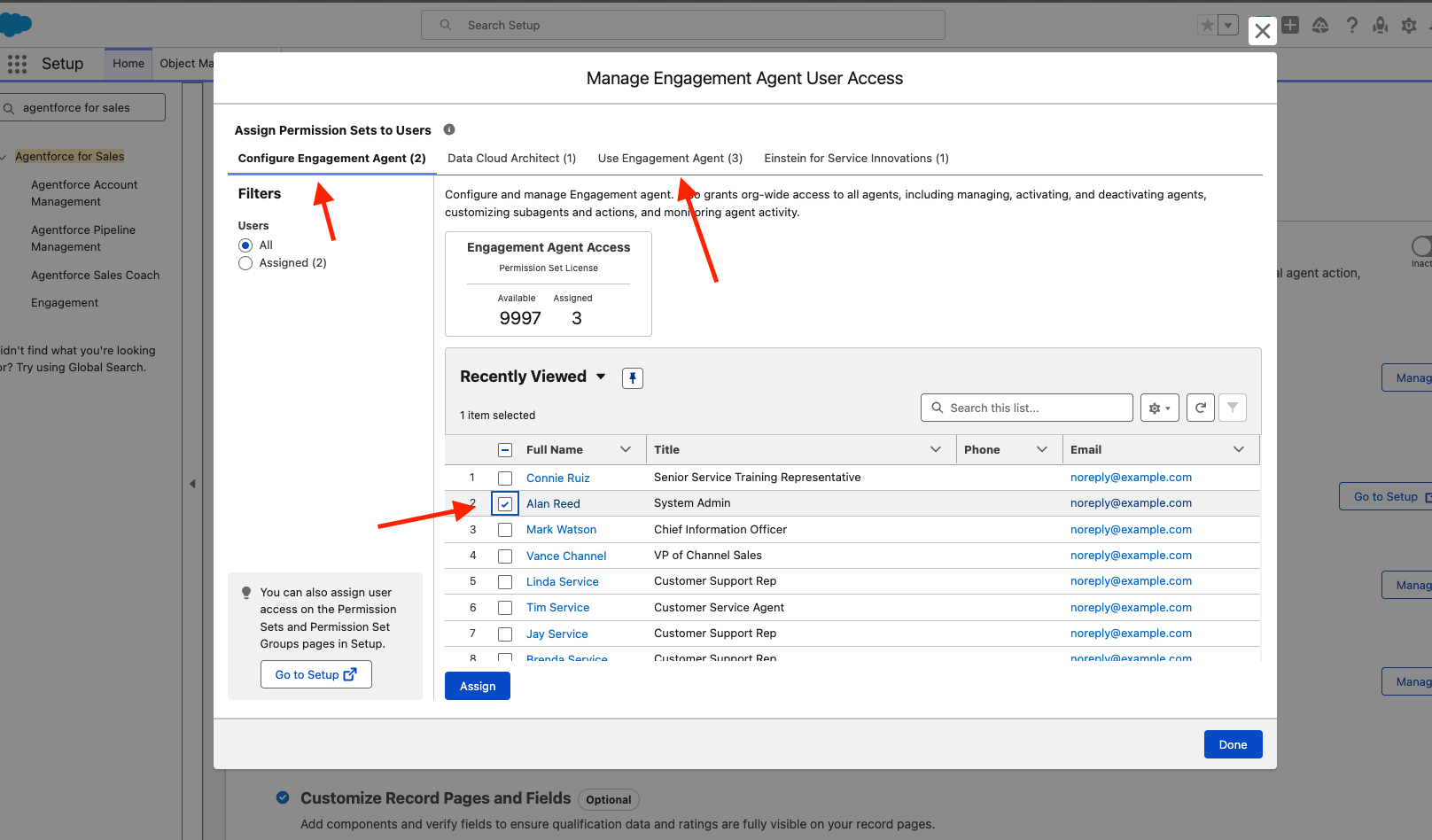
You will also need an Einstein Activity Capture (EAC) configuration. If you don’t have one,, under the Engagement tab, scroll down and select Go to Setup on Einstein Activity Capture (EAC). You will then be brought to the EAC configuration.
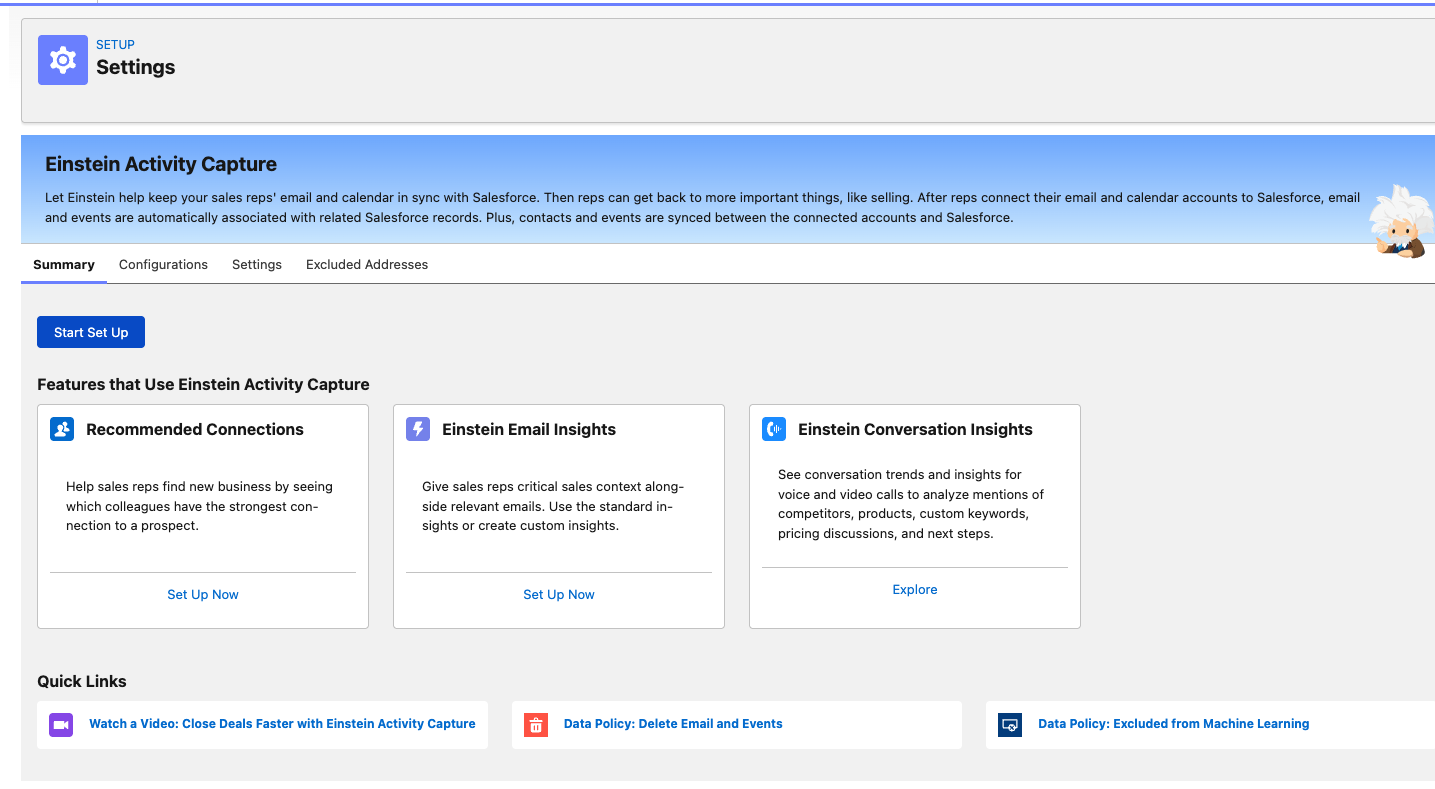
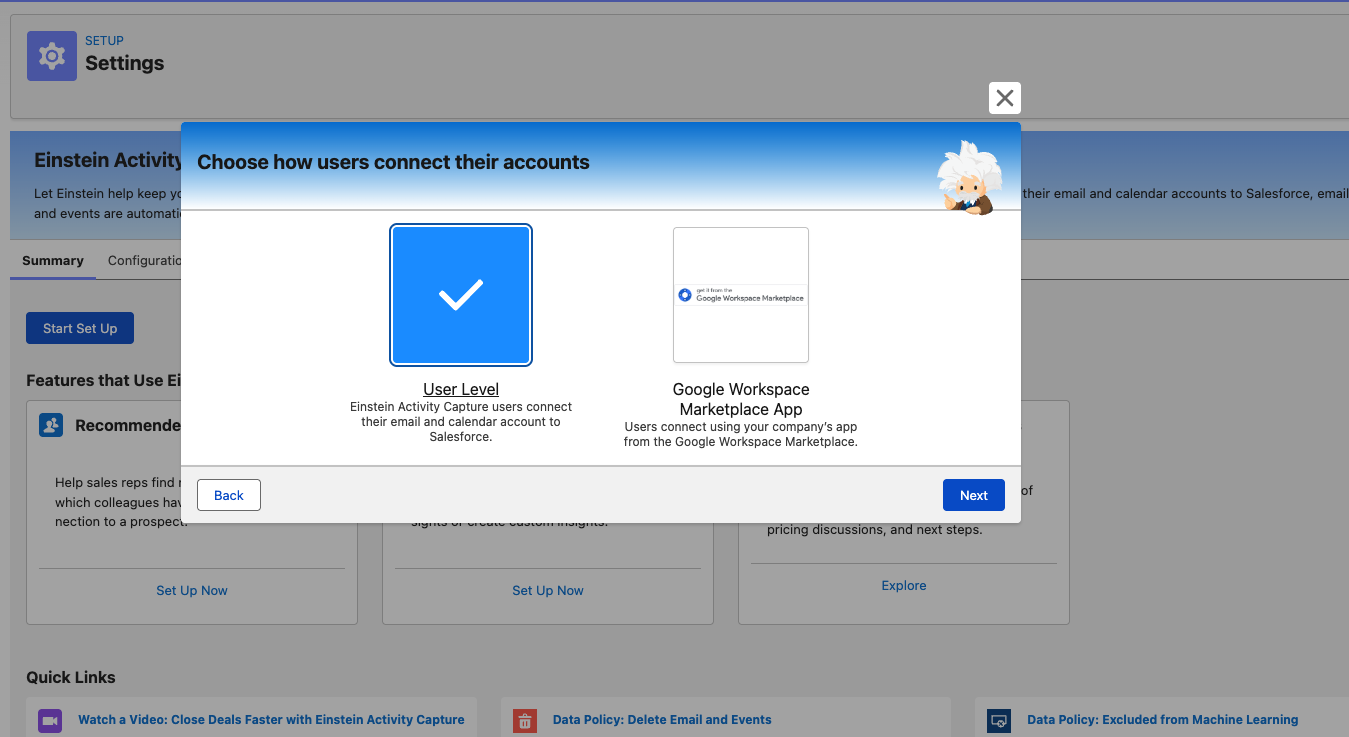
Click Start Set Up, select the email service you use, click Next, and select User Level, then Next again.
You can name the configuration whatever you’d like, for the purposes of this exercise you can name it EAC Config , don’t worry about a description, then click Next.
Leave the Review Sync Settings all default,and click Next. Same for Advanced Settings, just leave it as default, and click Next.
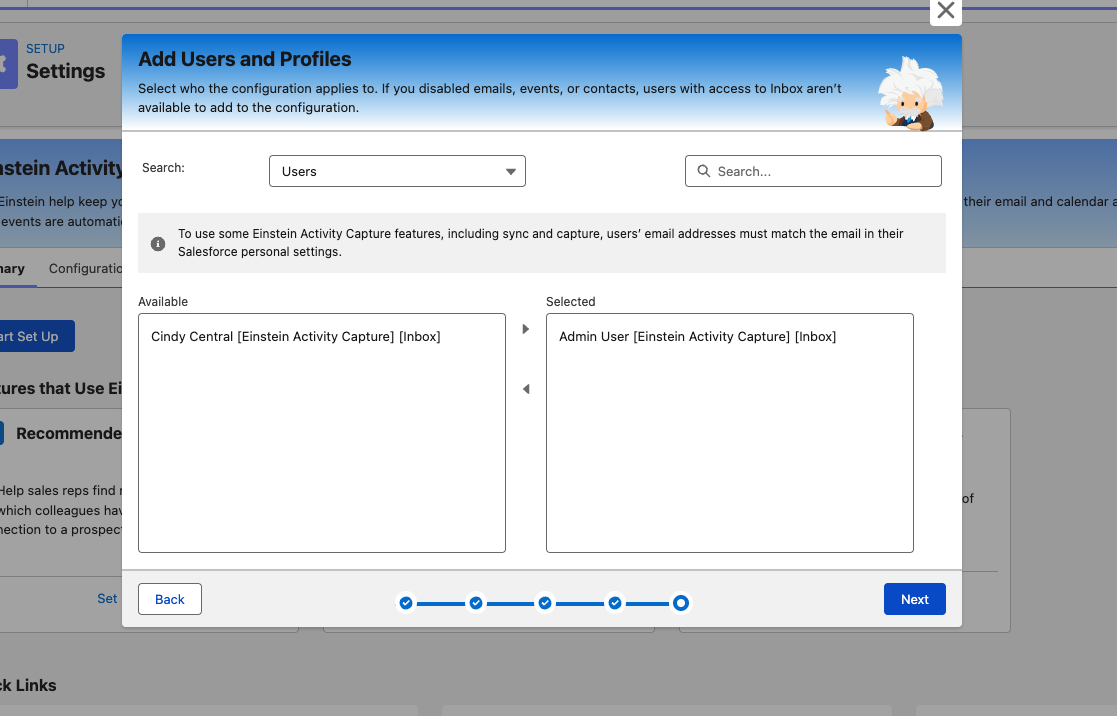
On the Available side, you should see your user, select it and click the right arrow in the middle to move your user to the Selected box. Click Next, then Finish.
Go back to Agentforce for sales by searching Agentforce for Sales in the quick find box of the setup, select Engagement.
Scroll down and expand the Engagement dropdown, then open Manage Agent's User Record and Email.
- NOTE : If the Manage button is grayed out, refresh your page, then it should be clickable after.
- In the dropdown, select +New User, and then make a first and last name for your Agent’s new user Record (this can be whatever you want. Ex : Welo Agent)
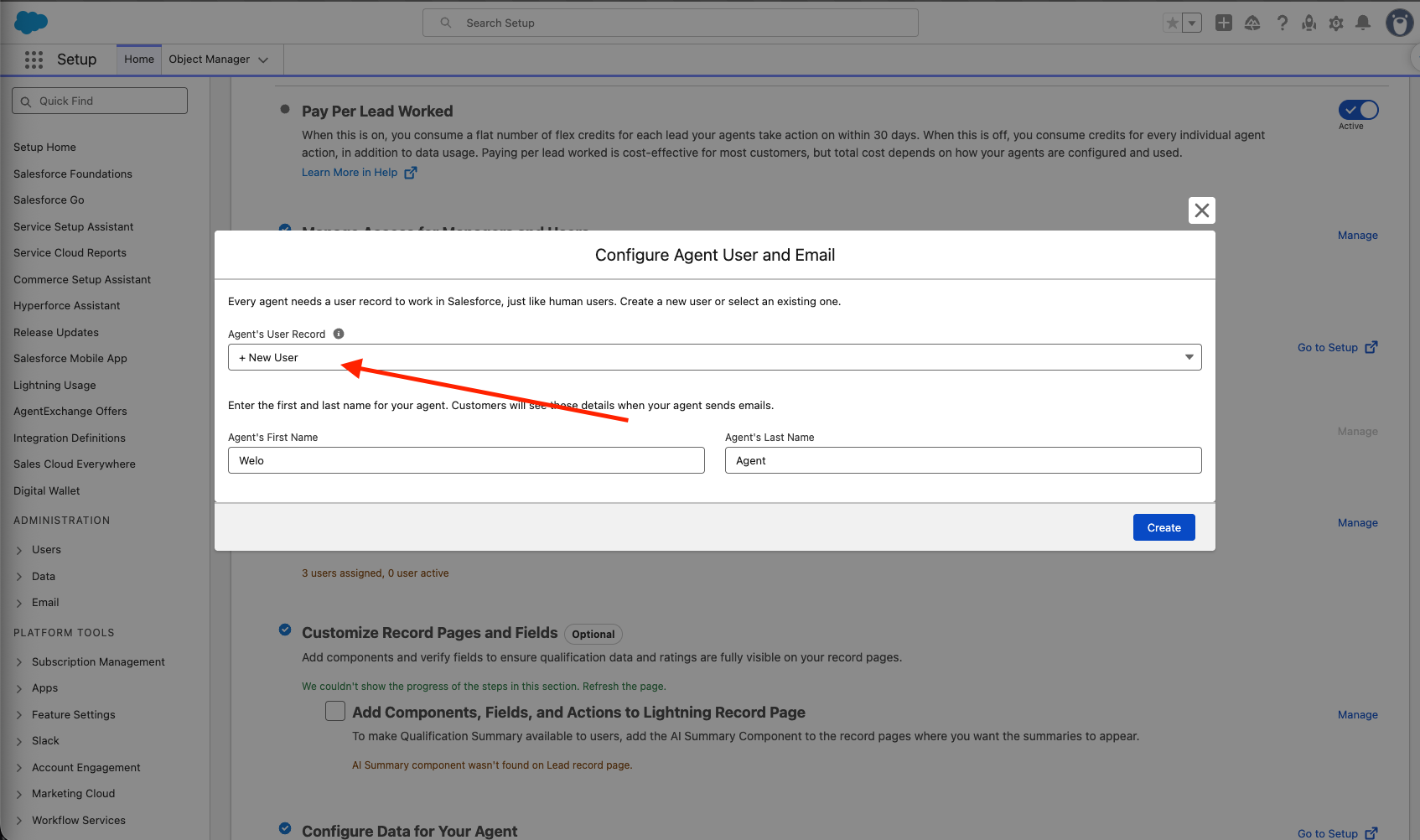
- After inputting Agent’s first and last name, select Create and give it a couple minutes to create the new user for your Agent.
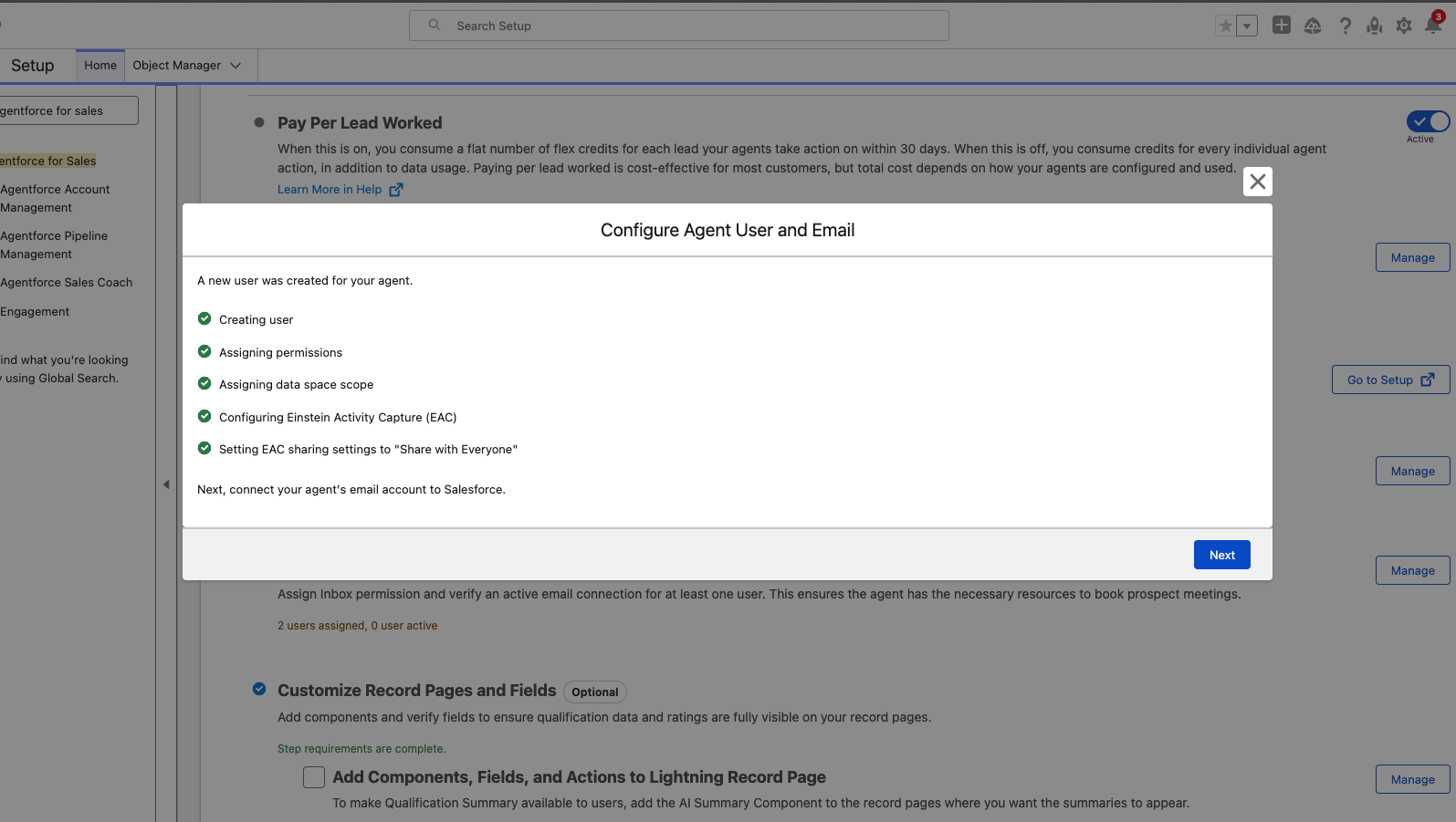
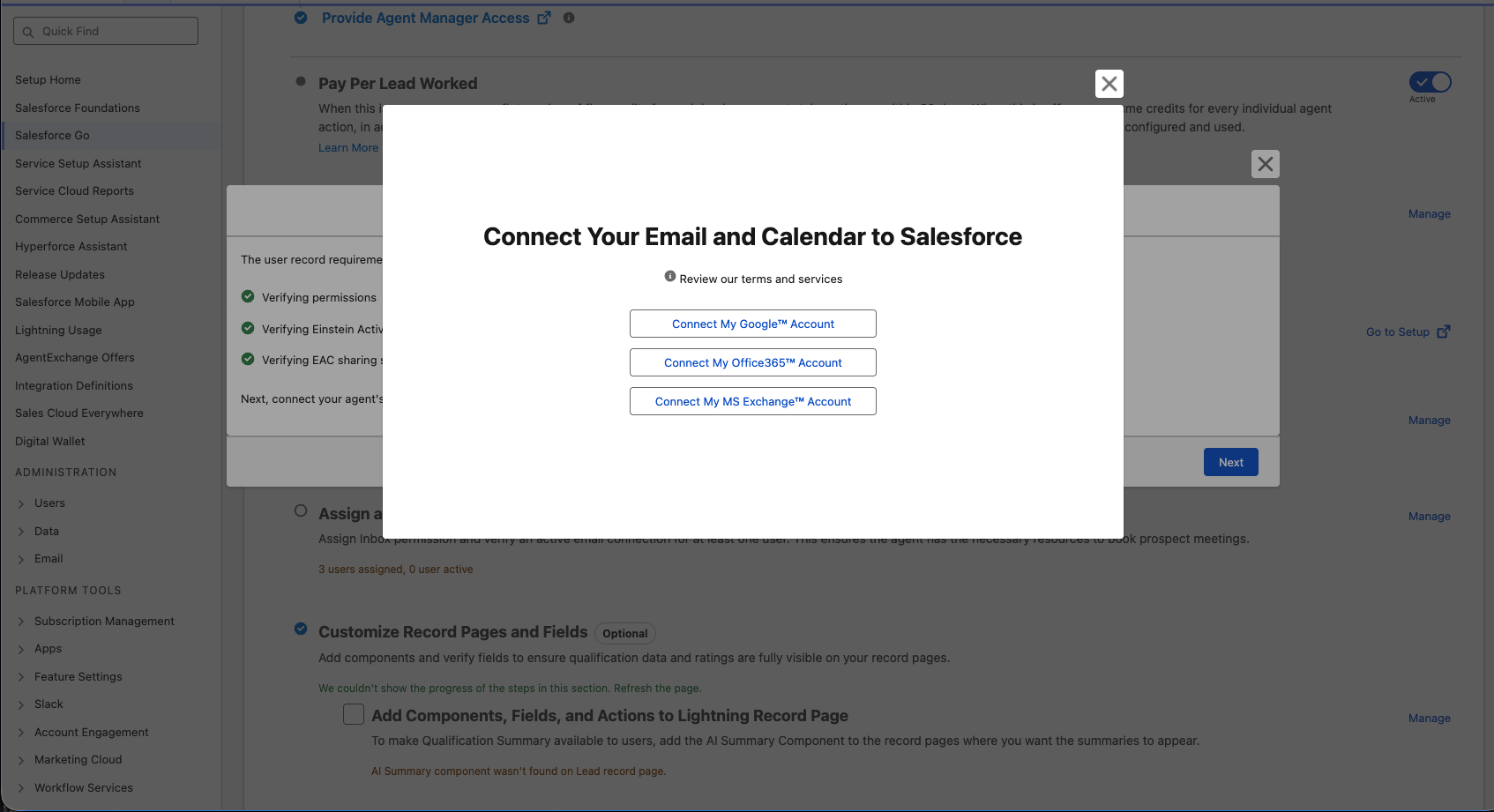
- Once done creating, select Next, and you may or may not be prompted to view and accept terms and agreements for sharing emails and events. If so, check the box, then you will be prompted to Oauth with your email that the Engagement Agent will use to send out emails. Connect using either your work email or a personal email, whichever you prefer.
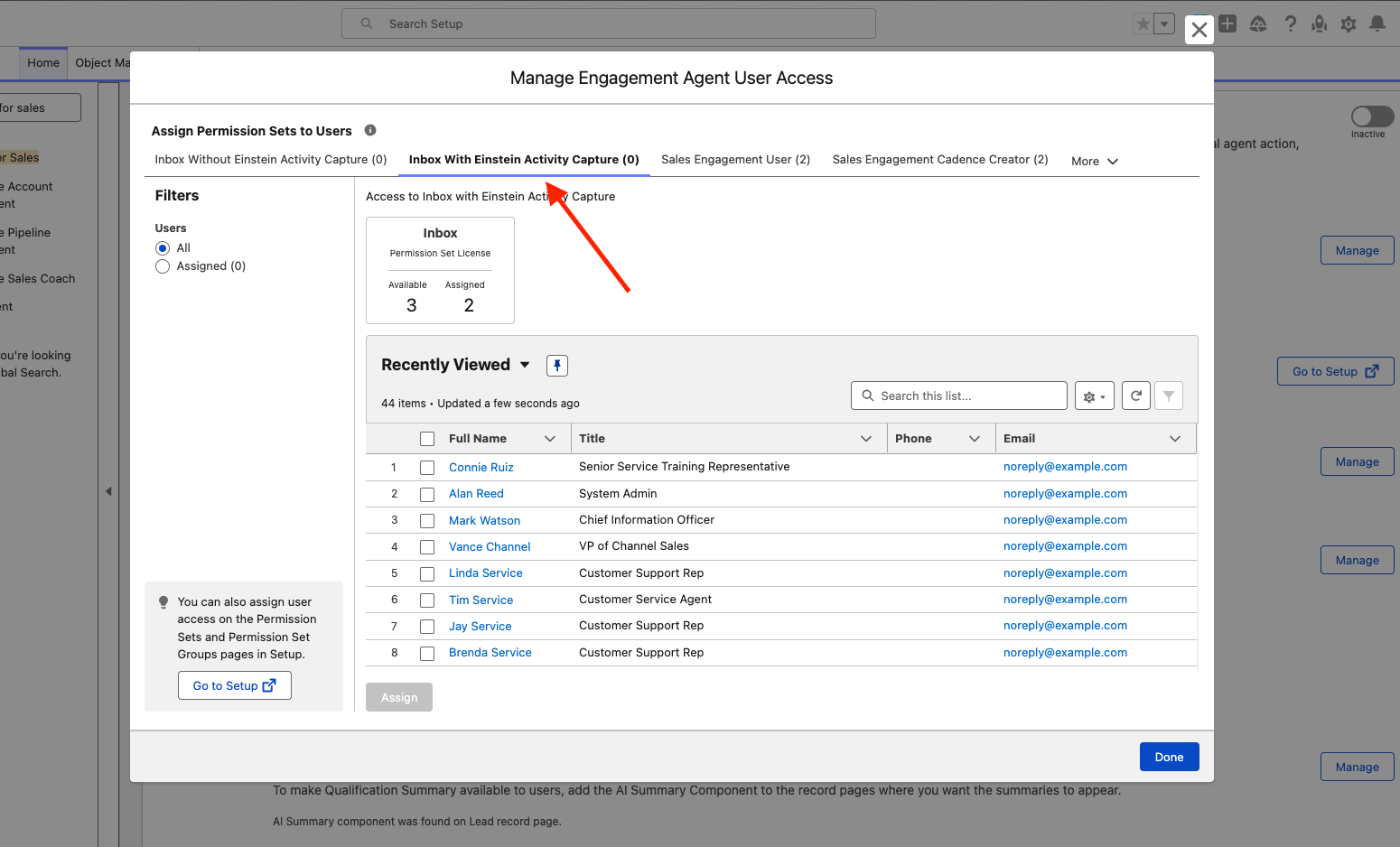
After connecting email, ensure you are back on the Engagement guided setup page, select Manage on Assign and Verify Users for Meeting Scheduling, and confirm you are assigned the Inbox With Einstein Activity Capture permission set. If it’s missing from your assignment, go under the tab, select your user and assign it to yourself now. After, click Done.
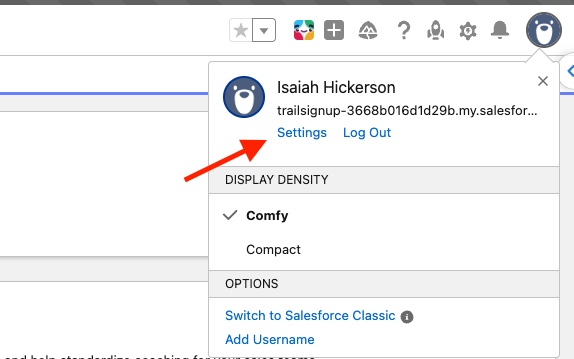
Next, we need to ensure we connect our emails to our own profiles as well. You might have this done already, but if not - follow these steps.. Go to your profile at the top right, select Settings
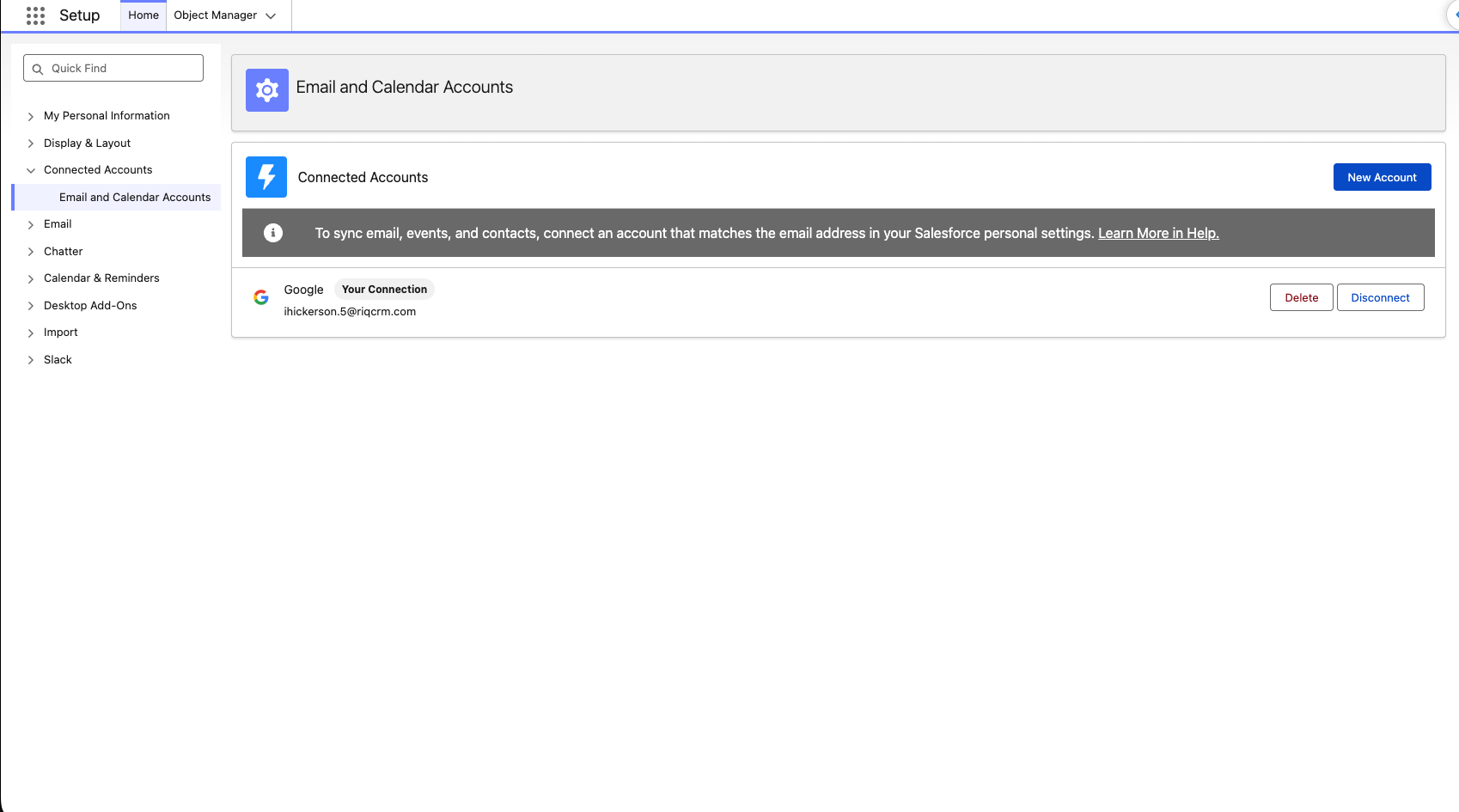
- On the left side, you will see Connected Accounts, expand that tab and go to Email and Calendar Accounts. A window might pop up, if so just select Connect Account, and accept the terms and conditions. Select New Account. Here, you will go through the same OAuth process as previous and connect your own email account to Inbox.
- NOTE : When done successfully, you should your email connection such as the screenshot below :
Step 3: Configure Data for your Agent (OPTIONAL)
Time to ground your Agent in your Data! First, we do this by adding content in our Agentforce Data Library (ADL). You can upload unstructured data such as PDF files, and Data360 will handle the chunking and indexing to make the content readable and usable by your Agent. This data will be used to answer email response questions like pricing, etc. If you have a PDF with that data context, you can use it here. If not, there is a sample file provided later in the steps. You can also choose to skip this step if you’d like - You just will not be able to generate email response previews.
Click the Gear Icon at the top right, and select Setup.
in the Quick Find box, search for Agentforce for sales, and click into Engagement.
Scroll down and expand the Engagement tab. Scroll down to Configure Data for your Agent and select Go to Setup
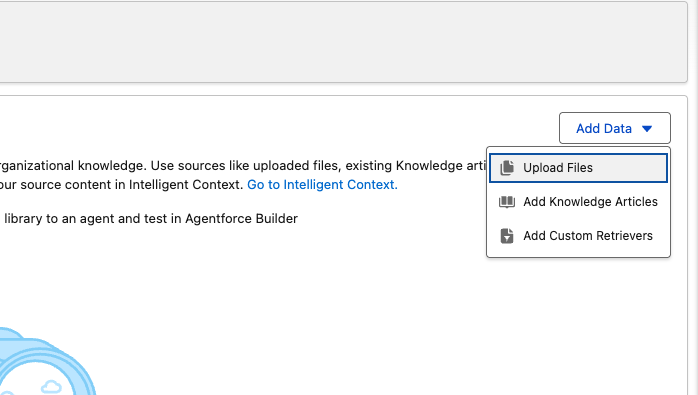
In the Agentforce Data Library (ADL), select Add Data, and select your type of Knowledge source. For simplicity and today’s session, lets go with Upload Files
Enter a name for your library (ex : Welo Technologies Sales Data Library), hit tab on your keyboard and the API name will auto populate.
Create a description describing what your data library is (ex : PDF files containing information about Welo Technologies, FAQ's, Pricing and anything Sales related.)
Ensure Use Intelligent Context to process content, extract text, tables, images and structures from files is toggled on.
Upload a PDF containing information about your organization. This can be FAQ’s, pricing, any context you’d like the Agent to be grounded in and to reference when reasoning. For the purpose of this Exercise , you can download and use this mock sample company data PDF file if needed : Welo Technologies PDF
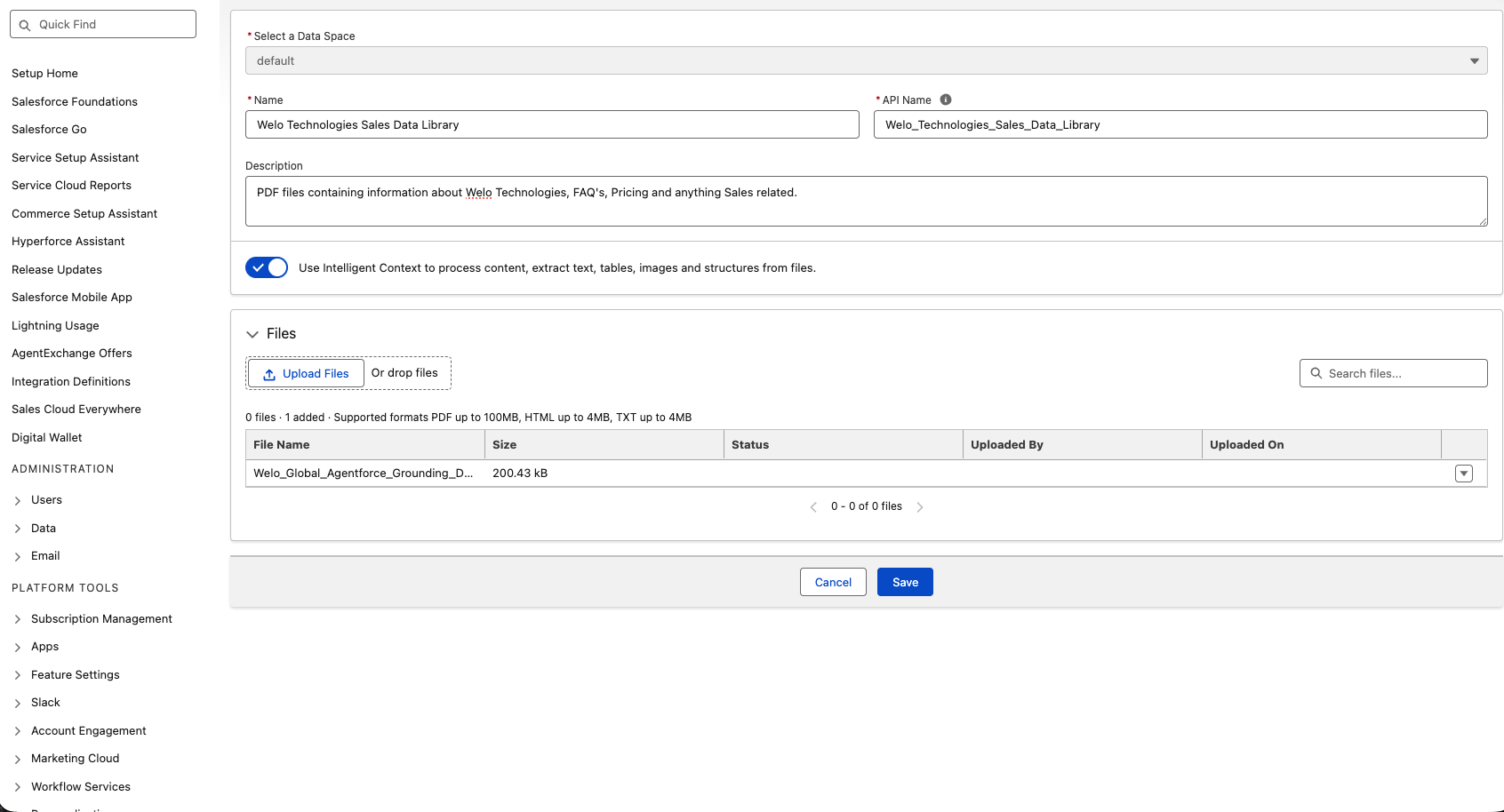
- Select Save, and your data library will now begin to be processed and uploaded. It’s recommended to stay on this page while it processes - This may take a couple minutes. You’ll know it’s done when there’s a green Ready status, such as the one below
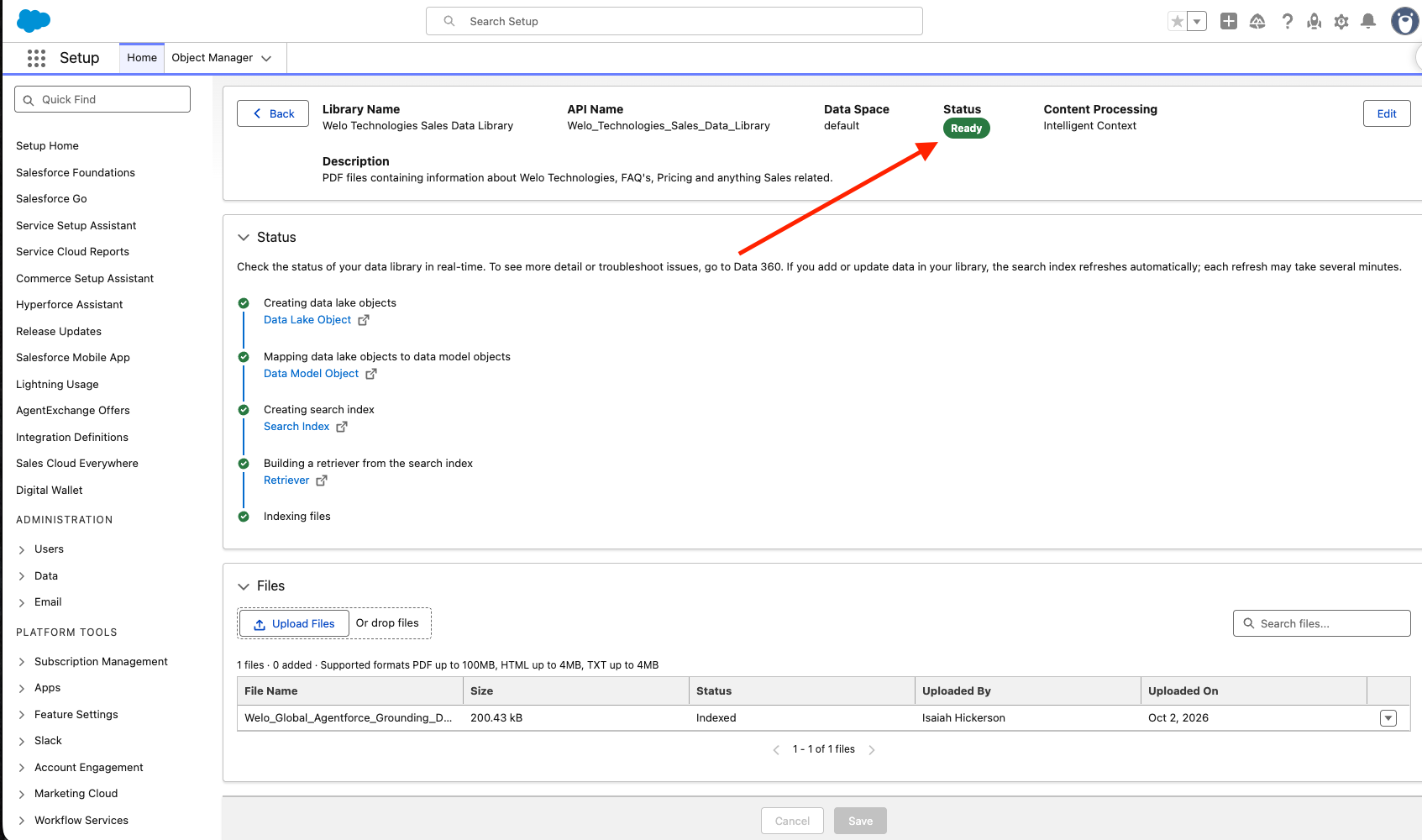
- You now have successfully uploaded content to your ADL!