Appearance
After the Workshop: Assign Leads to Engagement Agent (OPTIONAL)
You may not want to actually send any emails to anyone, so walk through this for guidance without actually assigning the lead. (Unless you want to test assigning yourself as a lead to the agent)
Step 1: Add Send to Agent button to Lead Layout
On top of setting up Assignment Settings to allow your Agent to automatically pick up leads, you can also ad-hoc lead assignment. We won’t be actually doing this in this workshop, but here are the steps so you can see how you would do it.
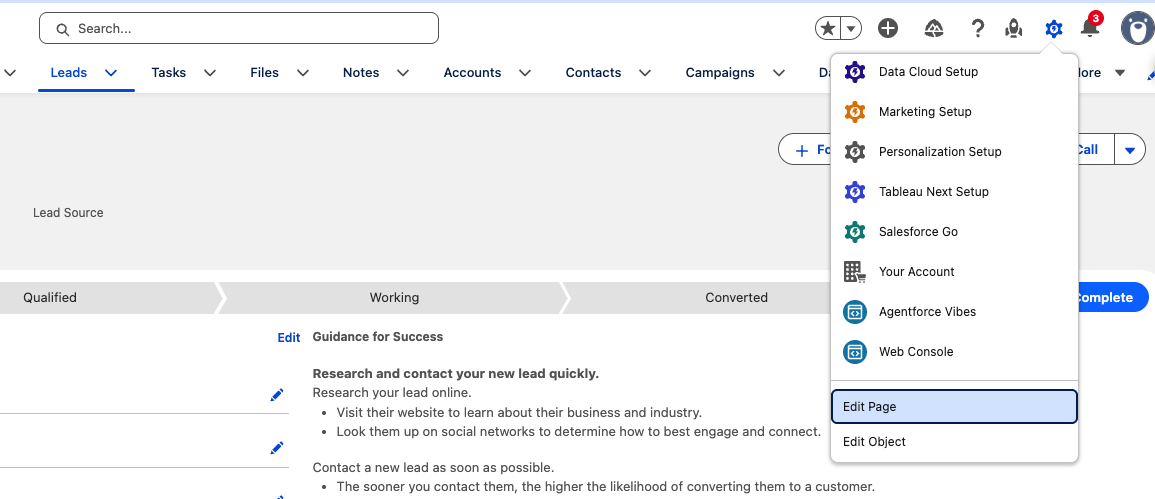
Go to any Lead record, and at the top right, click the gear icon, scroll down then select Edit Page. This will open the Lightning App Builder.
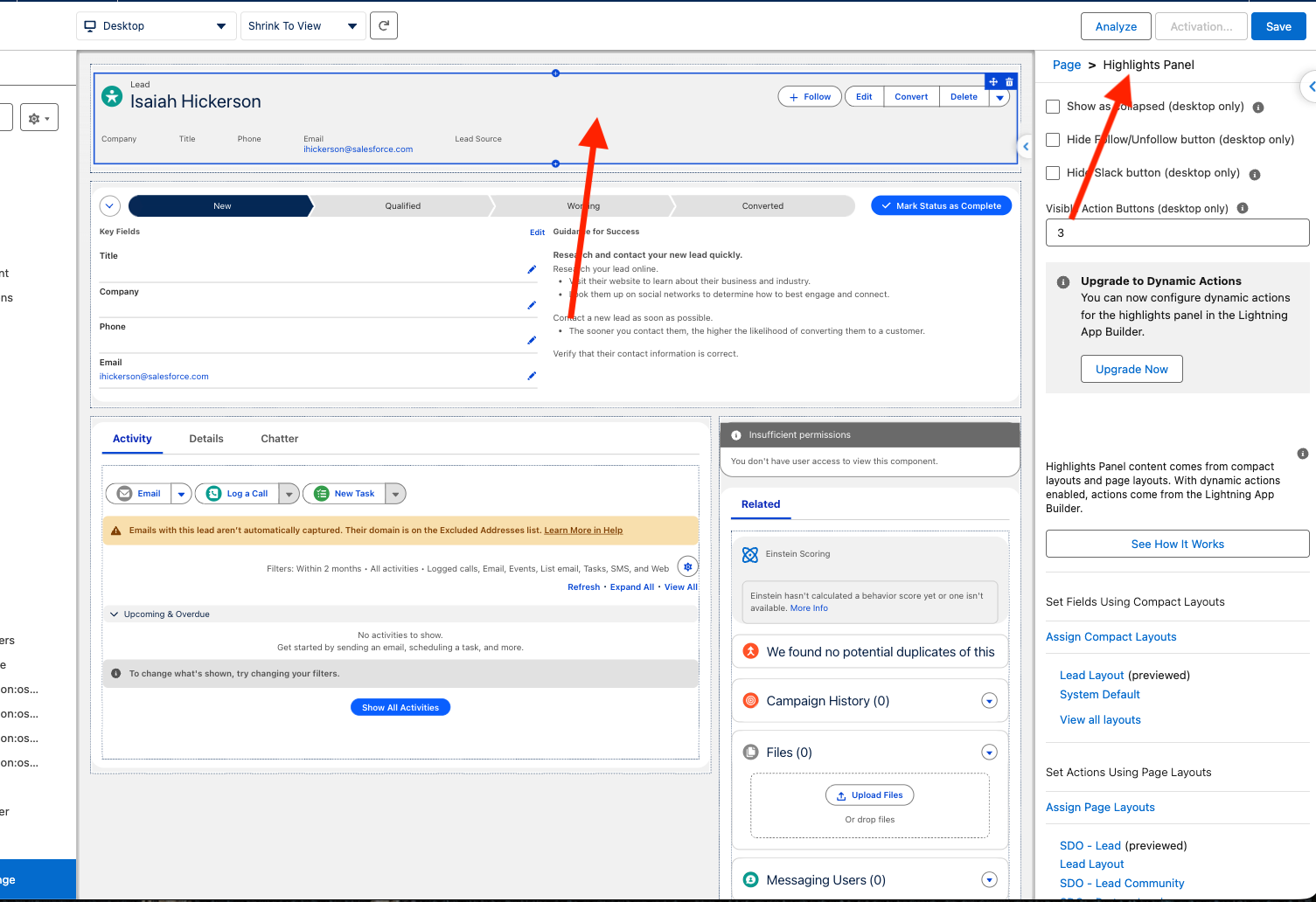
Depending on how your layout is set up, you may have a highlights panel in a different location, but typically it is at top. Click the Highlights Panel. It’ll look like the screenshot below, it usually has your action buttons. On the right side, you’ll know you selected it because it’ll say Page > Highlights Panel .
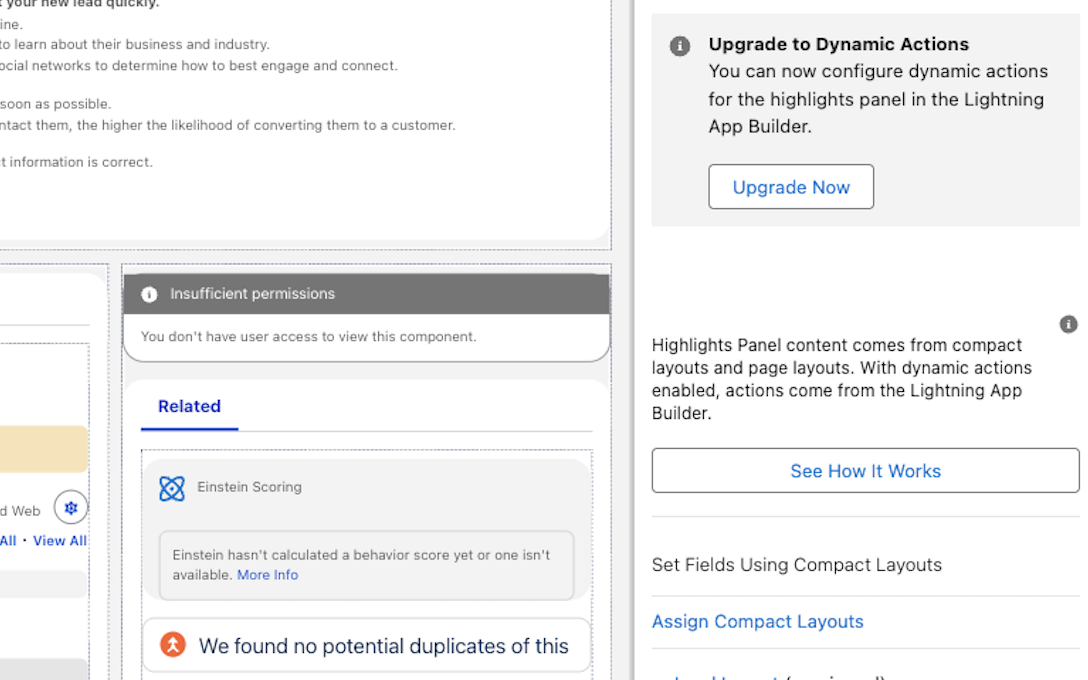
We will want to enable Dynamic Actions to make it easier to add this button, so select the Upgrade Now button on the right side.
You’ll then be asked if you’d like to Migrate your actions from an existing page layout, or start from scratch. This is entirely up to you.
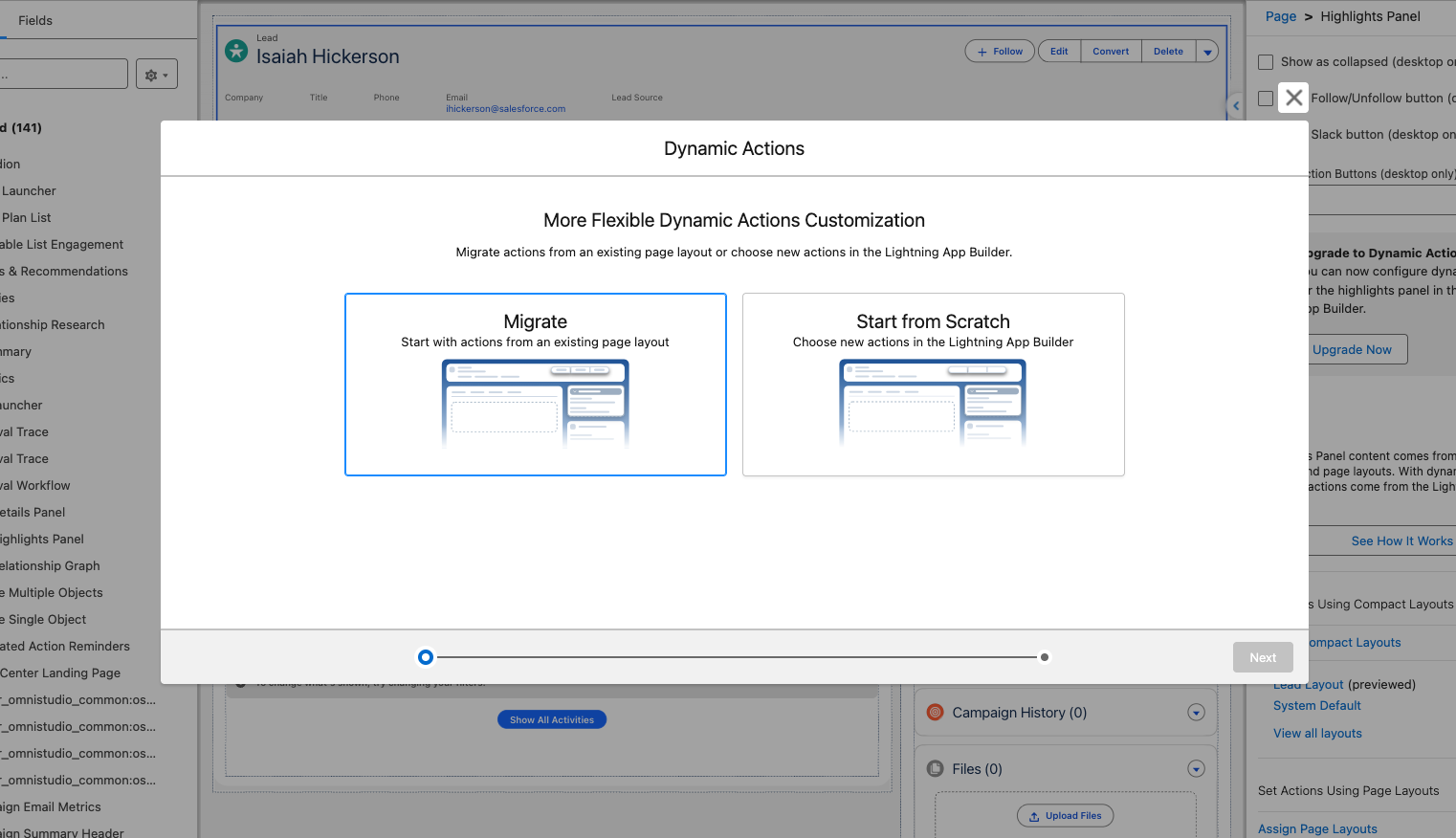
You’ll then need to select the layout name that contains the actions you want to Migrate (if you chose the migrate option).
You should now see a list of actions (if any) on the right side of the Lightning App Builder !
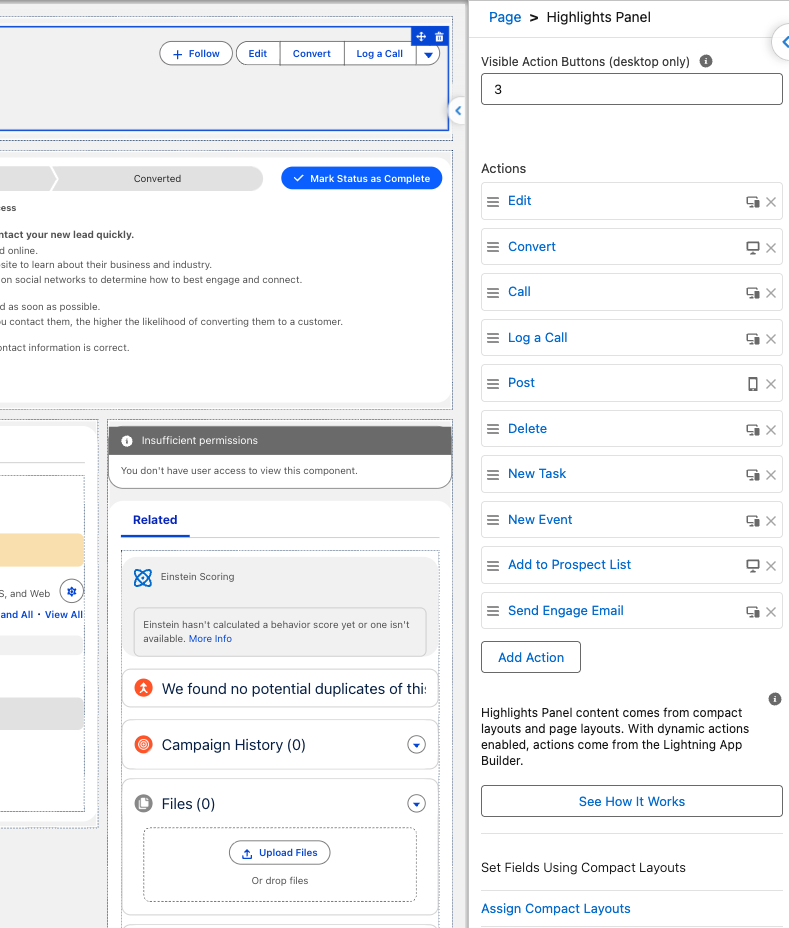
Next, select the Add Action button, and search for the Assign to Agent action.
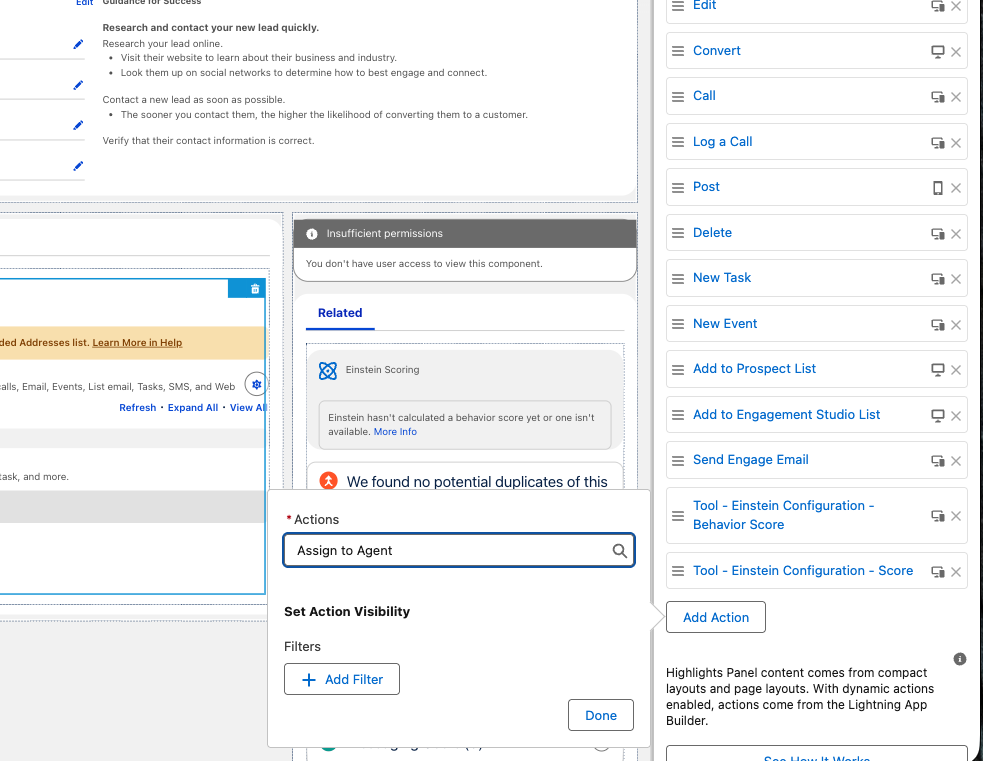
Select Done, then click Save at the top right.
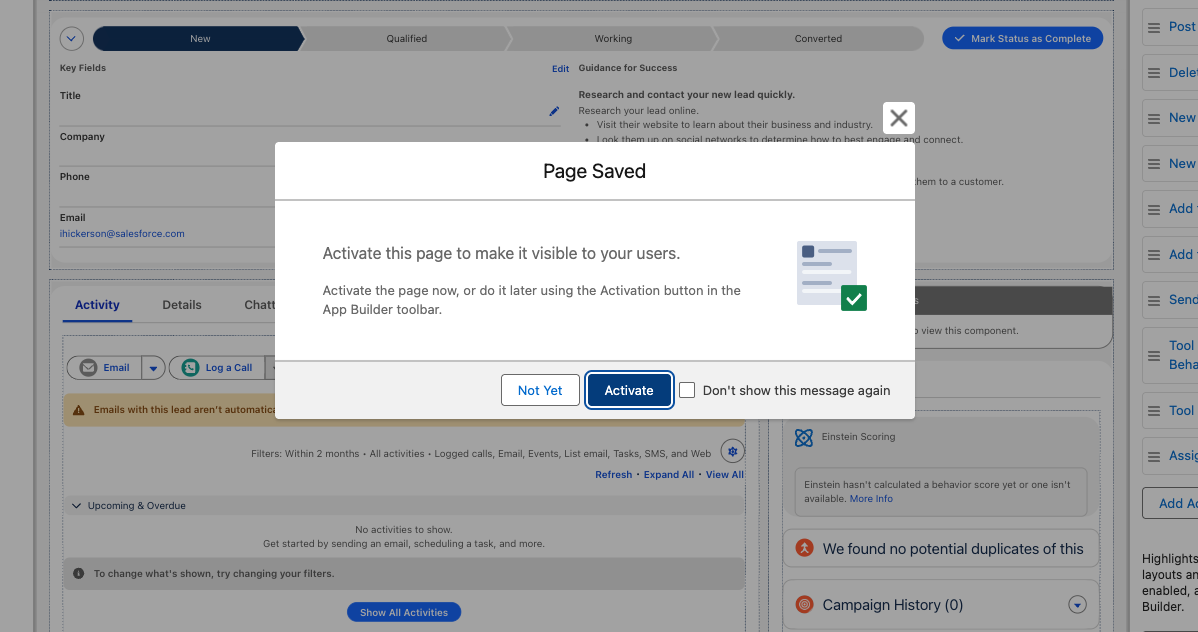
You then might be prompted to activate the page, click Activate. Then assign the page to either Org Default, App Default, or App, Record Type, And Profile . This is dependent on how your business runs.
Step 2: Add Lead to Engagement Agent
- Click the back arrow on the top left to land back on your lead record. Go to a lead you want to add to the Agent (you can use yourself as an example or choose not to do this at all), and you’ll see the Assign to Agent action.
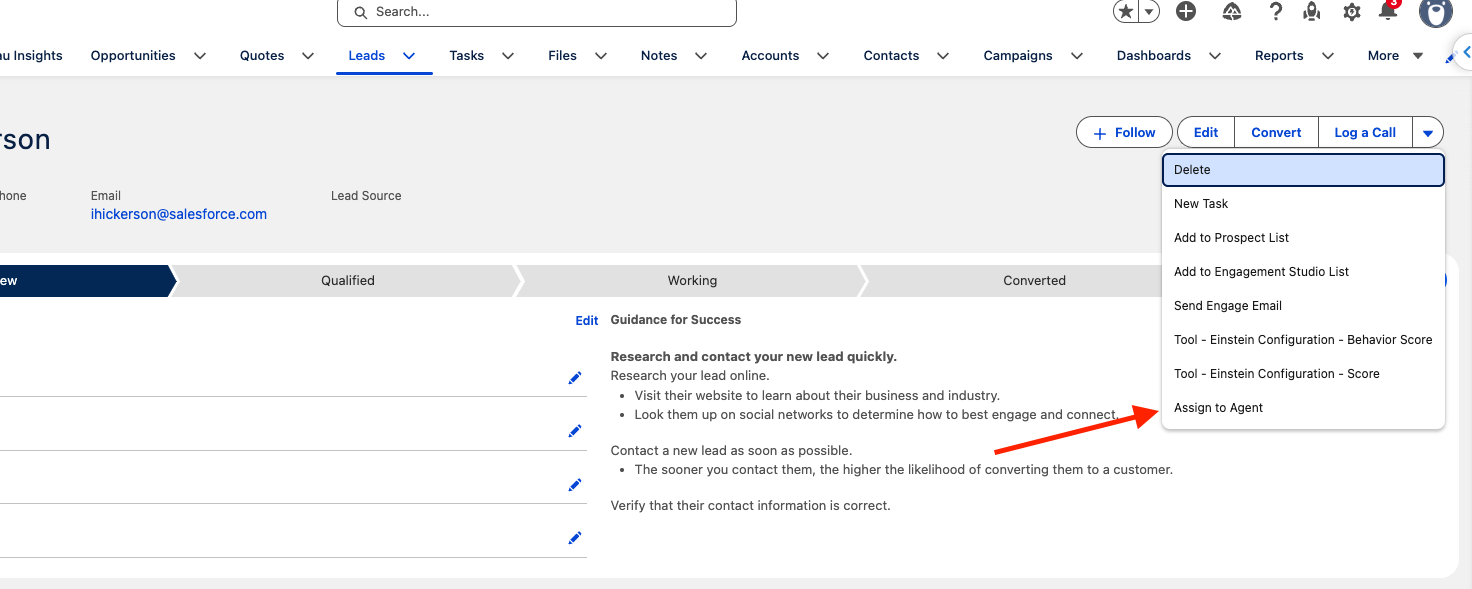
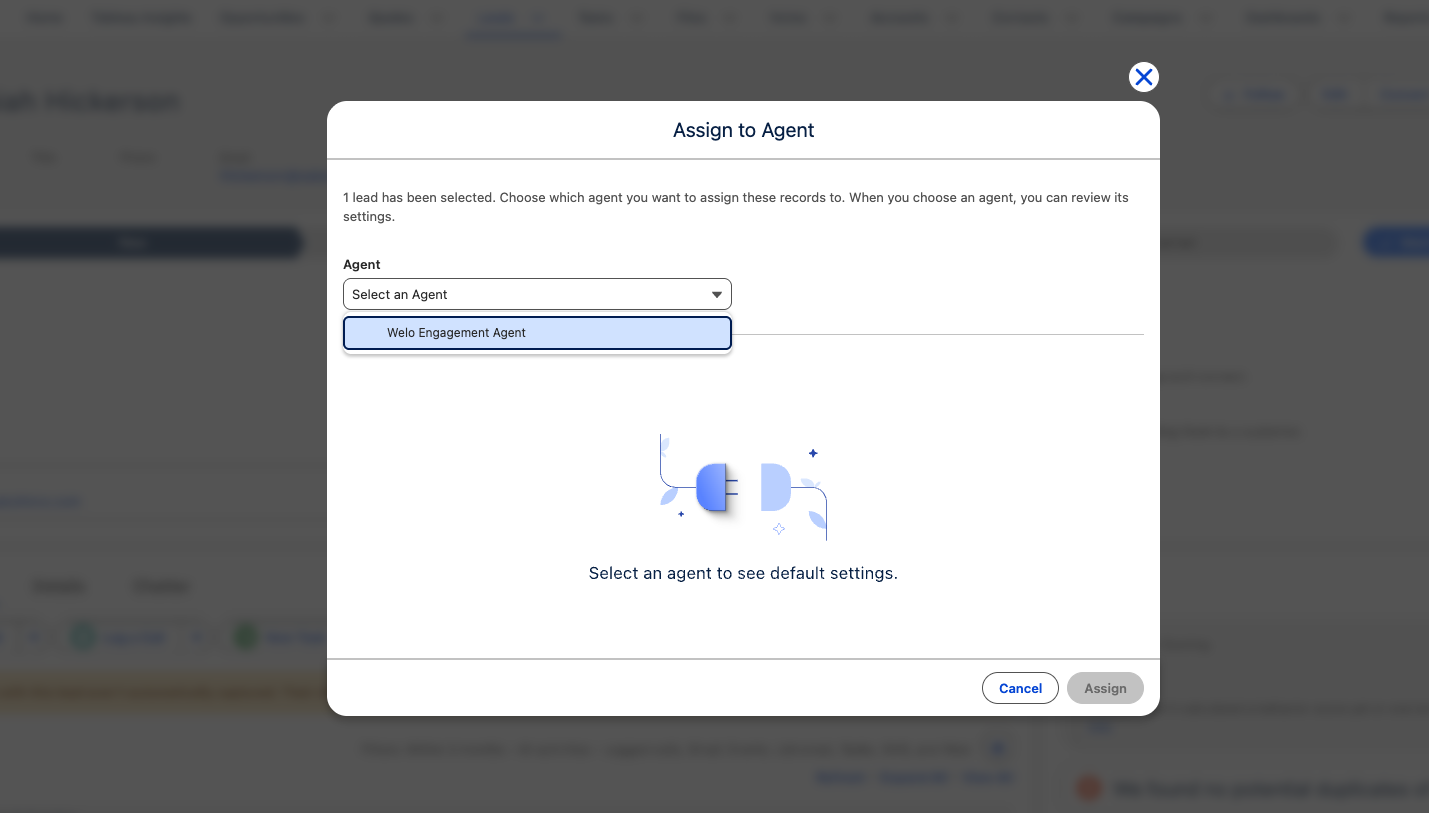
- Click Assign to Agent , then select your Engagement Agent’s name , then click Assign at the bottom right.
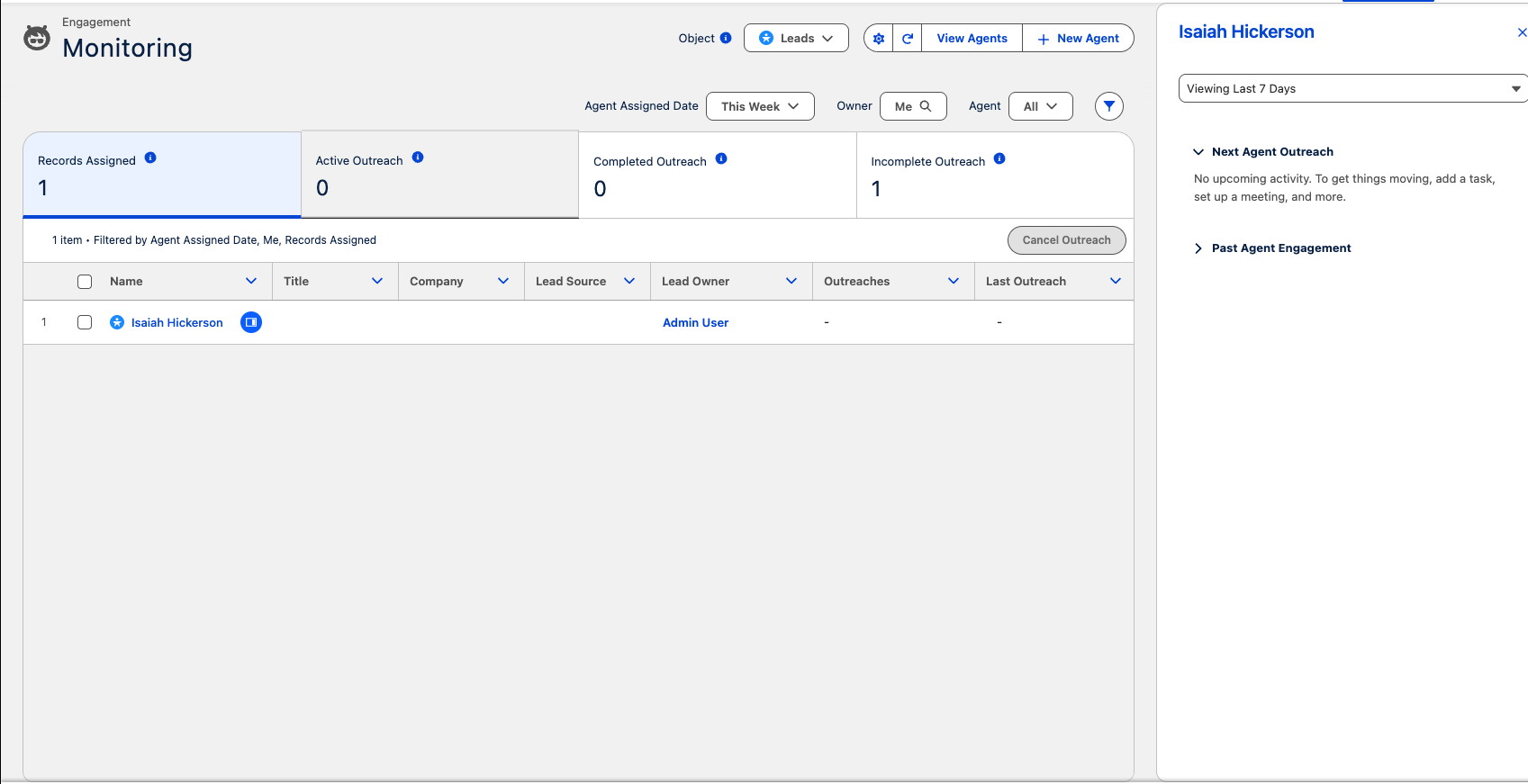
- Your lead is now assigned to the Engagement Agent. You can monitor assignees and view what’s being sent out, cancel the outreach, how many attempts have been made all from the Engagement app. Access this by going to the Engagement app from the App Launcher.