Appearance
Exercise 3 - Engage Customers with Conversational Two-Way Messaging
The goal of this exercise is to set up a flow so that our customers can respond to our emails, and an agent can answer back.
Step 1: Edit our Flow
Within our campaign that is already open, scroll to the very bottom of the campaign, then find and select The Open Flow button under next steps.

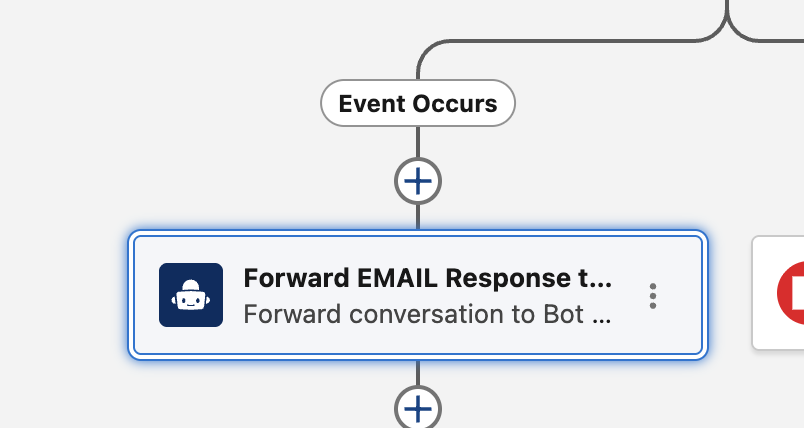
A flow screen will appear with the email template we saw from earlier. Please note you will see a node at the bottom for forwarding email to bot. This shows us that this is a two way messaging campaign.
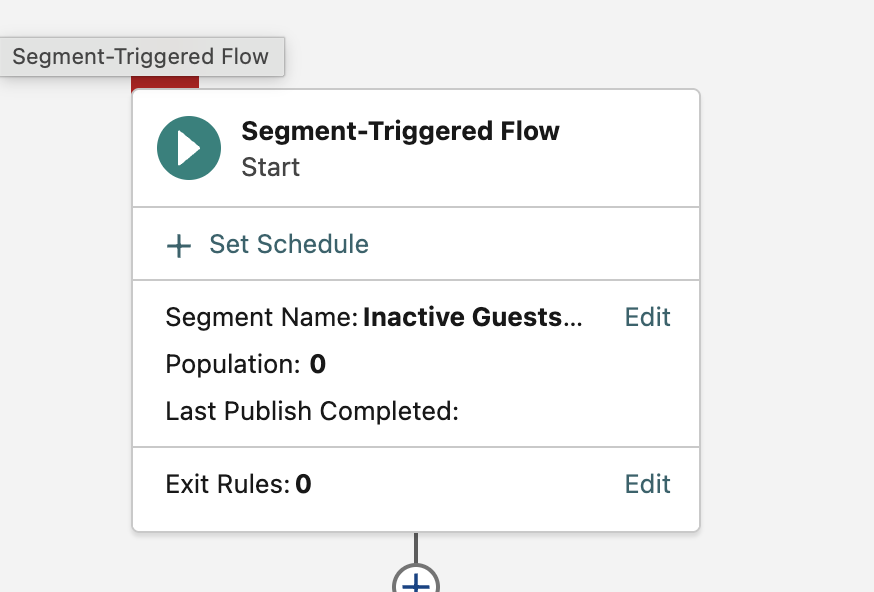
On your flow screen, find and click on the set schedule button right under where it says Segment Triggered Flow.
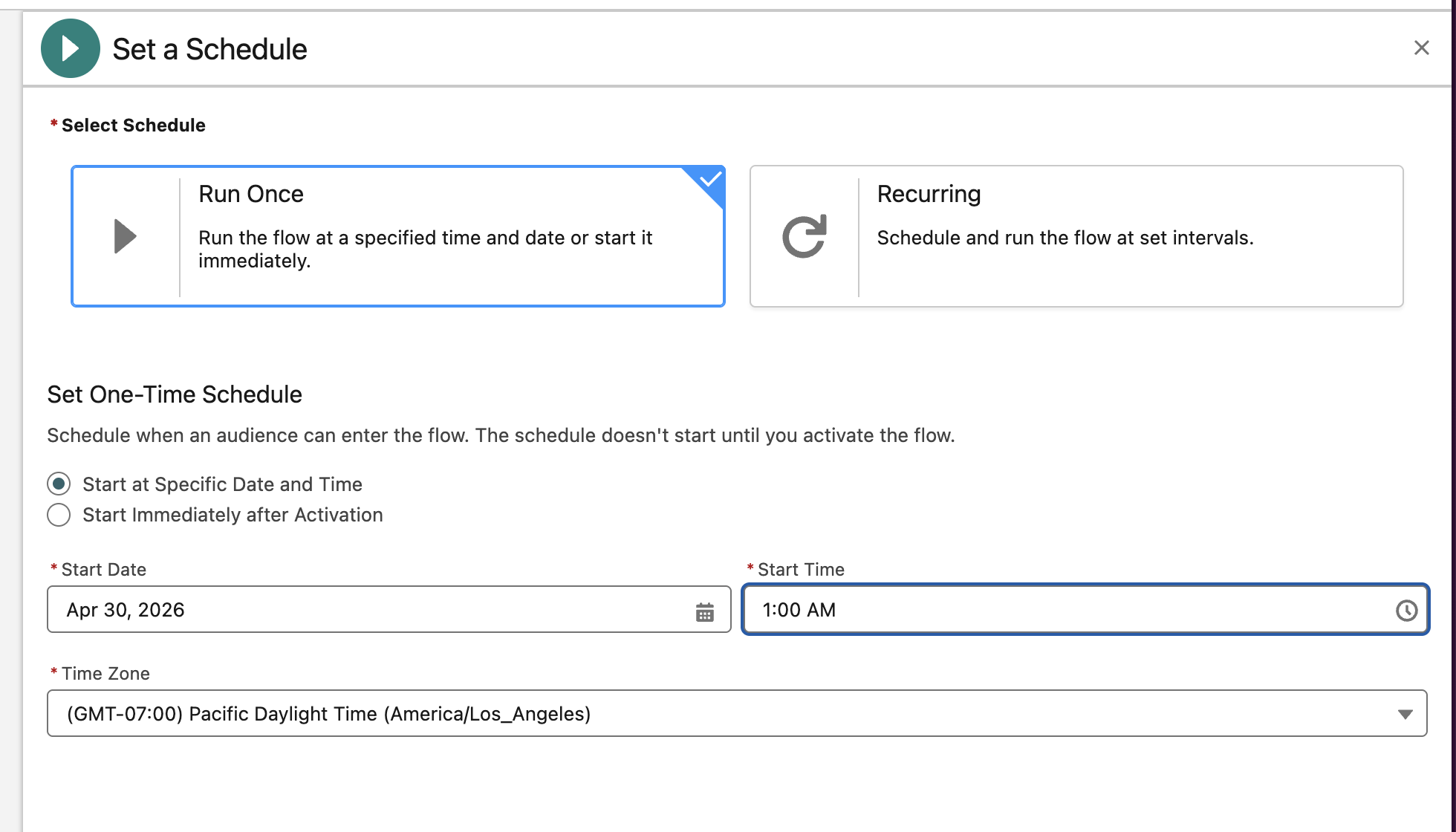
When you click on this, a screen will appear on the right asking you to set a schedule. Select any date and time in the future.
Next click on the email 1 node of our flow. You will see a window appear on the right.
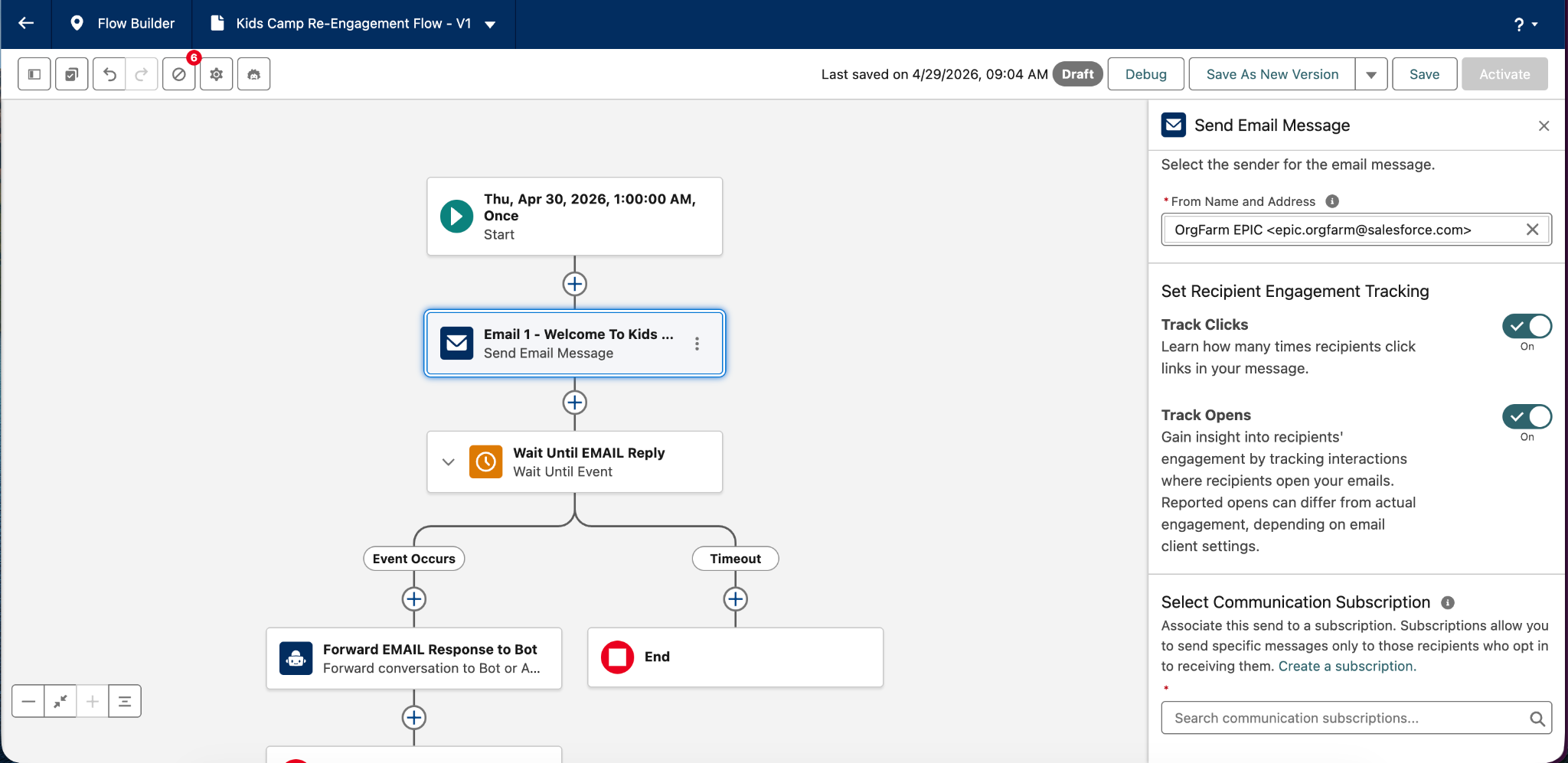
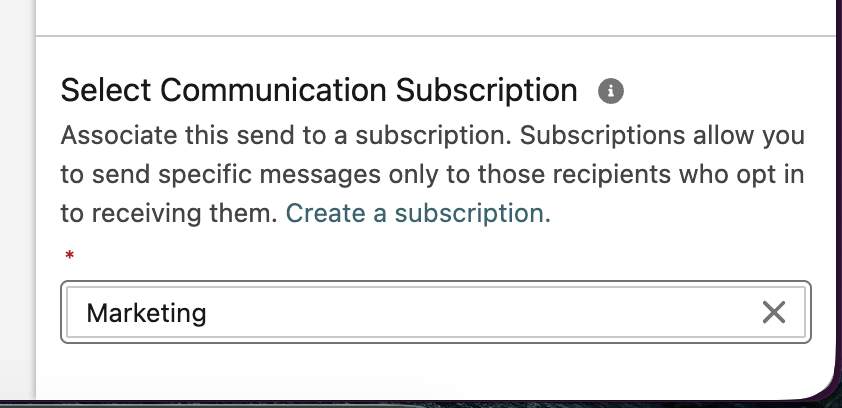
Scroll to the very bottom of the screen that appears to the section that says select communication subscription. Select Marketing from the drop down. Then click on X to clear this window.
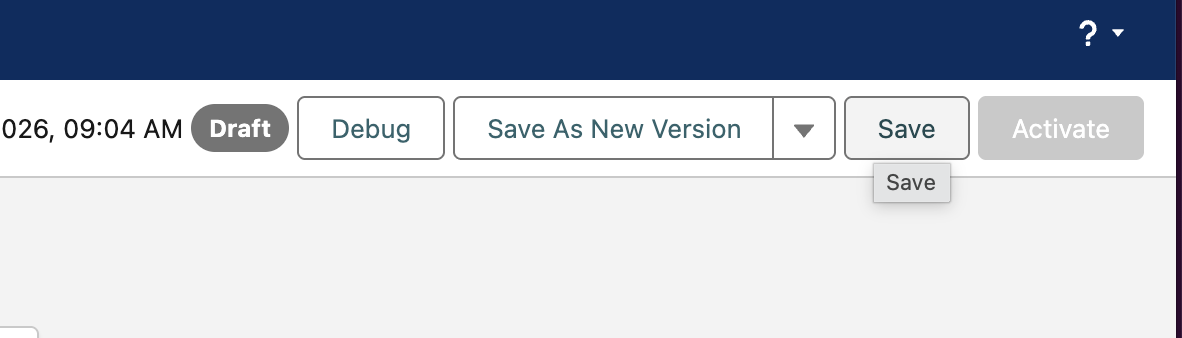
You can click the X in the top right corner to close the Set a Schedule window. Find and click Save in the top right corner. You will now see the error message for no schedule is gone.
The next steps require you to follow along with an on screen demo. Please observe this demo to see 2 way messaging in action after you’ve clicked save.
This concludes Exercise 3.