
Appearance
Exercise 2 - Manipulate Data with Data Transforms
The goal of this exercise is to showcase the power of Data Transforms to manipulate ingested data. Data Transforms are frequently used to analyze data quality, clean data and run calculations for use with the Customer 360 Data Model.
Step 1: Create Data Lake Objects to Store the Transformed Data
We will use the Coral Cloud Guests Data Lake Object as the starting point and will create a transform to properly format guest phone numbers.
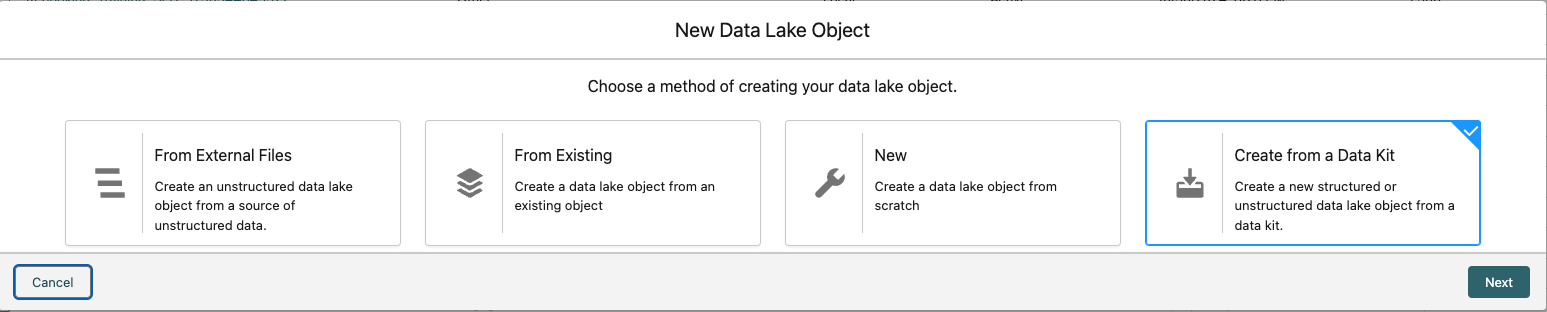
- Navigate to the Data Lake Objects tab and click New. Here, you see a variety of ways to create a New Data Lake Object.
- Select create Create from a Data Kit and click Next.
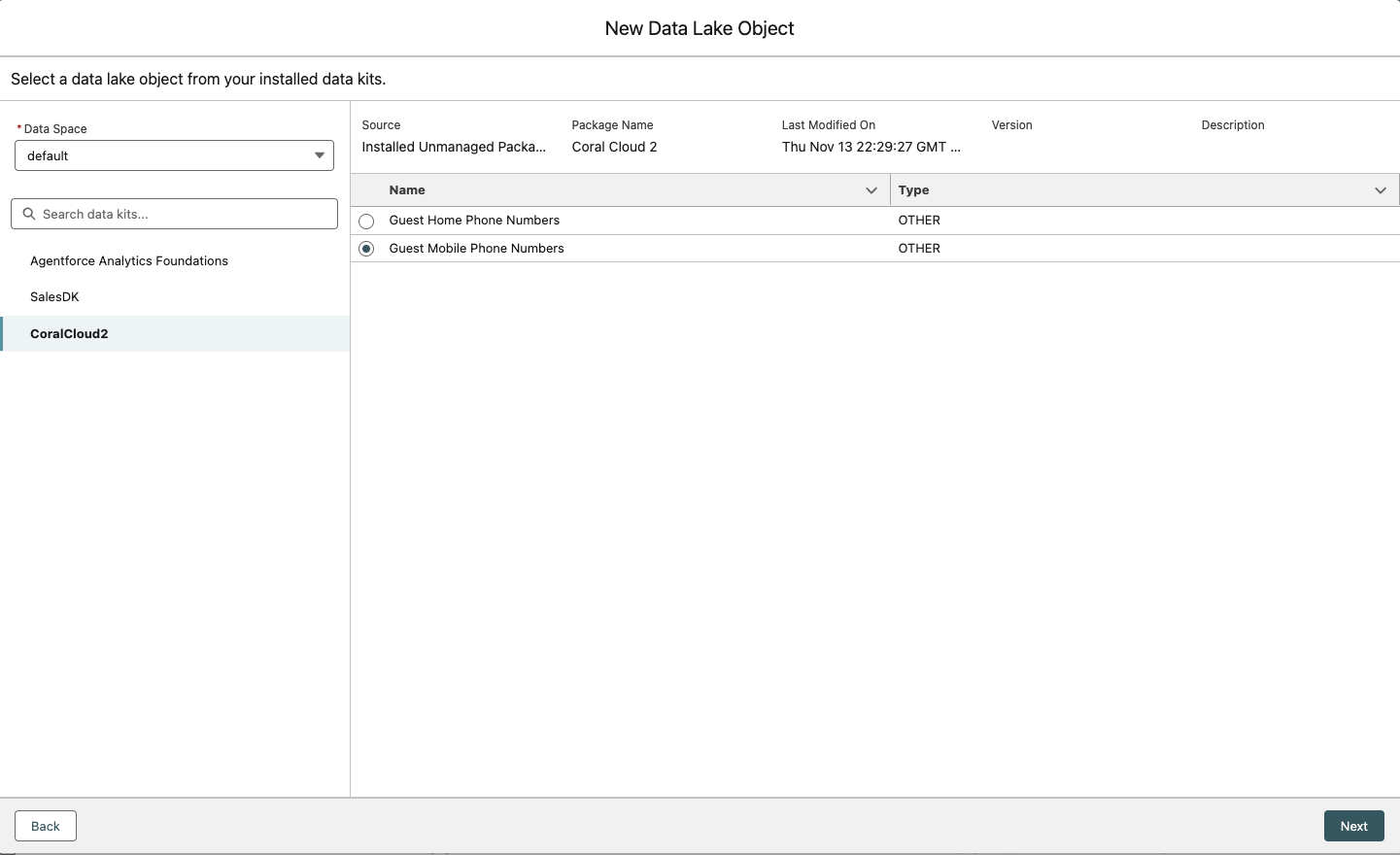
- Leave the Data Space as “default”, click the CoralCloud2 data kit, select Guest Mobile Phone Numbers, and then click Next.
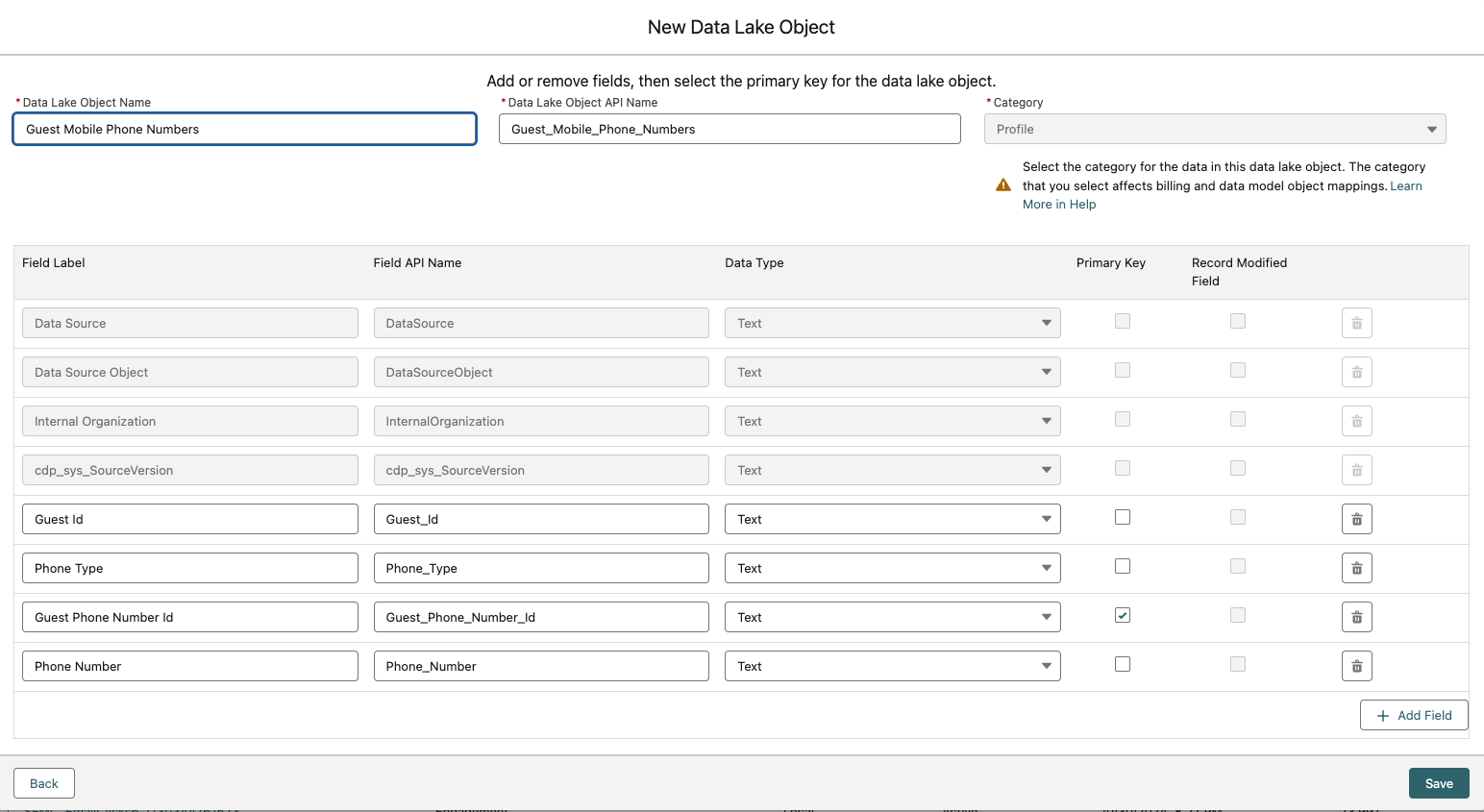
- The Data Lake Object Name should be Guest Mobile Phone Numbers (you may have to remove the word “copy” from the name) and the Category should be Other.
- Set the Data Type of Phone Number to Text.
- Ensure the Primary Key checkbox is selected next to Guest Phone Number Id.
- When your screen matches the example below, click Save.
- Repeat steps 1-7 to create the Guest Home Phone Numbers DLO.
Step 2: Create the Data Transform to Populate Guest Phone Number DLOs
We now need to create the Data Transform that will extract the phone information from the Coral Cloud Guests data lake object and populate the guest phone number data lake objects that we created and added to the Default data space.
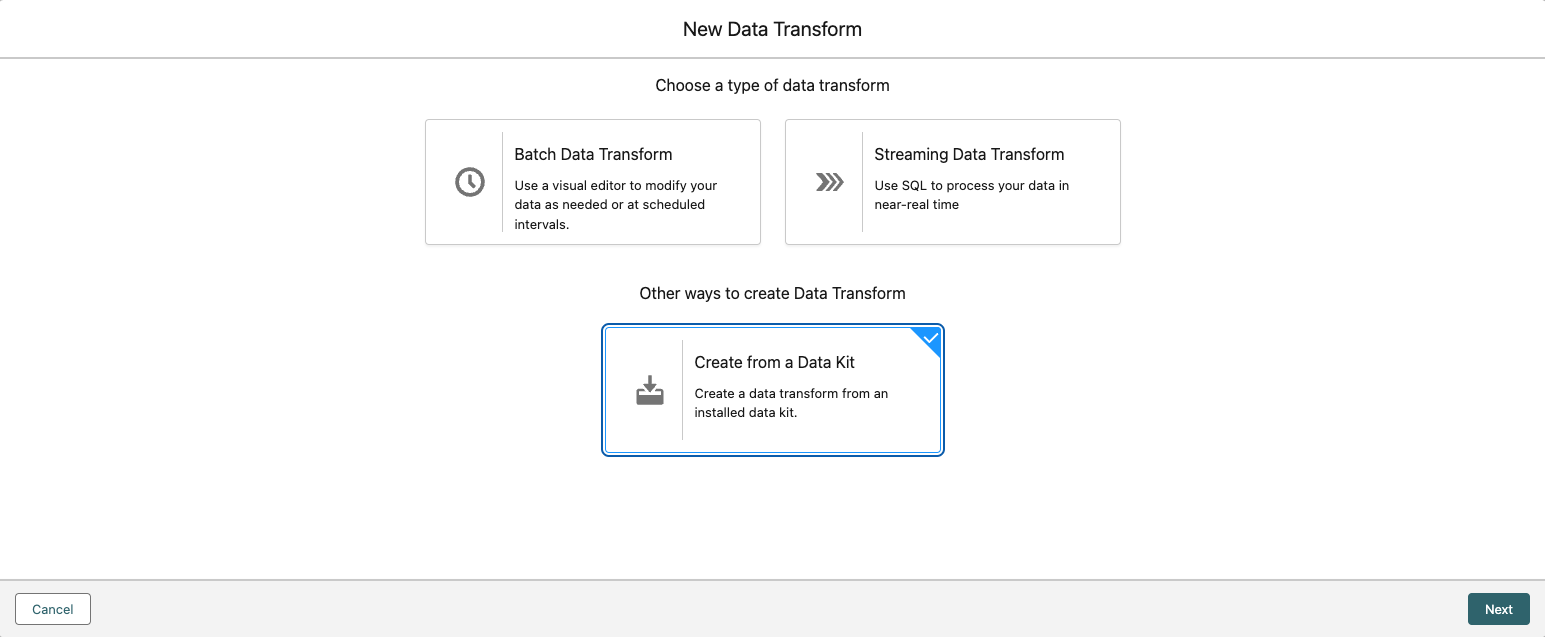
- Navigate to Data Transforms and click New.
- Select Create from a Data Kit and click Next.
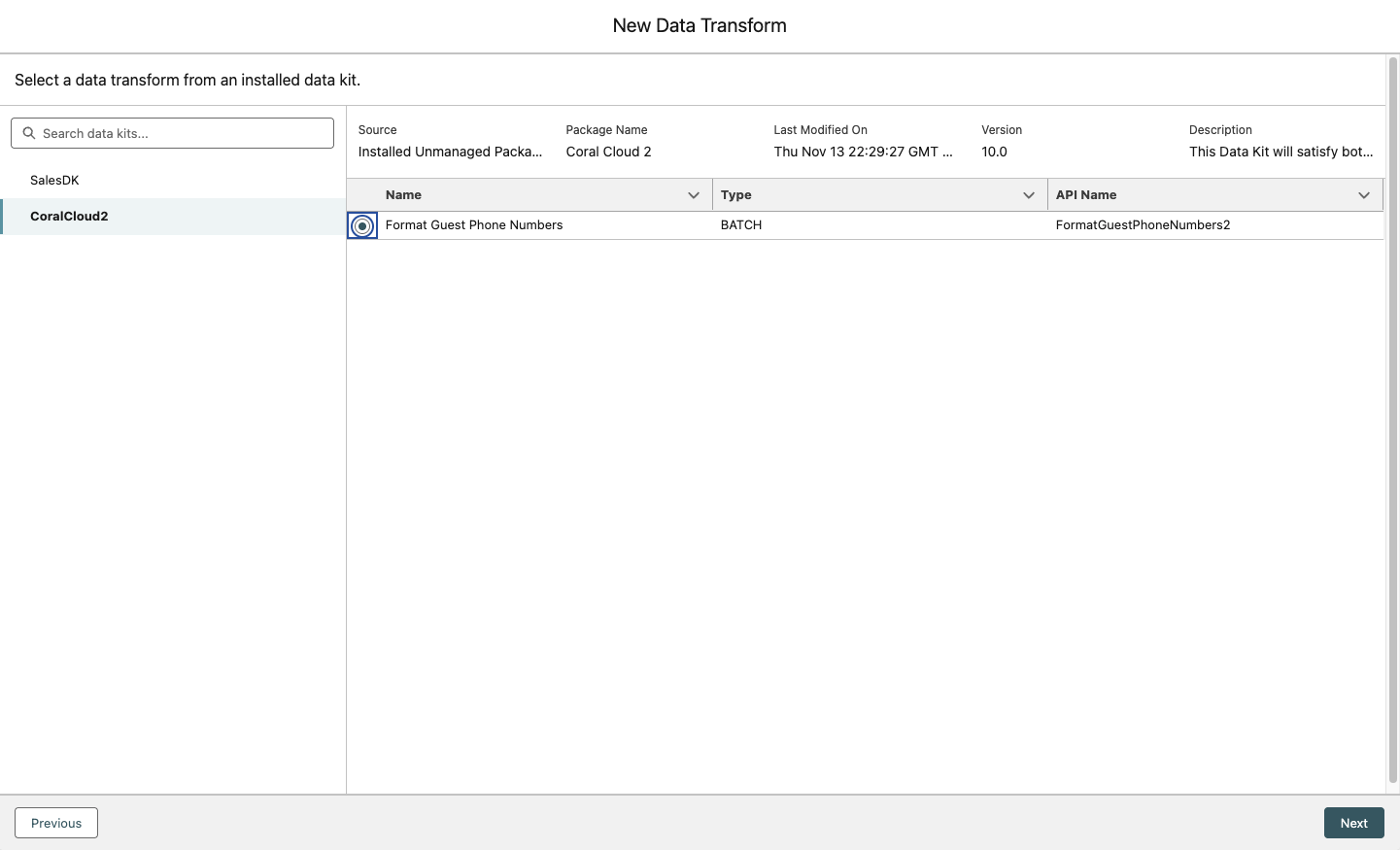
- Click the CoralCloud2 data kit, select Format Guest Phone Numbers, and then click Next.
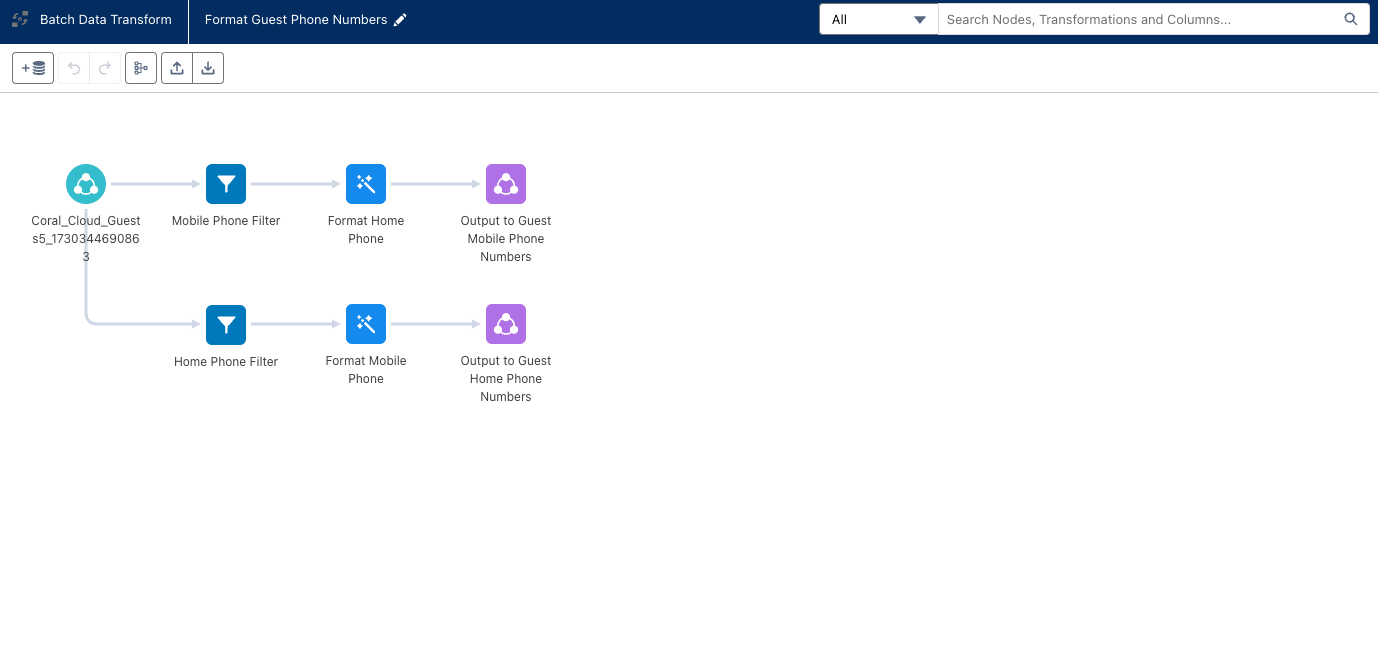
- The Data Transform will install from the Data Kit and load on the canvas as shown below. Data is brought into the transform by connecting the Coral Cloud Guest data lake object. Next, there is a split that checks for a Mobile Phone or a Home Phone.
- Click on the Format Mobile Phone transformation node. There are (4) steps in this transformation:
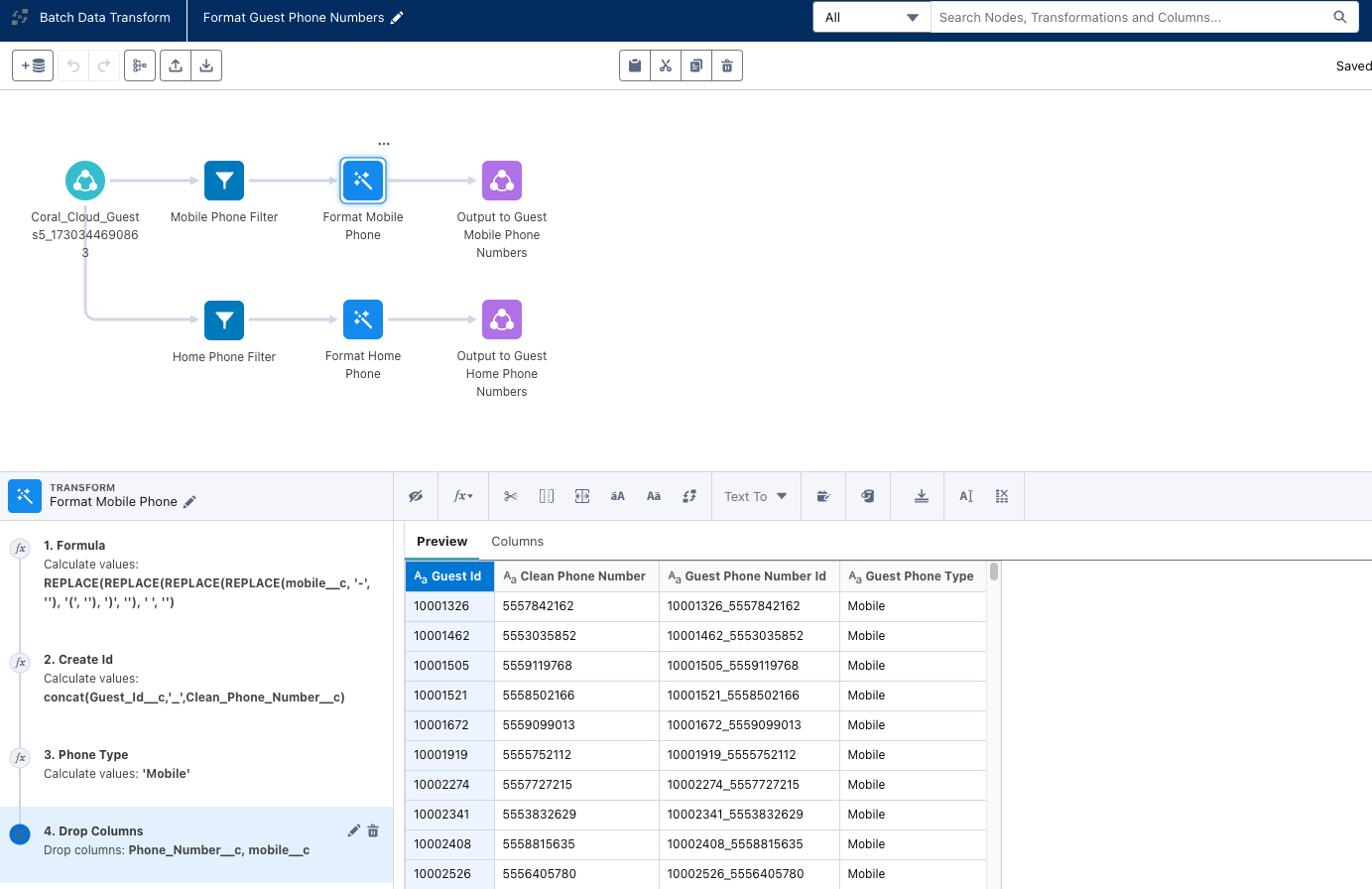
- First, we remove any non-numeric characters from the Mobile column.
- Next, we create a unique value by concatenating Guest Id and Clean Phone Number to create Guest Phone Number Id, which will be used as the primary key.
- We then set the Phone Type to Mobile.
- Lastly, we drop the columns that we no longer need.
- Now, click on the Output to Guest Mobile Phone Numbers output node. We can see that we are outputting (4) columns to the data lake object.
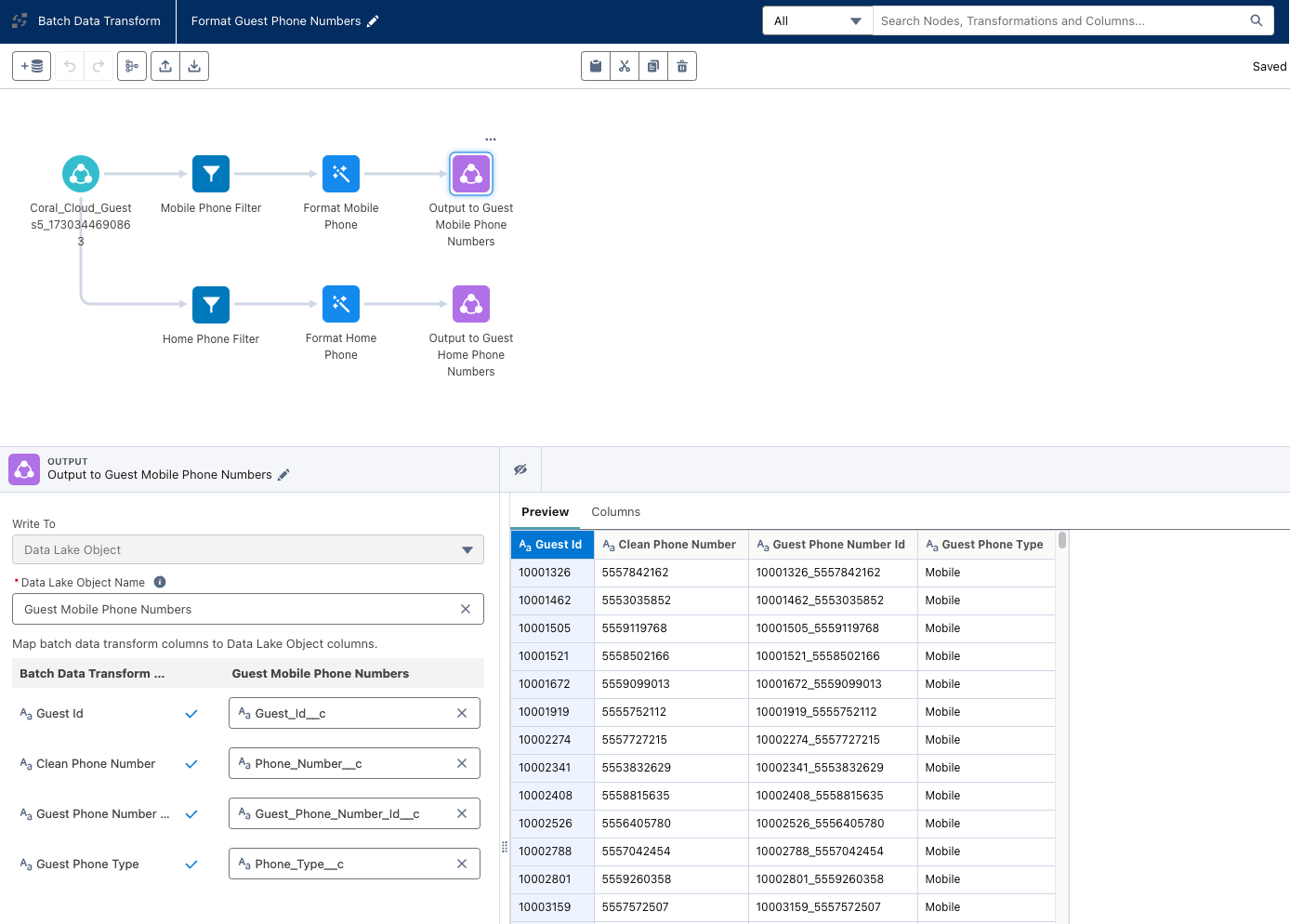
- Go ahead and click Save. Name the Data Transform Format Guest Phone Numbers and then click Save again. If the name is already present, but you’re unable to save, just add a space to the name and then delete that space.
- Click the ← Back to Data Transforms in the upper righthand corner of the screen.
- Click the dropdown arrow to the right of the Data Transform and select Run Now.
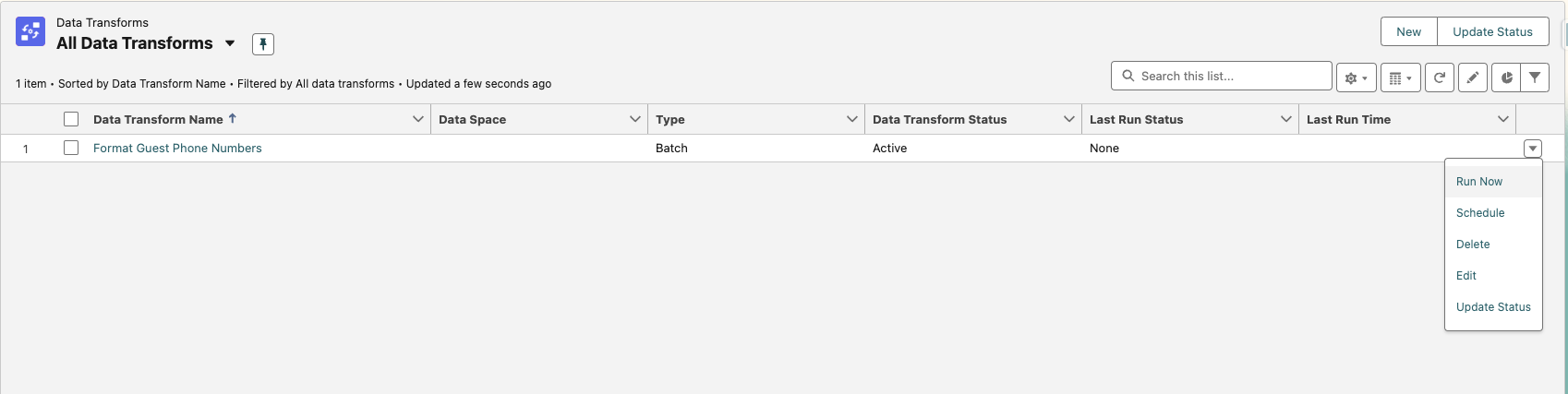
- The Data Transform could take up to 5 minutes to run.
This completes Exercise 2.